
The whole guide
Every chapter on one page, in order, ready to print or save as a PDF.
To save it as a PDF, choose Save as PDF or Microsoft Print to PDF as the printer. Screenshots print in the light appearance.

Rowan User Guide
Rowan for Postgres, for Windows 10 and 11
Copyright © 2026 Jeffrey Frederick. All rights reserved.
tryrowan.app
Chapter 1
Get started
Rowan is a fast, quiet client for PostgreSQL. This chapter covers what you need, how to install Rowan, and a short tour of the window so you know where everything is.
What Rowan is#
Rowan for Postgres is a desktop app for working with PostgreSQL databases. You can browse tables with millions of rows, edit data and structure, write and run SQL, and use tools such as backup and restore, import and export, an ER diagram and a Metrics Board.
Three ideas shape everything in Rowan:
- It never freezes. Every connection runs on its own background thread, so a slow query or a big table never stops the window from responding. You can keep working, or cancel the query, at any time.
- Nothing changes until you commit. Edits to rows and to structure are staged first. You can review the exact SQL Rowan will send, then commit everything in one transaction, or discard it. See How changes are staged.
- Keyboard first. Every command has a shortcut, and you can change any of them. See Keyboard shortcuts.
Rowan works with PostgreSQL only, and it connects to any server you can reach: on your own computer, on your network, in the cloud, or through an SSH tunnel.
System requirements#
| Requirement | Details |
|---|---|
| Windows | Windows 11, or Windows 10. The translucent sidebar needs Windows 11; on Windows 10 the sidebar is a solid color. |
| Processor | A 64-bit (x64) PC. |
| PostgreSQL | Any version the PostgreSQL project still supports. Older servers work too, and backups can read servers as old as PostgreSQL 9.2. |
| Display | Any size and scaling. Rowan draws crisply at 100%, 150% and 200%, and on screens with different scaling. |
Install Rowan#
Rowan is sold through the Microsoft Store, with a free trial.
- Open the Microsoft Store app and search for Rowan for Postgres, or go to tryrowan.app and follow the link to the Store.
- Install the free trial, or buy Rowan.
- Open Rowan from the Start menu.
The trial includes every feature. If you buy Rowan after trying it, your connections, saved queries and settings stay as they were. Updates arrive through the Store.
Your first launch#
When Rowan opens for the first time, you see the welcome window. On the left are Rowan's actions; on the right is your list of connections, which starts empty.
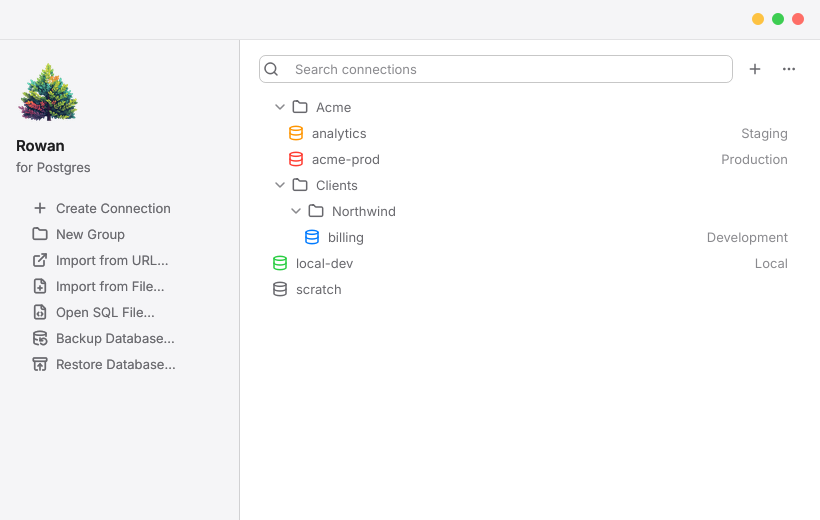
- Choose Create Connection, then fill in your server's host, port, user and database. See Create a connection.
- Choose Test to check the details, then Connect.
- Rowan opens a workspace on that database, ready to browse. Open a table from the sidebar to see its rows.
If you already have a connection URL, such as postgresql://app@db.example.com/shop, choose Import from URL… instead. Rowan fills in the form for you to check. See Connection URLs.
Rowan remembers the windows and tabs you had open. The next time you open it, it reopens your workspaces where you left them. You can turn this off in Settings > General.
A tour of the window#
Each window holds one or more workspaces: one connection and one database each. A workspace looks like this:
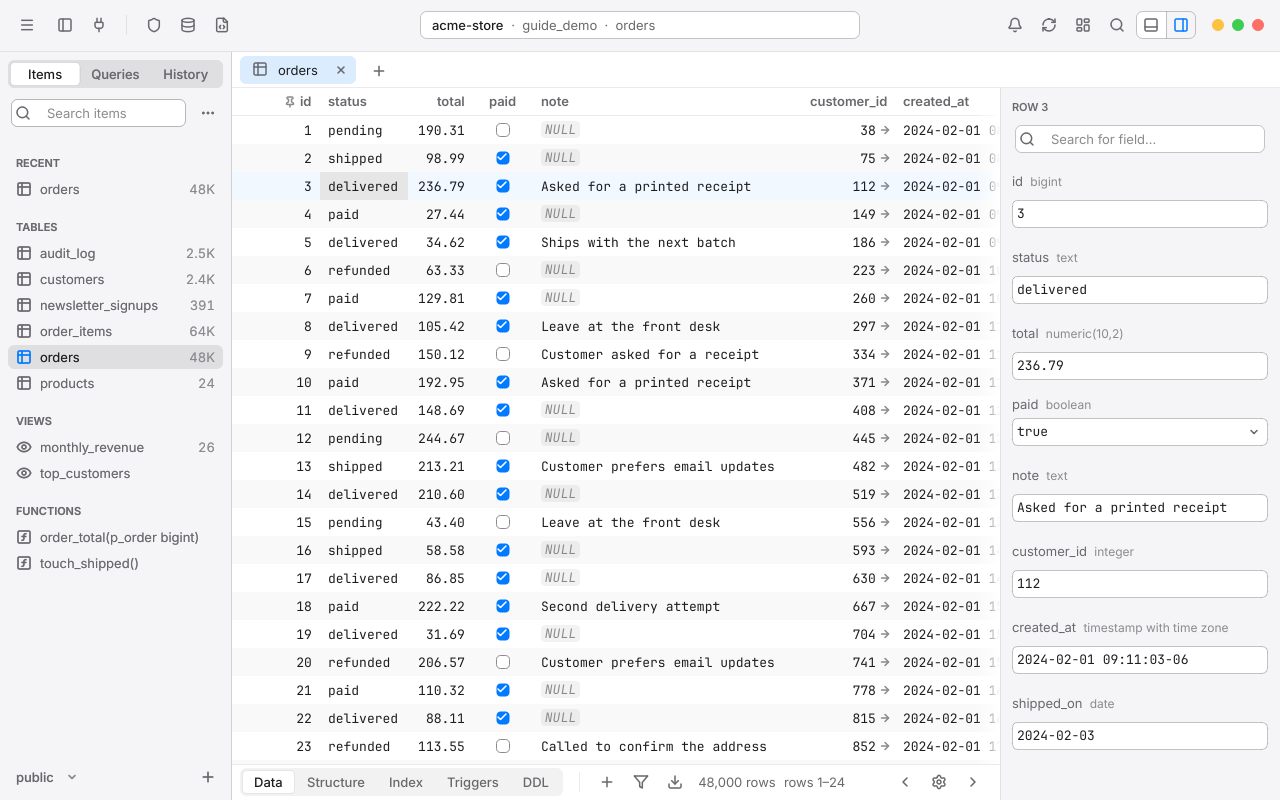
Window controls and the menu#
Rowan's window controls are the three dots at the top right: yellow to minimize, green to maximize, red to close. Hover over them to see their symbols. Hover over the green dot to see Windows 11's snap layouts.
Rowan's menus (File, Edit, View, Tools, Connection, Navigate and Help) are behind the menu button at the far left of the toolbar. You can also press Alt to open them from the keyboard.
Light and dark#
Rowan follows your Windows appearance, light or dark, and changes with it. To choose one yourself, or to pick an accent color, open Settings > Fonts & Colors. Every screenshot in this guide follows the appearance you're reading it in.
Next steps#
- Connections: SSL, SSH tunnels, tags and groups.
- Browse data: sorting, filtering and following foreign keys.
- Write SQL: the editor, results and autocomplete.
- Stay safe: protect a production database from mistakes.
Chapter 2
Connections
A connection is everything Rowan needs to reach a PostgreSQL server: its address, who you sign in as, and how the link is secured. Save one once and open it with a double-click.
The welcome window#
The welcome window lists your saved connections. It opens when Rowan starts with nothing to restore, and whenever you press CtrlShiftK in a workspace.
On the left are Rowan's actions: Create Connection, New Group, Import from URL…, Import from File…, Open SQL File…, Backup Database… and Restore Database…. On the right are the search field and your connections.
- To open a connection, double-click it, or select it and press Enter.
- To open it in a window of its own, right-click it and choose Open in New Window.
- To find one, start typing in Search connections, or press CtrlF first.
- For everything else, right-click a connection: Edit…, Duplicate, Copy as URL, Move to Group, Export This Connection… and Delete.
The + button beside the search field creates a connection. The ⋯ button holds the New, Import Connection, Export Connections and Sort By menus.
Create a connection#
- In the welcome window, choose Create Connection, or click +.
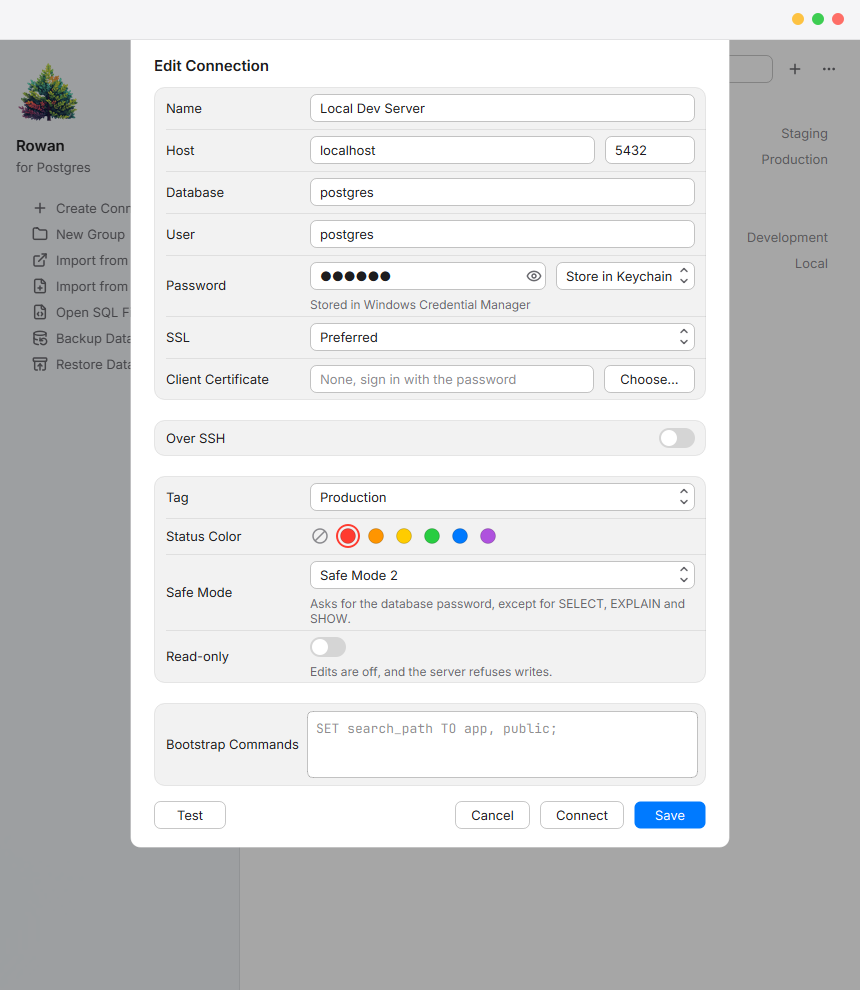
- Fill in the fields described below. Only Host and User are required; Rowan suggests the rest.
- Choose Test. Rowan connects and reports the result in place: a green check with the server's version, or the exact reason it couldn't connect.
- Choose Save to keep the connection, or Connect to save it and open it at once.
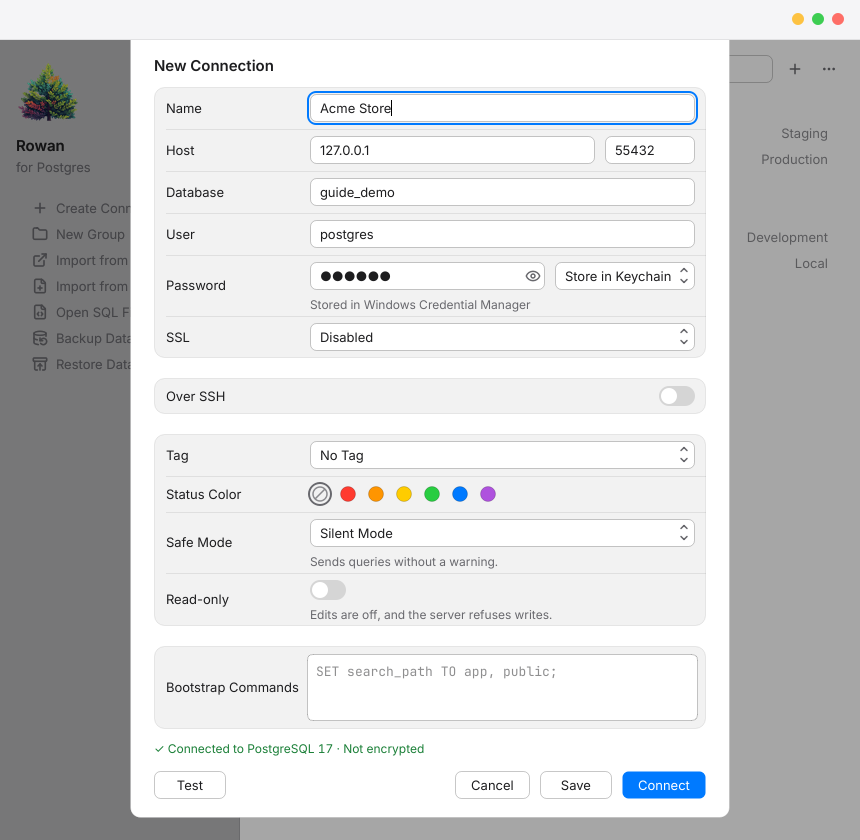

To change a saved connection later, right-click it in the welcome window and choose Edit…. In a workspace, choose Connection > Edit… from the menu.
Passwords and the keychain#
The menu beside the password field decides where the password comes from:
Saved passwords for SSL keys and SSH keys are kept in Windows Credential Manager too, beside the connection's own.
SSL modes and certificates#
SSL encrypts everything between Rowan and the server. Choose a mode from the SSL menu:
| Mode | What it does |
|---|---|
| Disabled | No encryption. Fine for a server on your own computer. |
| Allowed | Tries without encryption first, and uses it if the server insists. |
| Preferred | Uses encryption when the server offers it. The default for a server on your own computer. |
| Required | Always encrypts, but doesn't check who the server is. The default for a server on another computer. |
| Verify CA | Encrypts and checks that the server's certificate was signed by a trusted authority. |
| Verify Full | Also checks that the certificate belongs to the host name you entered. The safest choice. |
For the verify modes, Rowan trusts the usual public certificate authorities. If your server's certificate was signed by your own authority, choose its file in CA Certificate. If the server wants a client certificate, choose it in Client Certificate and its key in Private Key; if the key is encrypted, enter its Key Password. Each field shows its path, with Choose… beside it.
After you connect, the lock in the status pill tells you how the connection is secured. Hover over it to see whether the certificate was verified and the host name checked.
For a server on another computer, Rowan starts at Required, so nothing crosses the network unencrypted. For production servers, use Verify Full.
SSH tunnels#
When a server is only reachable through another machine, such as a bastion host, Rowan can connect through SSH.
- In the connection form, turn on Over SSH.
- Enter the SSH Host and its port (22 unless yours differs), and the SSH User.
- Choose how to sign in with Sign In With:
- Password: enter the SSH Password, and choose whether to store it in the keychain, ask every time, or use no password.
- Key: choose your Private Key, and enter its Passphrase if it has one. Leave the key empty to use your SSH agent or your usual keys.
- Set Host and Port to the database server as the SSH server sees it, often
localhostor a private address. - Choose Test. Rowan reports the SSH step and the PostgreSQL step separately, so you can tell which one failed.
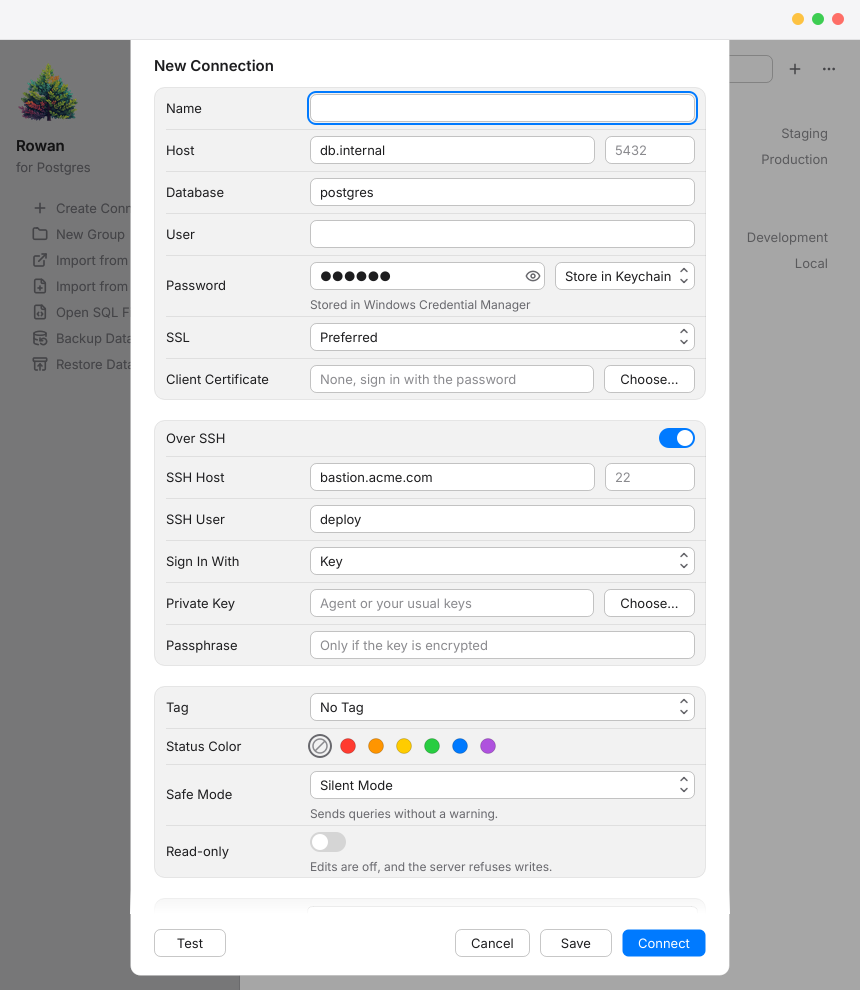
Rowan reads your ~/.ssh/config file, so host aliases, user names, ports and IdentityFile entries there work as they do in a terminal. When you choose Key without picking one, Rowan tries your SSH agent, then the keys in your config, then the usual key files.
Several connections to the same SSH server share one tunnel, and Rowan keeps it alive while you work. With Verify Full over SSH, Rowan still checks the certificate against the database server's real host name.
Host keys#
The first time you connect to an SSH server, Rowan shows its key fingerprint and asks whether to trust it. Compare the fingerprint with the one your server's administrator gave you, then choose Trust and Connect. Rowan saves the key in its own known_hosts file and doesn't ask again.
If a host key changes#
If the server's key is different from the one Rowan saved, Rowan doesn't connect. It shows a warning titled The host key for server has changed, because someone could be listening in on the connection, or the server's key was replaced.
- If the key is in Rowan's own file and your administrator confirms the new fingerprint, choose Replace Key and Connect.
- If the old key is in your own
~/.ssh/known_hosts, Rowan never changes that file. Remove the host's line yourself, for example withssh-keygen -R "bastion.example.com", then connect again.
Never replace a host key you weren't expecting to change. Ask whoever runs the server first.
Tags, colors and groups#
A tag tells you at a glance which kind of server you're on. Each one brings a color and a Safe Mode level:
| Tag | Color | Safe Mode |
|---|---|---|
| Local | Green | Silent |
| Development | Blue | Silent |
| Testing | Purple | Silent |
| Staging | Orange | Alert Mode 2 |
| Production | Red | Safe Mode 2 |
Choose a tag in the connection form's Tag menu; you can still change its color and Safe Mode afterward. To make your own tags, rename them or change their colors, choose Add/Remove Tags… from the same menu. Restore Default Tags brings back the five above.
In a workspace, the tag's color runs as a thin strip under the toolbar, with the tag's name at its right end, and colors the dot in the status pill. See Tags and production colors.
Groups#
- To make a group, choose New Group. Groups can hold other groups.
- To move a connection, drag it onto a group, or right-click it and choose Move to Group.
- Right-click a group for New Connection Here, New Group Inside, Rename Group, Export This Group… and Delete.
- To change the order, click ⋯ and choose Sort By > Recently Used, Name or Tag. Rowan remembers your choice.
Connection URLs#
Rowan reads and writes standard PostgreSQL connection URLs:
postgresql://app_user@db.example.com:5432/shop?sslmode=verify-full- Import from URL… in the welcome window fills in the connection form from a URL, so you can check it before saving.
- Copy as URL, from a connection's menu, puts its URL on the clipboard. Rowan asks whether to include the password; without it, the URL is safe to share.
- From the command line: start Rowan with a URL, such as
Rowan.exe "postgresql://app_user@db.example.com/shop". If it matches a saved connection, Rowan opens that one, with its saved password; otherwise it opens a one-off connection.
Besides the usual parts, Rowan understands a few extra query parameters: name, env (the tag), statusColor, safeModeLevel (0 to 4), readOnly, the SSL settings sslmode, sslrootcert, sslcert and sslkey, and schema and table to open a table straight away. Add column, operation, value and condition to open that table already filtered.
Import and export connections#
To move connections to another PC, or share them with your team, export them to a .rowanconnection file.
- In the welcome window, click ⋯ and choose Export Connections > Export All…. To export one group or connection, right-click it and choose Export This Group… or Export This Connection….
- To include passwords, enter a File password. Passwords are then encrypted in the file with AES-256. Leave it empty to export without passwords.
- Choose where to save the file.
To import, choose Import from File… and pick the file. If it holds passwords, enter the password it was exported with. Without one, Rowan asks for each connection's password the first time you connect.
Certificate and key file paths aren't exported, since they point at files on your own computer. Set them again after importing.
Bootstrap commands#
Bootstrap commands are SQL statements Rowan runs every time the connection opens, before anything else. Use them to set a search path, a role or a time zone for the session:
SET search_path TO app, public;
SET ROLE reporting;
SET TIME ZONE 'Europe/Lisbon';
Enter them in the connection form's Bootstrap Commands field, one per line. If one fails, the connection fails and Rowan tells you which command it was.
Keep-alive and timeouts#
Two options in Settings > General > Connections keep long sessions healthy:
To limit how long the server itself lets a query run, use the statement timeout.
If a connection fails#
When Rowan can't connect, it says why in plain words, both in the form's Test result and in the workspace. The most common messages:
| Message | What to check |
|---|---|
| Nothing answered at host, port 5432. | The host and port, and that the server is running and accepts connections from your network. |
| Couldn't find a server named host. | The spelling of the host name, and your network or VPN. |
| The password for user is wrong. | The password. If it's stored in the keychain, edit the connection and enter it again. |
| There's no database named name on this server. | The Database field. Leave it as postgres to see the server's list. |
| The server doesn't accept this user from this computer (pg_hba.conf). | Ask the server's administrator to allow your user and address. |
| The server doesn't support SSL. | Choose Preferred or Disabled, or turn SSL on at the server. |
| The server has no free connections. | Close idle sessions; see the process list. |
SSH problems have their own messages, and Show Details reveals each step. See SSH errors.
Chapter 3
The workspace
A workspace is one connection and one database. It holds your tabs, two sidebars, the console log and any split panes, and you can keep several open in one window.
The toolbar and status pill#
The toolbar runs across the top of the window. Its buttons, from left to right:

| Button | What it does |
|---|---|
| Menu | Opens Rowan's menus: File, Edit, View, Tools, Connection, Navigate and Help. Alt opens them too. |
| Left sidebar | Shows or hides the left sidebar (Ctrl0). |
| Connection | Opens the connection list, to open another connection as a new workspace (CtrlShiftK). |
| Discard / Preview / Commit | Appears only while you have staged changes. See Commit and discard. |
| Safe Mode | Shows the connection's Safe Mode level, and changes it. See Safe Mode. |
| Database | Opens the list of databases on the server (CtrlK). |
| SQL | Opens a new SQL editor tab (CtrlE). |
| Status pill | The connection, the database and the open item, with the tag's color. While a query runs it shows its progress; after one finishes, how long it took. Click it for connection options. |
| Notifications | Background jobs and server messages. See Background jobs. |
| Reload | Reloads the workspace: the open table and the schema (CtrlR). |
| Metrics | Opens the Metrics Board. |
| Command | Opens Open Anything (CtrlP). |
| Panels | Show or hide the console log and the right sidebar. |
Buttons that don't apply right now are hidden rather than dimmed, so the toolbar stays quiet. Hover over any button to see its name and shortcut.
Customize the toolbar#
Right-click an empty part of the toolbar and choose Customize Toolbar…, or choose View > Customize Toolbar….
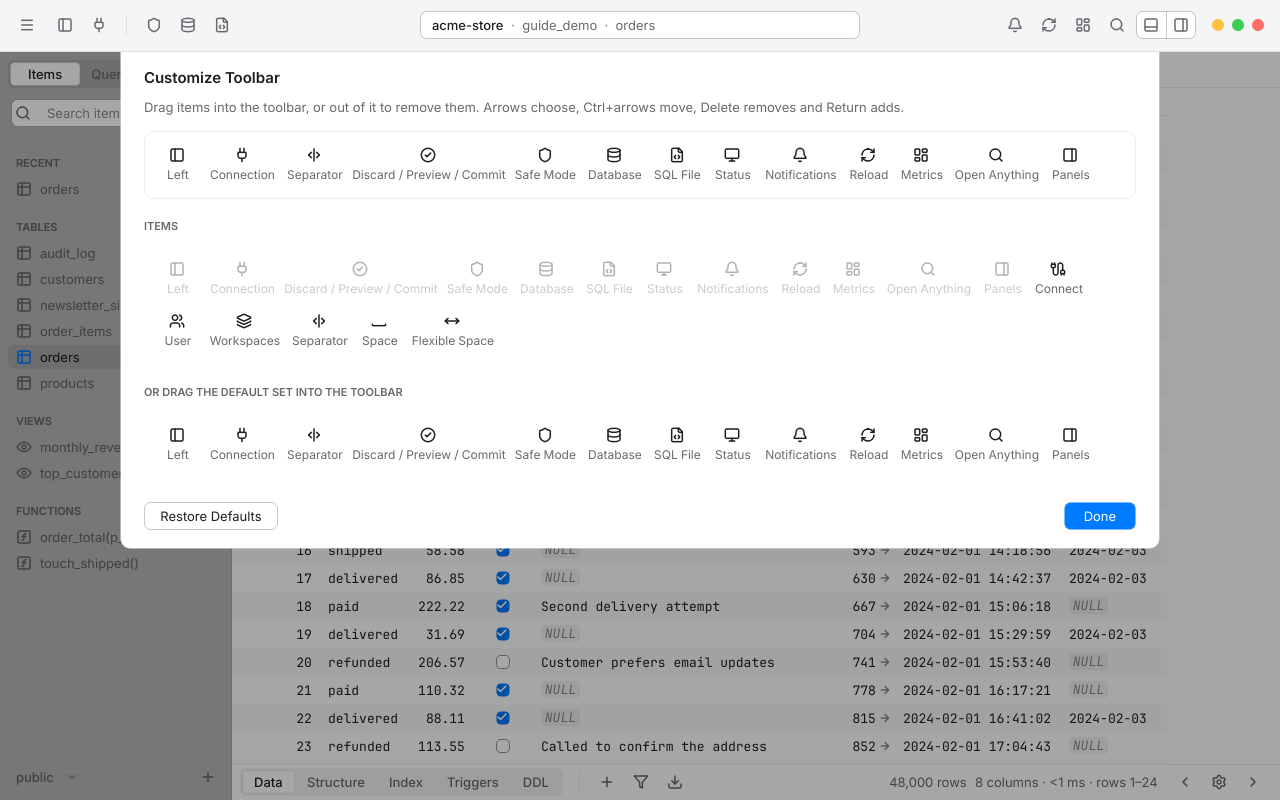
- Drag an item into the bar where you want it; drag a tile along the bar to move it, or off the bar to remove it.
- Besides the standard buttons, you can add Connect (a menu to open a database, a connection or a new window), User (User Management), Workspaces (Show All Workspaces), separators and spaces.
- Items before the status pill sit on the left, items after it on the right.
- From the keyboard: arrows choose a tile, Ctrl with the arrows moves it, Delete removes it, and Enter adds an item at the end.
- To start over, choose Restore Defaults. Every window uses the same arrangement.
Tabs#
Every table, view, function and SQL editor you open gets a tab. Tabs keep their place: a table tab remembers its filter, sort, selected cell and scroll position when you come back to it.

Which tab an item opens in#
- Click an item in the sidebar to open it in the current tab, if that tab is a table, view or function with no staged changes. A tab with changes, or an SQL editor, is never replaced; the item opens in another tab.
- Double-click an item to keep its tab open, so the next click doesn't replace it.
- Right-click an item and choose Open in New Tab to always get a new one.
CtrlT opens a new tab and CtrlE a new SQL editor. In Settings > General you can choose whether CtrlT opens an SQL editor or an empty tab that the next table you open fills.
Move between tabs#
- CtrlTab or Ctrl] for the next tab, Ctrl[ for the previous one.
- Ctrl1 to Ctrl9 to jump to a tab by its position.
- AltLeft and AltRight go back and forward through the items you've opened, like a browser.
- Drag a tab to change the order.
Rename a tab#
Double-click a tab's name, or select it and press F2, or right-click it and choose Rename Tab…. Type the new name and press Enter, or Esc to cancel. Clear the name to go back to the default. Renaming a tab that's linked to a saved query renames the query too.
Close and reopen tabs#
Press CtrlW to close a tab. Closing is never risky: SQL editor tabs are saved as you type, and CtrlShiftT reopens the last tabs you closed, with their text. Rowan asks first only when it matters:
- The tab has staged data changes. You can review them, discard them, or cancel.
- A query is still running in it. You can stop it and close, or cancel.
- The tab is linked to a
.sqlfile with unsaved edits.
Workspaces, the database stack and windows#
Each workspace is one connection and one database. When a window holds two or more, a narrow database stack appears at the far left, with one icon per workspace in its connection's color.
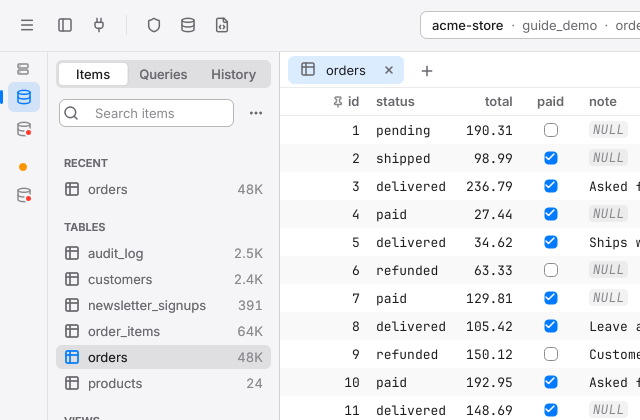
- To open another database on the same server, press CtrlK and double-click it. See Open a database.
- To open another connection, press CtrlShiftK and double-click it.
- To switch, click an icon in the stack, or press CtrlShift] and CtrlShift[.
- To see every workspace at once, press CtrlShift\.
To open a new window, press CtrlN. Right-click a workspace's icon in the stack for Close Connection, Close Other Connections and Move Tab to New Window, which moves the workspace into a window of its own. Hover over an icon to see its connection and database; in Settings you can show the names beside the icons.
Open a database#
Press CtrlK, or click Database in the toolbar, to see the server's databases with a search field.
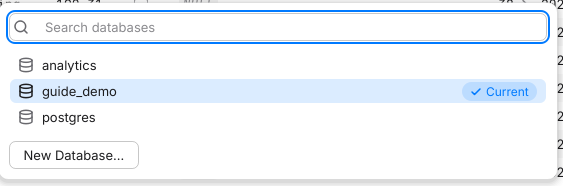
- Type to narrow the list. Double-click a database, or select it and choose Open, to open it in a workspace of its own. Open in Current Tab switches this workspace to it instead.
- New Database… creates one, with a template, encoding and collation.
- Right-click a database for Open in New Tab, Open in Current Tab, Copy Name, Rename… and Drop…. To drop one, you type its name to confirm. The database you're in is marked Current, and can't be renamed or dropped from its own workspace.
The left sidebar#
The left sidebar has three views, chosen at its top. Each has its own search field.
Items#
Items lists what's in the current schema: tables with their row counts, views, materialized views, functions, procedures, sequences and types. Above them are Recent (the last five items you opened) and Pinned items.
- To change schema, use the schema menu at the bottom of the sidebar. It also has New Schema…, Rename and Delete.
- To pin an item to the top, right-click it and choose Pin to Top.
- To group items your own way, right-click an item and choose Move to Group > New Group. Groups are kept on your computer and change nothing on the server.
- Click Tables, Views or Functions to see an overview of them all, with kind, row estimate, size and comment.
- The ⋯ menu has the Matching Strategy (fuzzy or contains), which sections to show, Load System Schemas, and Show Columns to list each table's columns under it.
- The + at the bottom creates tables, views, functions, schemas and item groups. See Create a table.
Press CtrlShiftF to search the sidebar, and Space to open the selected item.
Queries#
Queries holds your saved queries, in folders. See Saved queries.
History#
History lists every statement you've run, newest first, with when it ran. See Query history.
The right sidebar#
The right sidebar shows the selected row, one field per line, with each column's type. Press Space in the grid, or click its button in the toolbar, to show or hide it.
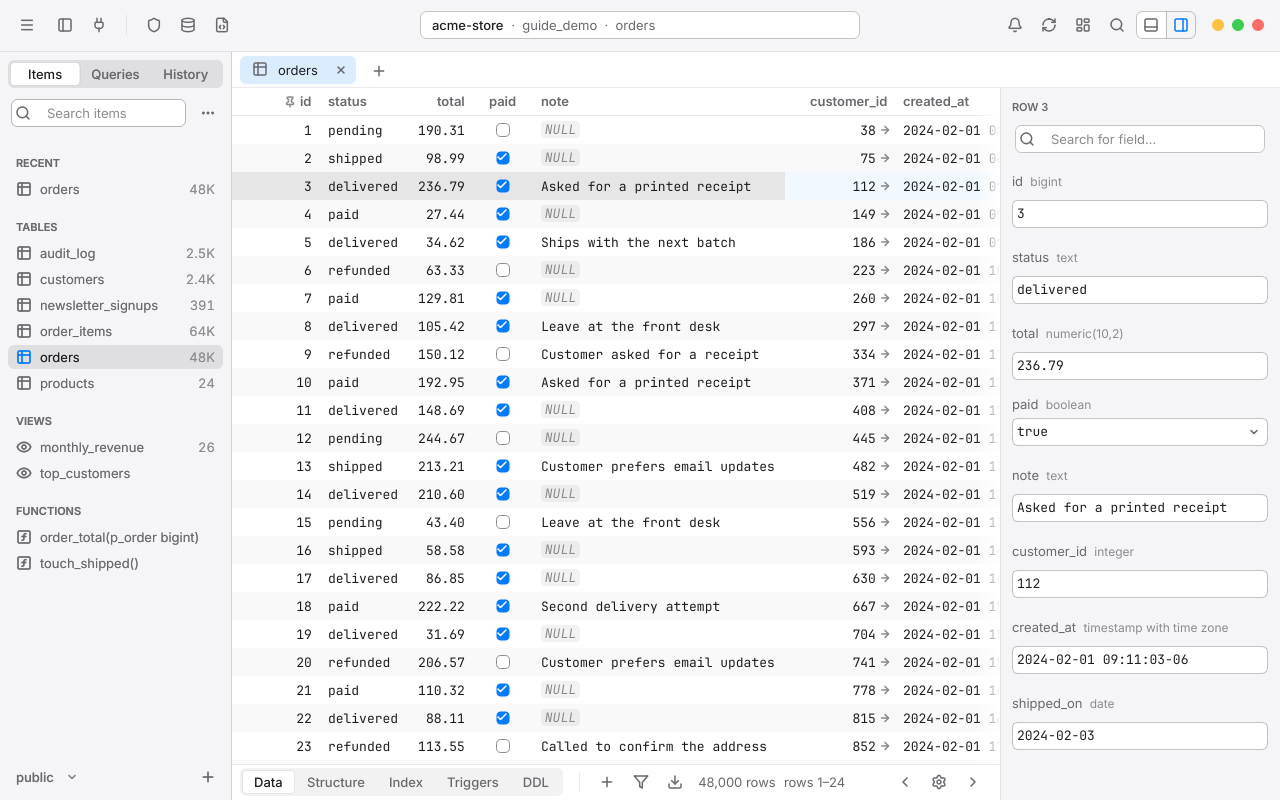
In the Structure view, the right sidebar shows the selected column instead. See Row detail for editing and searching fields.
The bottom bar#
Every table tab has a bar at the bottom of the grid:

- Data, Structure, Index, Triggers and DDL switch views. CtrlAlt[ and CtrlAlt] switch between Data and Structure.
- + adds a row (or a column, in Structure), the funnel opens the filter bar, and the arrow exports.
- The row count, the rows in view, and the paging controls: previous page, the gear for Limit and Offset, and next page.
In a narrow pane, the bar folds its less-used items into a ⋯ menu.
The console log#
The console log shows every statement Rowan sends to the server, with the time: the pages of rows you browse, catalog queries, your own SQL and commits. Press CtrlAltC to show or hide it.
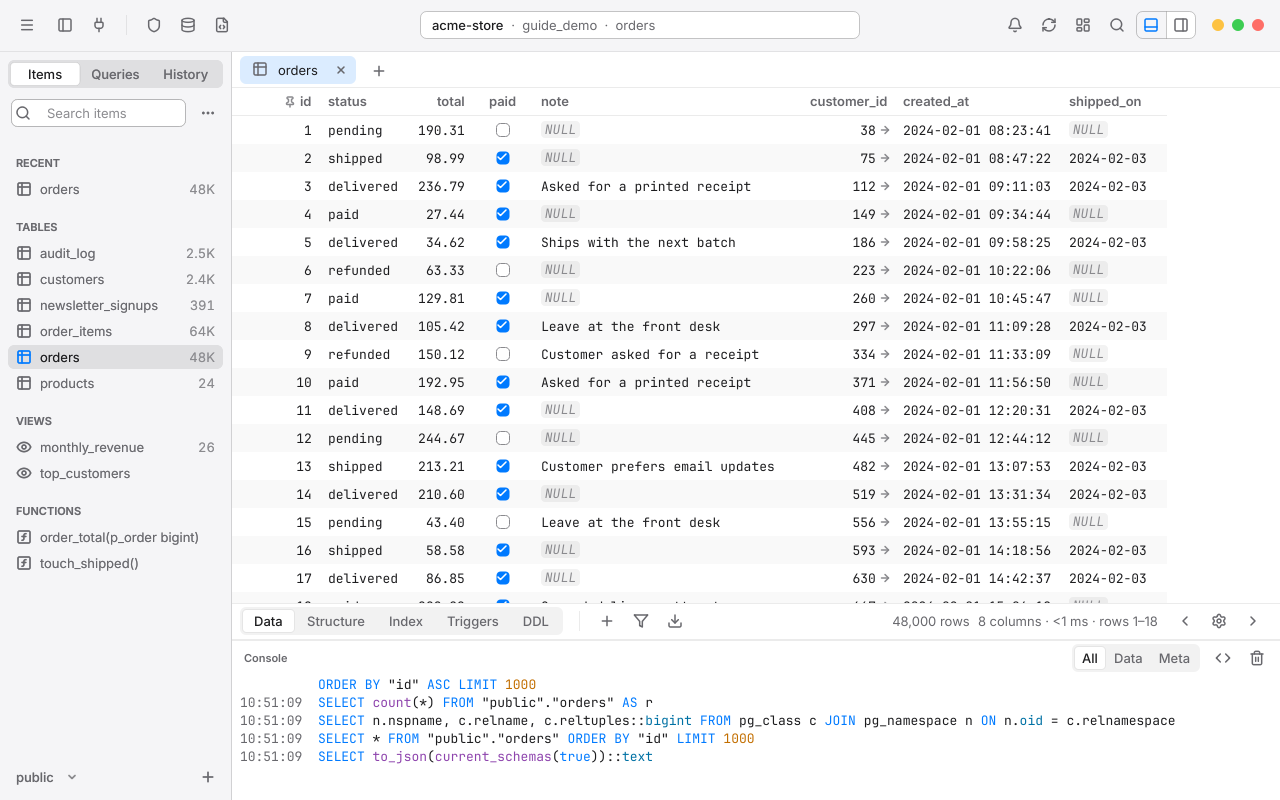
- Data shows the statements that read or change your data; Meta shows the ones Rowan uses to read the schema; All shows both.
- The <> button turns syntax highlighting on or off, and the trash button clears the log.
Open Anything#
Press CtrlP to open any table, view, function, schema, database, saved query or command by typing a few letters of its name.
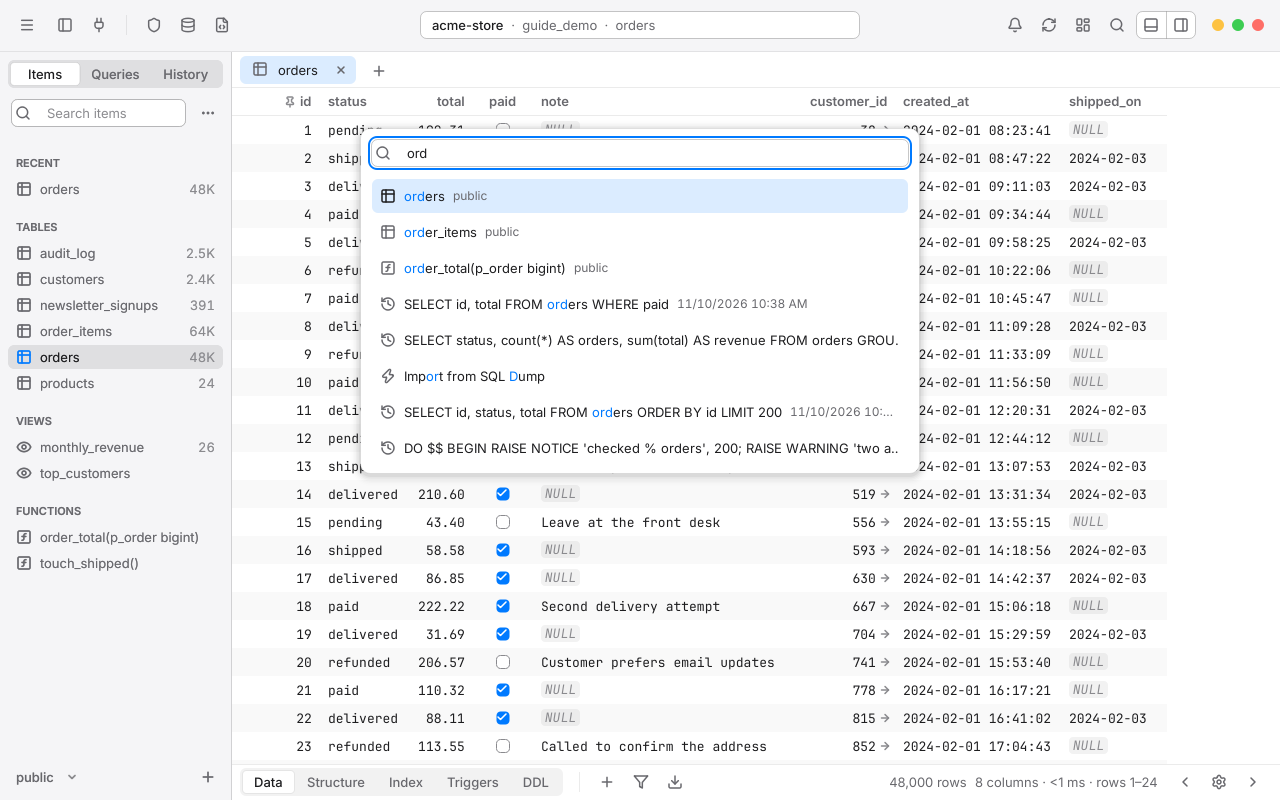
- Press CtrlP, or click Command in the toolbar.
- Type part of a name. Letters don't need to be next to each other:
orditfindsorder_items. - Use the arrow keys to choose, then press Enter. Press Esc to close it.
With nothing typed, Open Anything lists Rowan's tools and features, such as Show Diagram, Metrics Board, Import from CSV and Backup.
Split panes#
Split the workspace to see two things side by side: a table beside an SQL editor, or two tables at once.
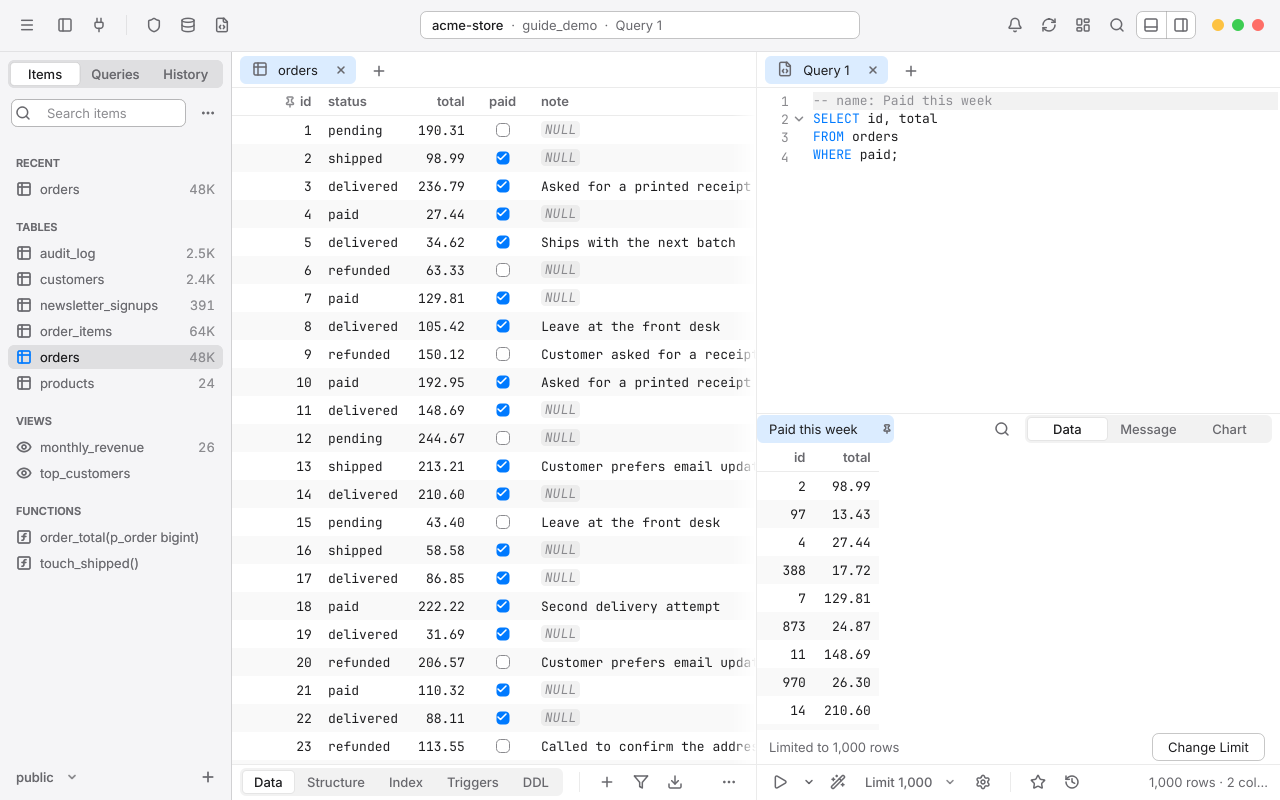
- Split Pane Right (CtrlShiftD) and Split Pane Down, from the menu or the editor's right-click menu, split the focused pane. A pane can be split again.
- Each pane has its own tabs, and its own grid, filters and Structure view. A table in a split pane uses a connection of its own, so paging one never waits for the other.
- CtrlAlt] and CtrlAlt[ move between panes. The focused pane is the one the toolbar, the right sidebar and table shortcuts act on.
- To move a tab to another pane, drag it to that pane's tab strip, or right-click it and choose Move to Next Pane. Drop a tab on the right or bottom of an editor to split there.
- Close Pane moves its tabs back to the main pane.
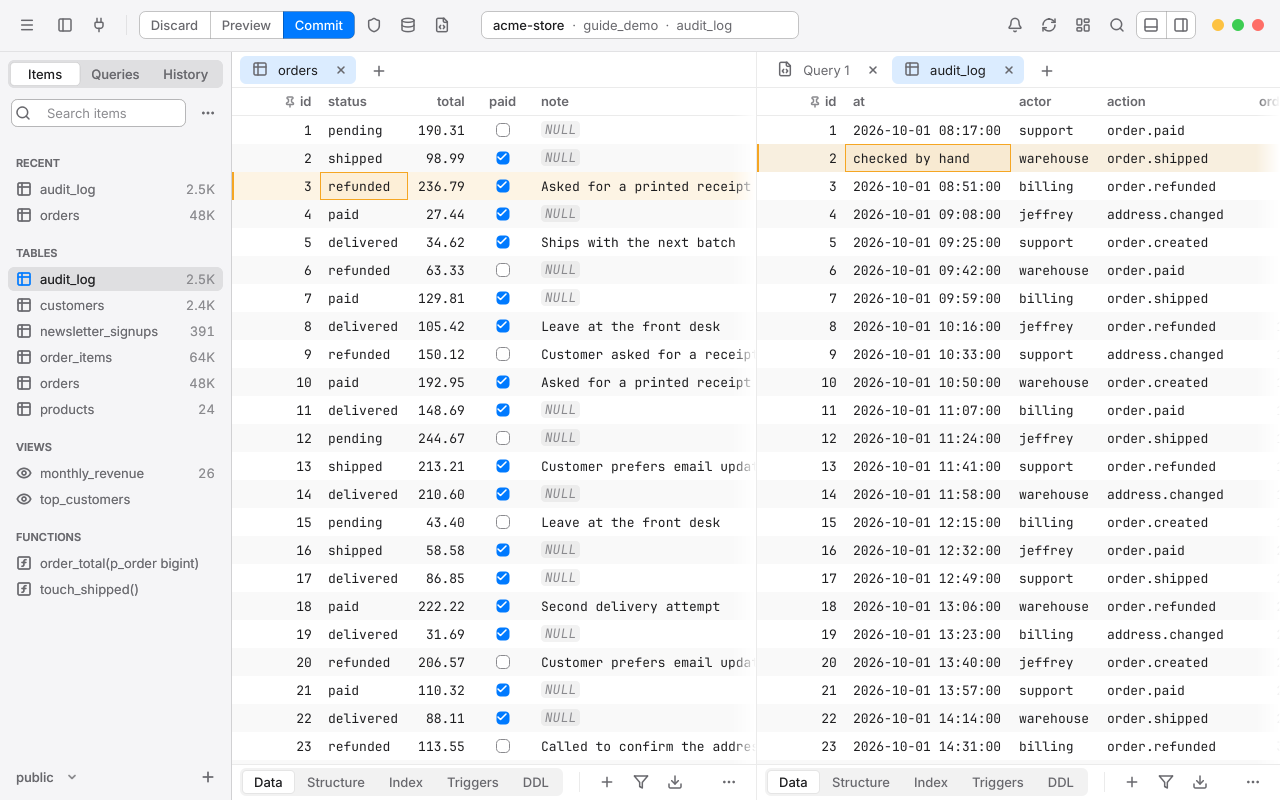
Edits in every pane go into the workspace's one set of staged changes, so one commit saves them all. Rowan refuses a split that would leave a pane too narrow to use.
Session restore#
Rowan keeps your work between launches:
- The windows and workspaces you had open come back, with their table tabs, panes and pane sizes. To start with the connection list instead, turn off Reopen closed workspaces at startup in Settings > General.
- Every SQL editor's text is saved as you type, so nothing is lost even if Windows restarts. Editor tabs always come back.
- Each table's filters, sort, hidden columns, pinned columns and widths are remembered.
Chapter 4
Browse data
Open any table or view to see its rows in the grid. Rowan pages through tables of any size smoothly, so you can scroll, sort and filter millions of rows without waiting.
The grid and paging#
To open a table, click it in the sidebar, or press CtrlP and type its name. Its rows appear in the grid, one page at a time; as you scroll, Rowan fetches the next page in the background.
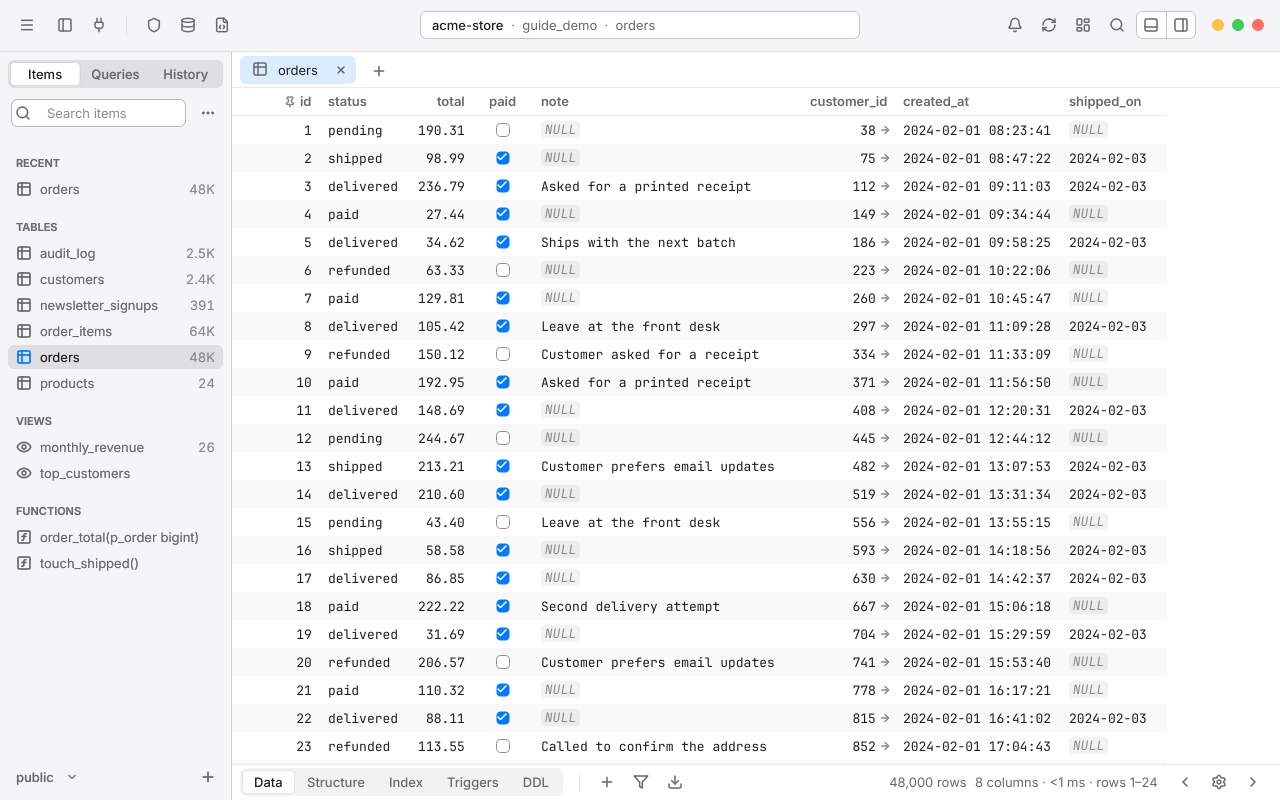
- CtrlUp and CtrlDown jump to the first and last row; CtrlLeft and CtrlRight move a page back or forward.
- The bottom bar shows the number of rows and which ones are in view. For a large table the count is an estimate, shown with a ~; click it and choose Count to count exactly. Small tables are always counted exactly.
- To start at a particular row, click the gear in the bottom bar (or press CtrlG), set Limit and Offset, and choose Go.
- Drag a column's edge to resize it; double-click the edge to fit its contents.
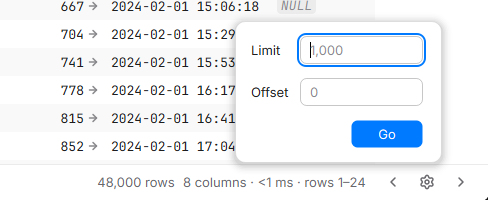
The number of rows Rowan fetches at a time is set in Settings > Table (Rows per page).
Rowan pages by primary key whenever it can, so jumping to row four million of a table is as quick as row one.
Sort rows#
Click a column's header to sort by it: once for descending, again for ascending, a third time to stop sorting. A chevron beside the name shows the direction. You can also right-click a header and choose Sort Ascending, Sort Descending or Remove Sort.
Sort by several columns#
- Press CtrlAltS, or right-click a header and choose Sort Multiple Columns > Edit….
- Add each column in the order it should sort, and choose Ascending or Descending for each.
- Choose Apply.
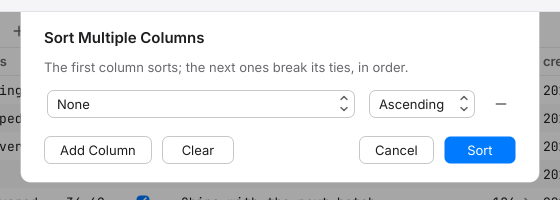
A table you haven't sorted is shown in primary key order. You can change that default in Settings > Table. Each tab remembers its sort, even after Rowan restarts.
Filter rows#
The filter bar finds rows without writing SQL. Press CtrlF, or click the funnel in the bottom bar.
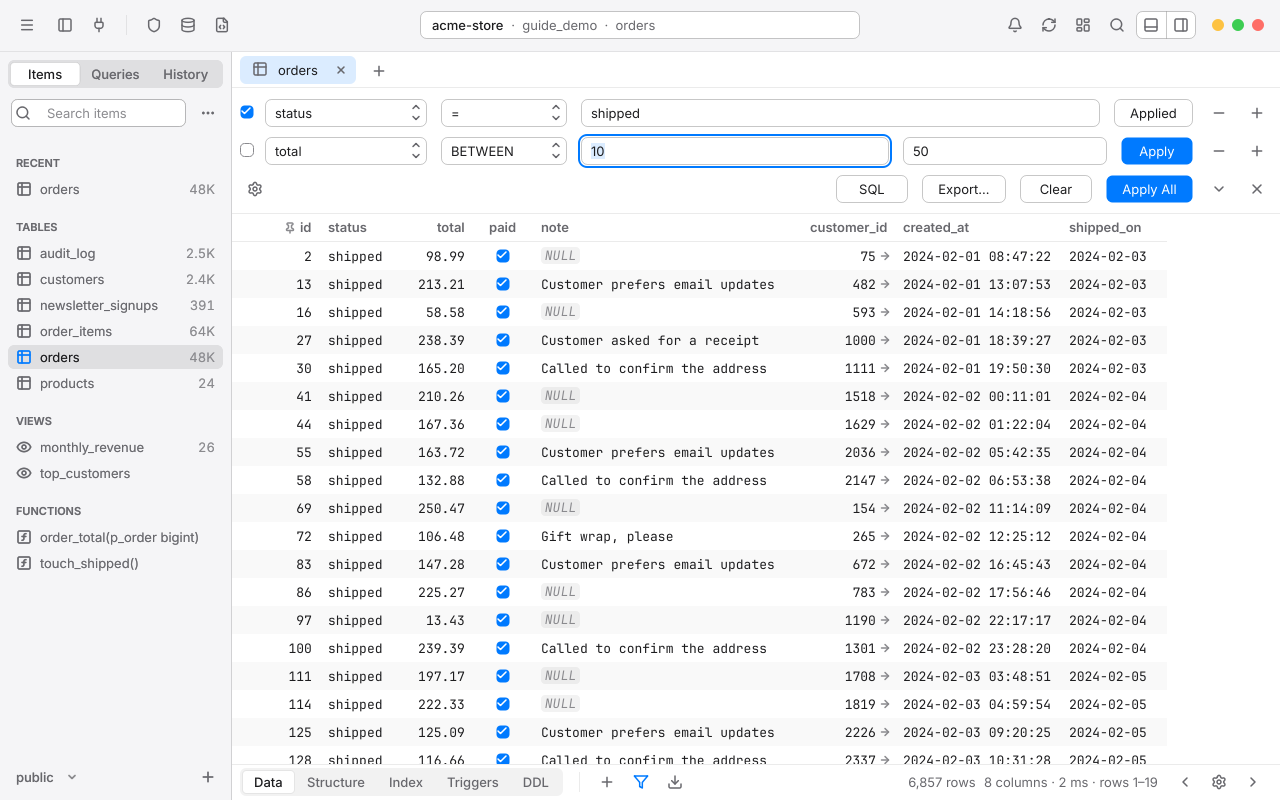
- Choose a column, or Any column to search them all, or Raw SQL to write your own condition.
- Choose an operator, such as =, Contains or BETWEEN.
- Type a value and press Enter, or click Apply.
The operators are =, <>, <, >, <=, >=, IN, NOT IN, IS NULL, IS NOT NULL, BETWEEN, NOT BETWEEN, LIKE, NOT LIKE, ILIKE, NOT ILIKE, Contains, Not contains, Has prefix and Has suffix, and the last four again in an any case version. BETWEEN takes two values; IN takes values separated by commas.
Several filters at once#
- Press CtrlI in the bar, or click +, to add a filter row; CtrlShiftI or − removes one.
- The checkbox at the start of each row decides whether it's used. CtrlB checks or unchecks the current row.
- Apply All (CtrlEnter) applies every checked filter, joined with AND. To join them with OR, click the arrow beside it and choose Apply All Checked Filters with OR.
- SQL shows the query the filters make, to copy or open in an SQL editor. Export… exports the filtered rows. Clear removes every filter.
- Esc clears the value you're typing; press it again to hide the bar.
Values are sent to the server as parameters, never pasted into the SQL, so a quote or a semicolon in a value is just a character. The Filters button in the bottom bar lights up while a filter is on, and each table keeps its filters, even across restarts.
The gear in the filter bar sets where new filters start: the default column and operator, and whether the bar stays open for each table. The same options are in Settings > Table.
Quick filters#
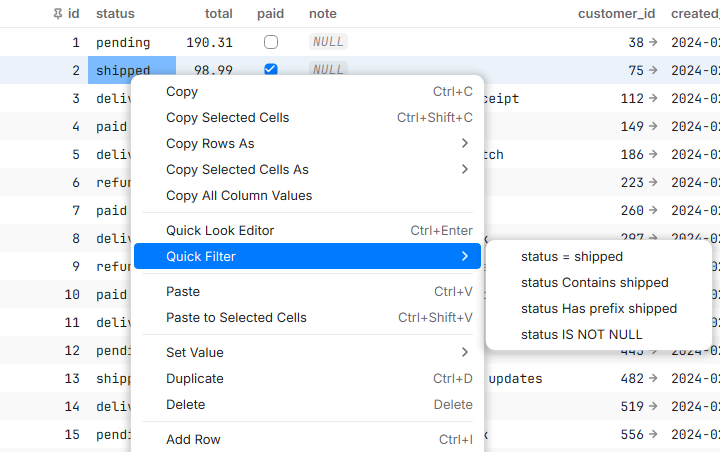
To filter by a value you can see, right-click its cell and choose Quick Filter, then one of: = that value, Contains, Has prefix, IS NULL or IS NOT NULL. Select several cells first to filter with IN their values. To start a filter on a column, right-click its header and choose Filter With Column.
Show and hide columns#
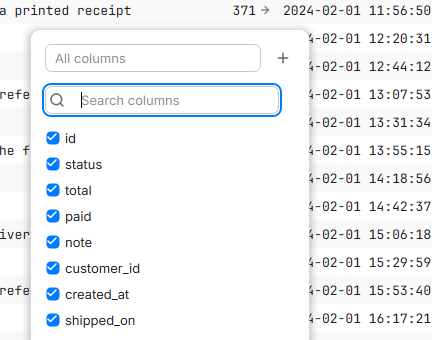
Press CtrlAltF, or click Columns, to choose which columns to show. Type names separated by commas, or check and uncheck them in the list, then choose Apply. Right-click a header for Hide This Column and Show All Columns. Each table remembers which columns are hidden.
Pinned columns#
A pinned column stays at the left edge while you scroll across a wide table. The primary key is pinned for you; to pin any other column, right-click its header and choose Pin Column.
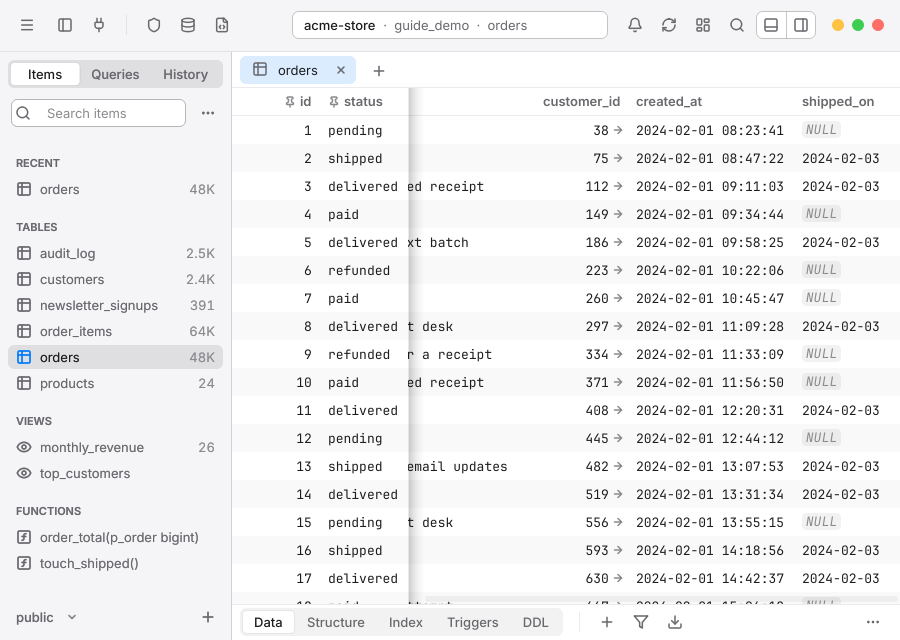
Pinned columns keep the order you pinned them in, and each table remembers them. Choose Unpin Column or Unpin All from the header's menu to let them scroll again. If pinned columns would take up most of the grid, Rowan lets them scroll until there's room. To stop pinning primary keys, turn off Pin primary key in Settings > Table.
Follow foreign keys#
A cell in a foreign key column has a small arrow at its right edge. Click the arrow, or right-click the cell and choose Open Referenced Row, to open the row it points to in a new tab, already filtered to that row.
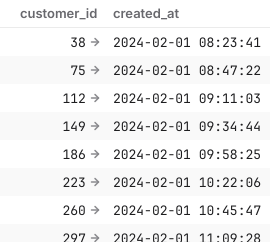
Keys over several columns work too: the new tab filters on every column of the key. Use AltLeft to go back.
Row detail#
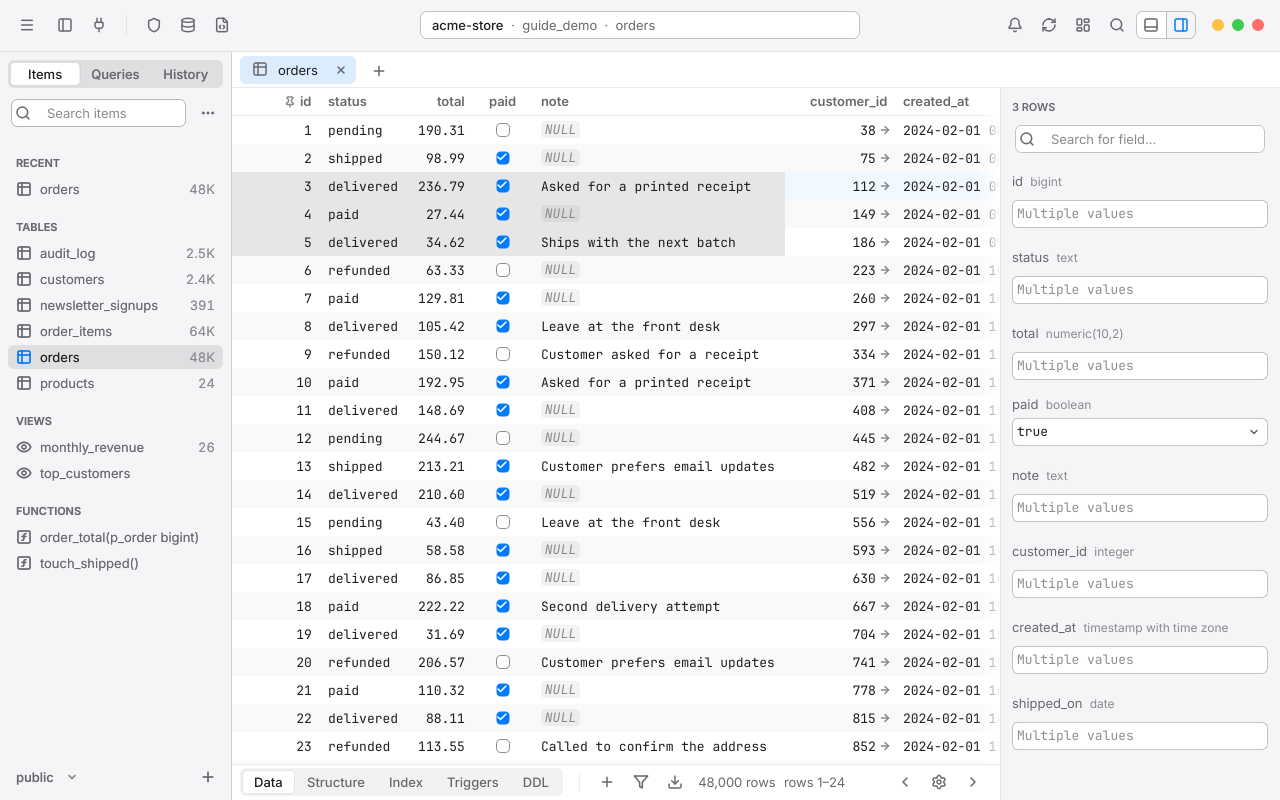
The right sidebar shows the selected row as a form, one field per line with its type. Press Space in the grid to show or hide it.
- Type in Search for field… to find a field in a wide table.
- Edit a field and press Enter; the change is staged like an edit in the grid.
- The ⋯ beside a field sets it to NULL, DEFAULT, EMPTY or
now(), formats JSON with PRETTY or MINIFY, or loads a file into it.
Quick Look#
Quick Look opens a cell in a larger editor, right beside it. Select a cell and press CtrlEnter, middle-click it, or right-click and choose Quick Look Editor.
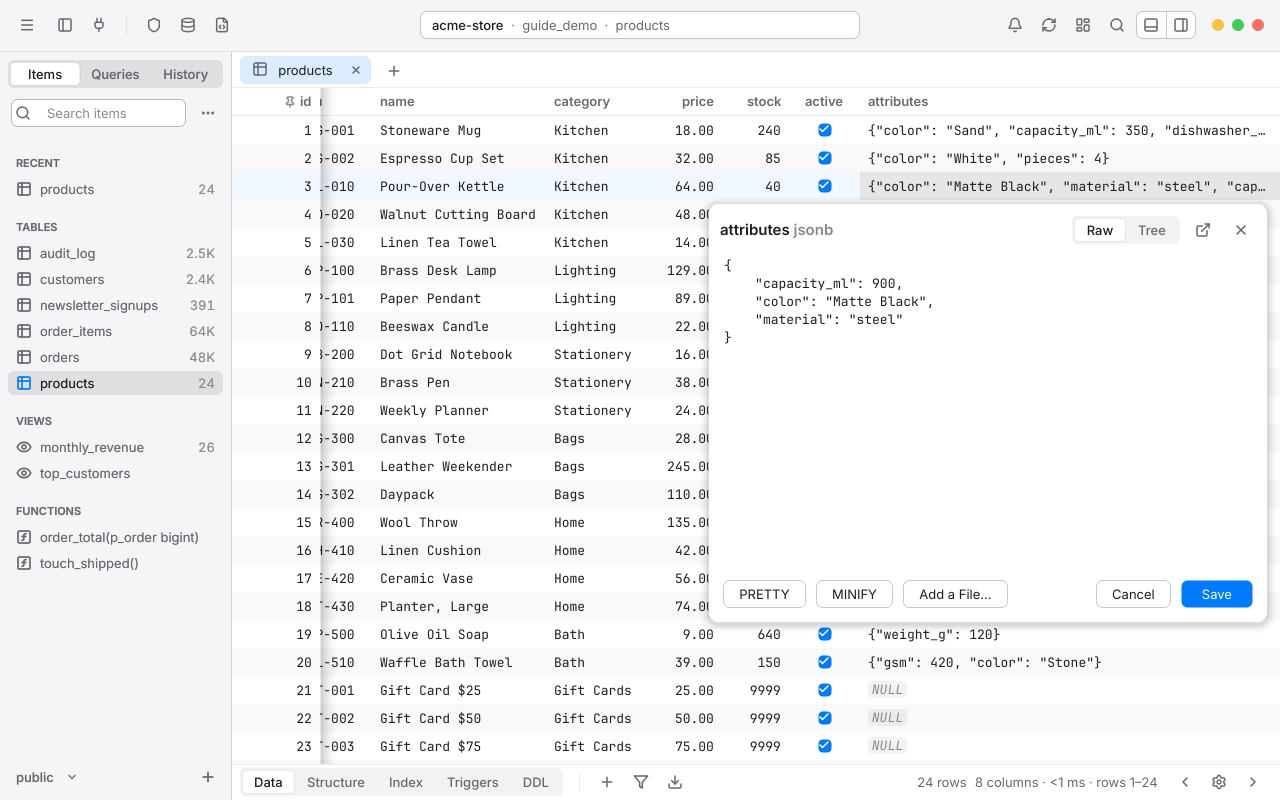
- Long text, JSON and XML get room to read and edit. JSON can be shown as Raw text or as a Tree.
- Binary (
bytea) values preview as images or PDFs where they are one, with their hex below. Save As… saves the value to a file, and Add a File… replaces it with one. - Save stages the change; Cancel or Esc closes without changing anything.
- Open in Window (CtrlShiftO) moves Quick Look into a window you can resize and keep open while you work.
Copy rows and cells#
- CtrlC copies the rows your selection touches, as tab-separated text that pastes neatly into a spreadsheet or back into Rowan.
- CtrlShiftC copies only the selected cells.
- Right-click and choose Copy Rows As or Copy Selected Cells As for another format: Plain Text, JSON, HTML, Markdown Table, CSV, CSV include fields name or SQL Insert Statement.
- Right-click a header for Copy Column Name, or Copy All Column Values to copy the whole column, as filtered and sorted, not just the rows loaded.
To export rows to a file instead, see Export.
Special values#
Rowan draws some values in a way that's quick to read:
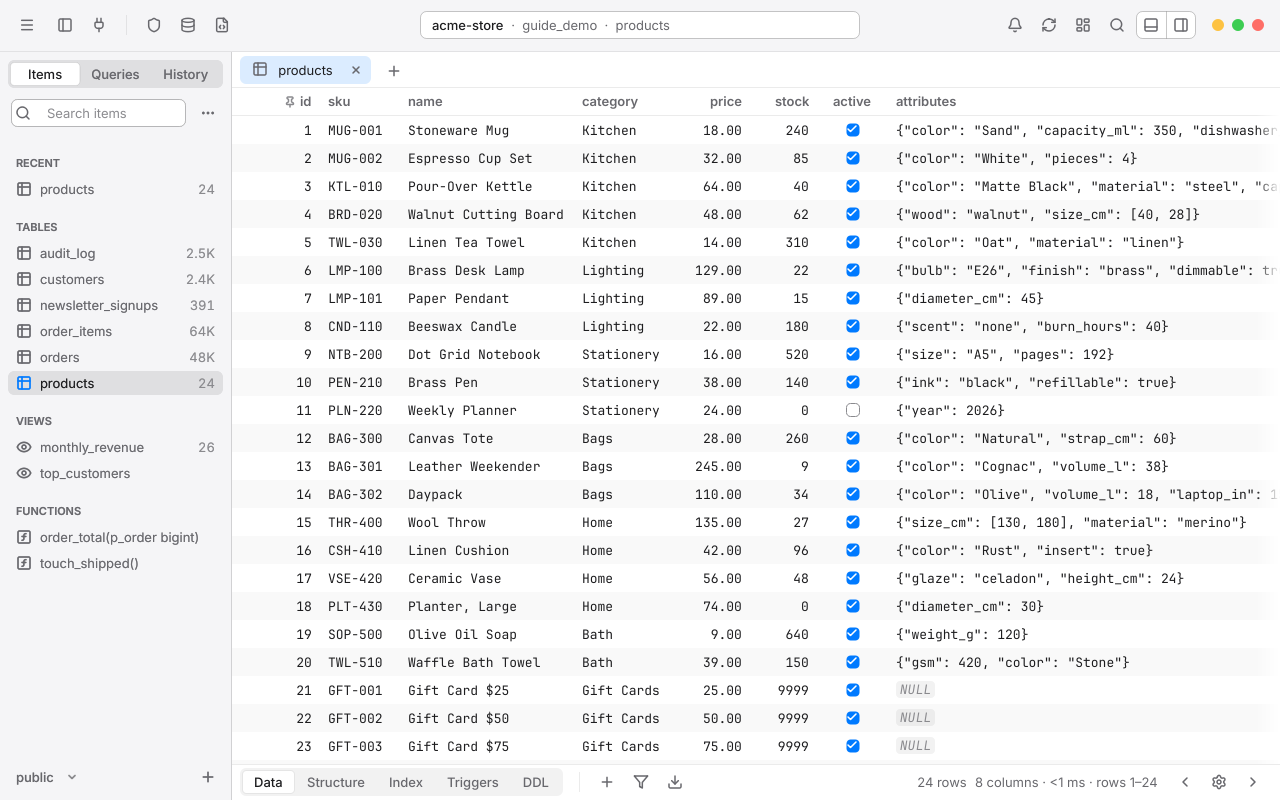
All of these are in Settings > Table.
Chapter 5
Edit data
Change values right in the grid, add and delete rows, then look over exactly what Rowan will send before you commit it all at once.
How changes are staged#
When you edit a cell, add a row or delete one, nothing is written to the database yet. The change is staged: Rowan keeps it, tints it in the grid, and adds it to the workspace's pending changes.
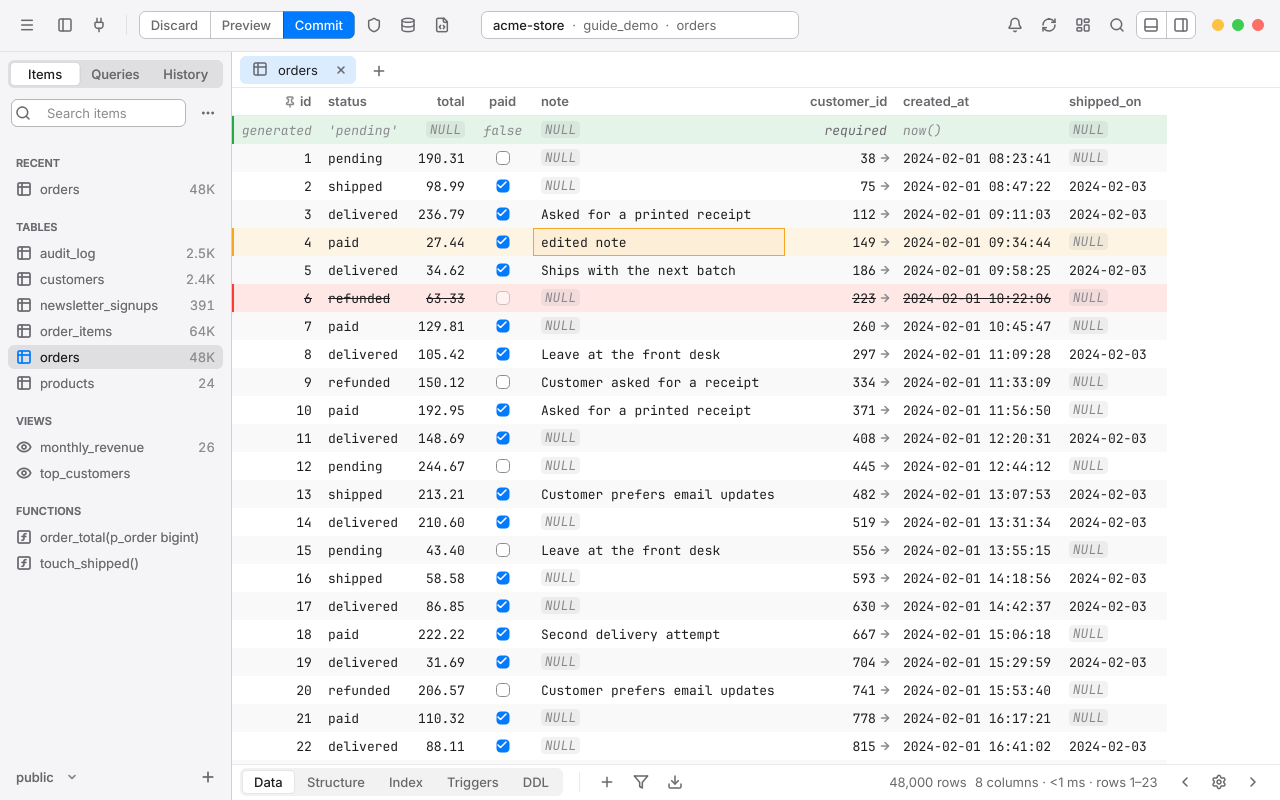
While you have staged changes, the toolbar shows Discard, Preview and Commit.

When you commit, Rowan sends every staged change in one transaction, as parameterized statements. If any statement fails, the whole transaction is rolled back and nothing changes; Rowan shows which statement failed so you can fix it and try again.
Staged changes cover everything in the workspace: rows in every table tab and split pane, editable query results, and structure changes. They survive switching tabs, so you can edit several tables and commit them together.
To change the tint colors for new, modified and deleted rows, open Settings > Fonts & Colors.
Edit cells#
- Double-click a cell, or select it and press Enter, or just start typing.
- Type the new value.
- Press Enter to keep it, or Esc to cancel. Tab keeps it and moves to the next cell in the row.
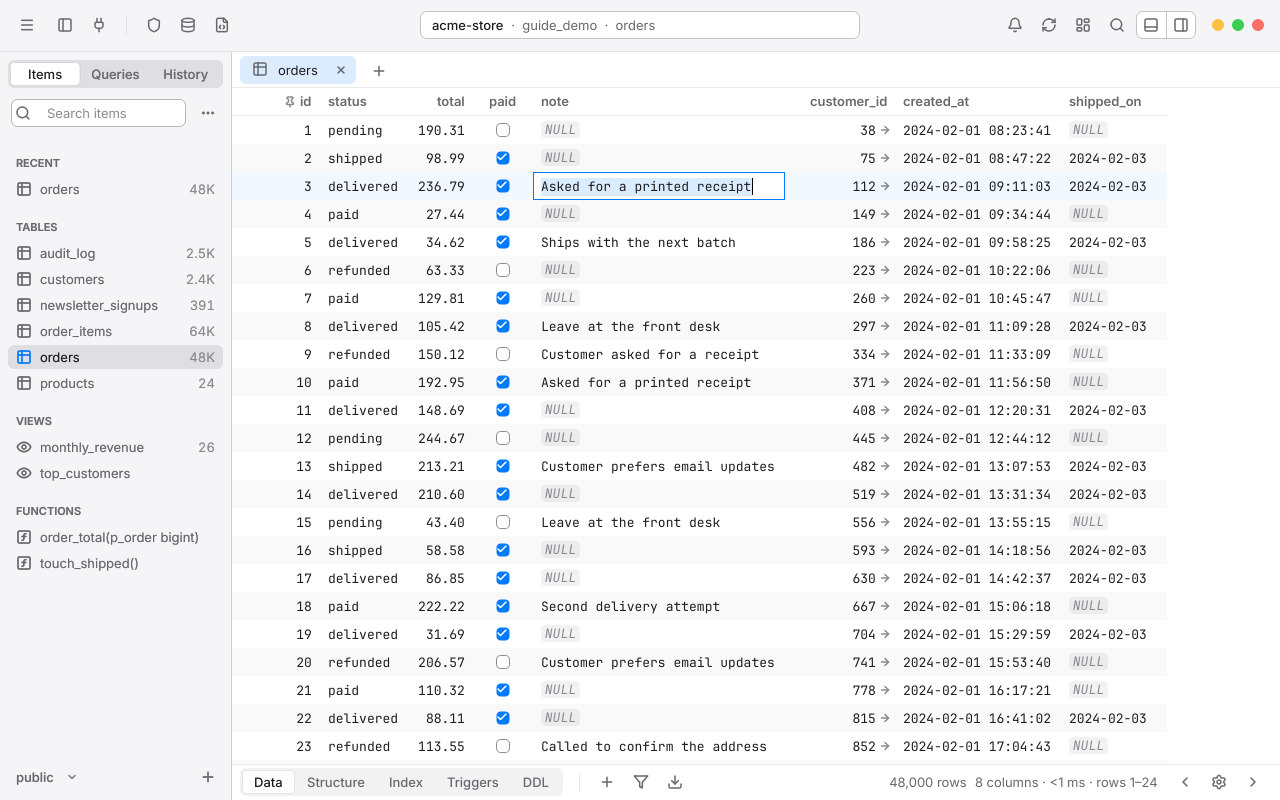
To toggle a boolean, click its checkbox or press Space. To edit a long value, use Quick Look (CtrlEnter) or the right sidebar.
Set Value and the date picker#
Some values can't be typed as text. Press AltEnter, Alt-click a cell, or right-click it and choose Set Value. The menu offers only what fits the column:
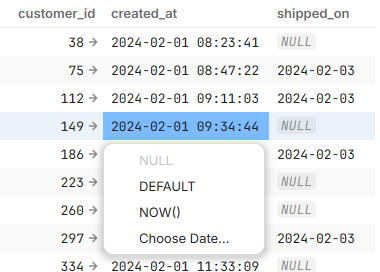
DEFAULT and NOW() are sent as SQL keywords, never as text. With several cells selected, the value goes into all of them.
Insert, duplicate, paste and delete rows#
The code preview#
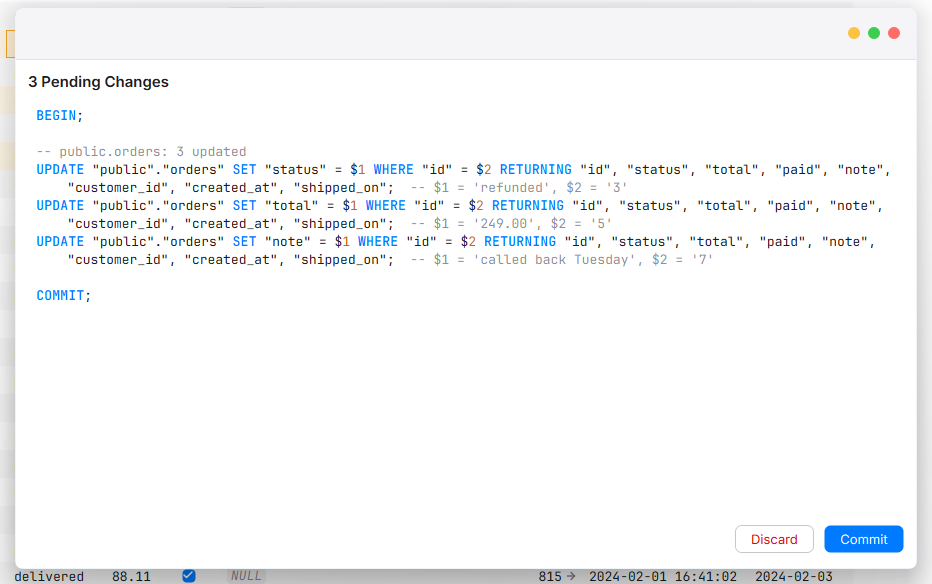
Before you commit, you can see the exact SQL Rowan will send. Click Preview in the toolbar, or press CtrlShiftP.
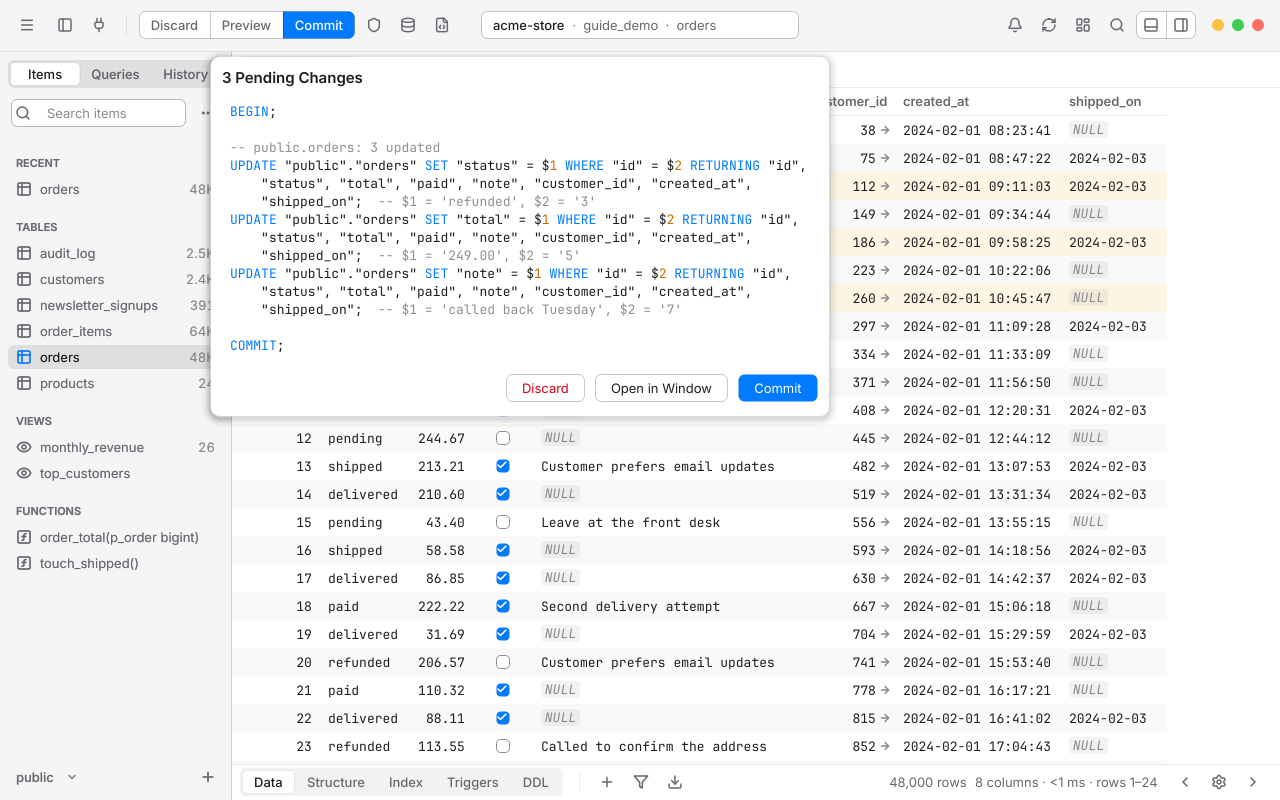
- Statements are grouped by table with a summary, such as
-- public.orders: 3 updated. Structure changes come first, then rows. - Each statement's values are listed beside it as
$1,$2and so on, because that's how they're sent. - What the preview shows is exactly what's sent; nothing is added or rewritten later.
- Statements that PostgreSQL can't run inside a transaction, such as
CREATE INDEX CONCURRENTLY, are listed after the commit, and the preview says so.
From the preview you can Discard, Commit, or choose Open in Window to keep the preview in a window of its own. That window follows every edit, undo and discard as you make them, and you can commit from there too. Press Esc or CtrlShiftP again to put the popover away.
Commit and discard#
- To commit, click Commit or press CtrlS. Every staged change in the workspace is sent in one transaction.
- To throw everything away, click Discard or press CtrlShiftDelete.
If a commit fails, Rowan rolls it back, opens the preview with the failed statement tinted, and offers Show Row to take you to the row that caused it. Your staged changes are still there to fix.
Every commit is also written to History with its statements, its values and, for updates and deletes, what each row held before (-- was: status = 'paid'). If you ever need to put a change back by hand, the old values are there.
If the connection uses Safe Mode, Rowan asks before the commit is sent, and may ask for the database password. See Safe Mode.
Undo and redo#
Press CtrlZ to undo the last staged change, and CtrlShiftZ or CtrlY to redo it. Undo covers cell edits, new, duplicated, pasted and deleted rows, and structure changes, in the order you made them. Once you've committed, the changes are in the database; use History's old values to reverse one.
Tables without a primary key#
Rowan only edits rows it can identify for certain, and that takes a primary key. A table without one opens read-only, with a note above the grid:
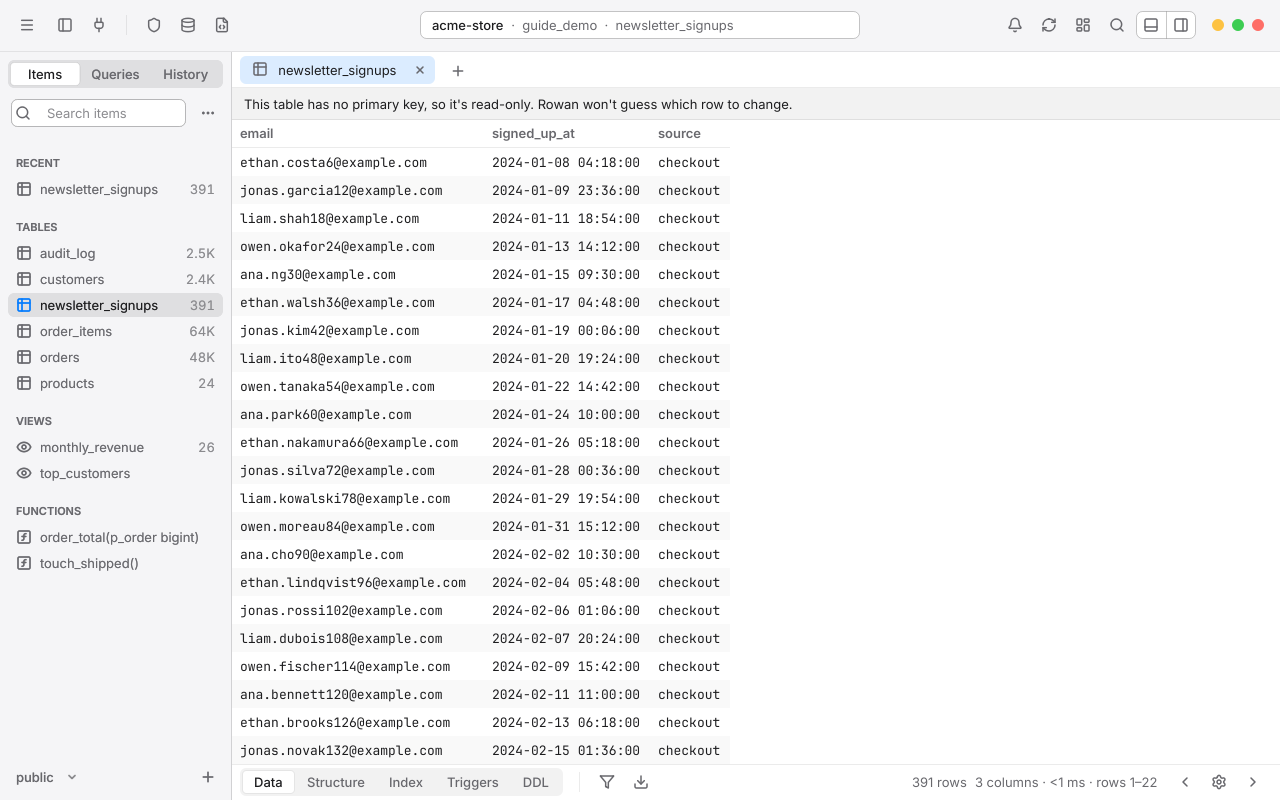
You can still browse, filter, copy and export its rows, and change them with SQL in the editor. To make the table editable, add a primary key in its Structure view.
Chapter 6
Structure
See and change how a table is built: its columns, keys, indexes and triggers. Structure changes are staged like data edits and committed the same way, so you can review the DDL before it runs.
The Structure view#
To see a table's structure, click Structure in the bottom bar, or press CtrlAlt]. CtrlAlt[ goes back to its data. You can also right-click a table in the sidebar and choose Open Structure.
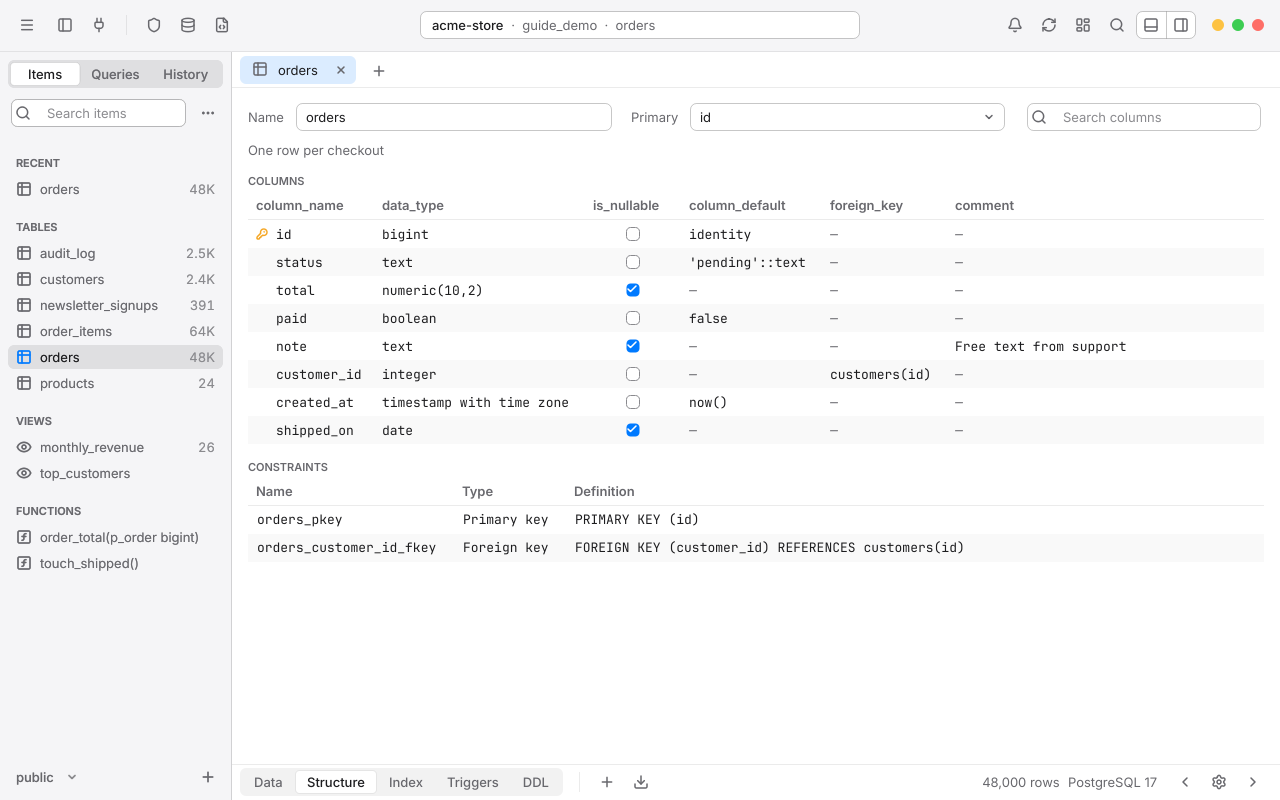
At the top are the table's Name, its Primary key and its comment, with a search field for tables with many columns. Below are the columns, with column_name, data_type, is_nullable, column_default, foreign_key and comment, then the table's constraints.
The bottom bar's Index, Triggers and DDL show the rest of the table's definition.
Columns, keys and defaults#
Every cell in the columns list can be edited in place. Double-click it, or select it and press Enter.
Cells with a menu show an arrow; click it, or press AltEnter, to open the menu with its list already showing.
- To add a column, press CtrlI, click + in the bottom bar, or double-click below the last column.
- To drop a column, select it and press Delete. It's marked until you commit; press Delete again, or choose Restore Column, to keep it.
- To change the primary key, open the Primary menu at the top and check the columns it should cover. A primary key column is always NOT NULL.
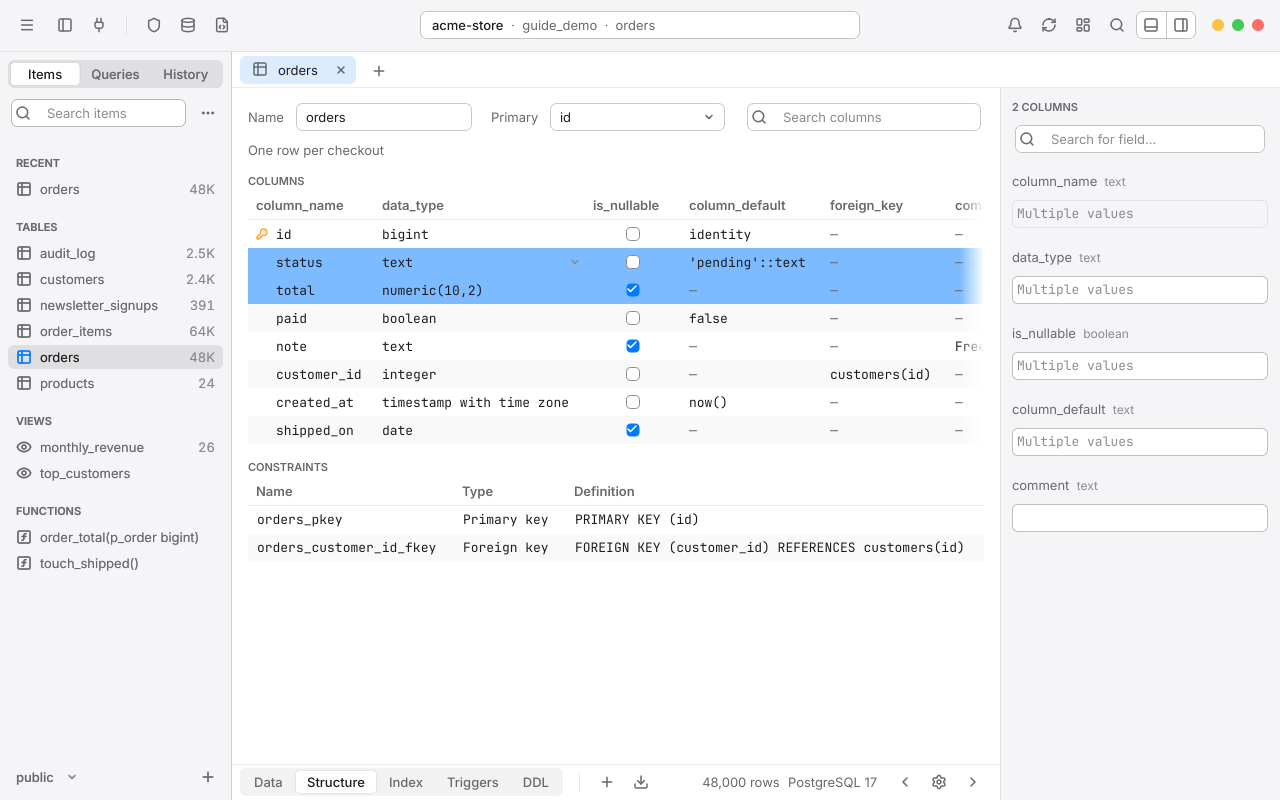
Select several columns and press Space to edit their type, nullability, default and comment together in the right sidebar. With one column selected, the sidebar lists what uses it, such as indexes and keys.
Indexes, triggers and DDL#
Index#
Click Index in the bottom bar to see the table's indexes, with their columns or expressions, method, whether they're unique, and any condition.
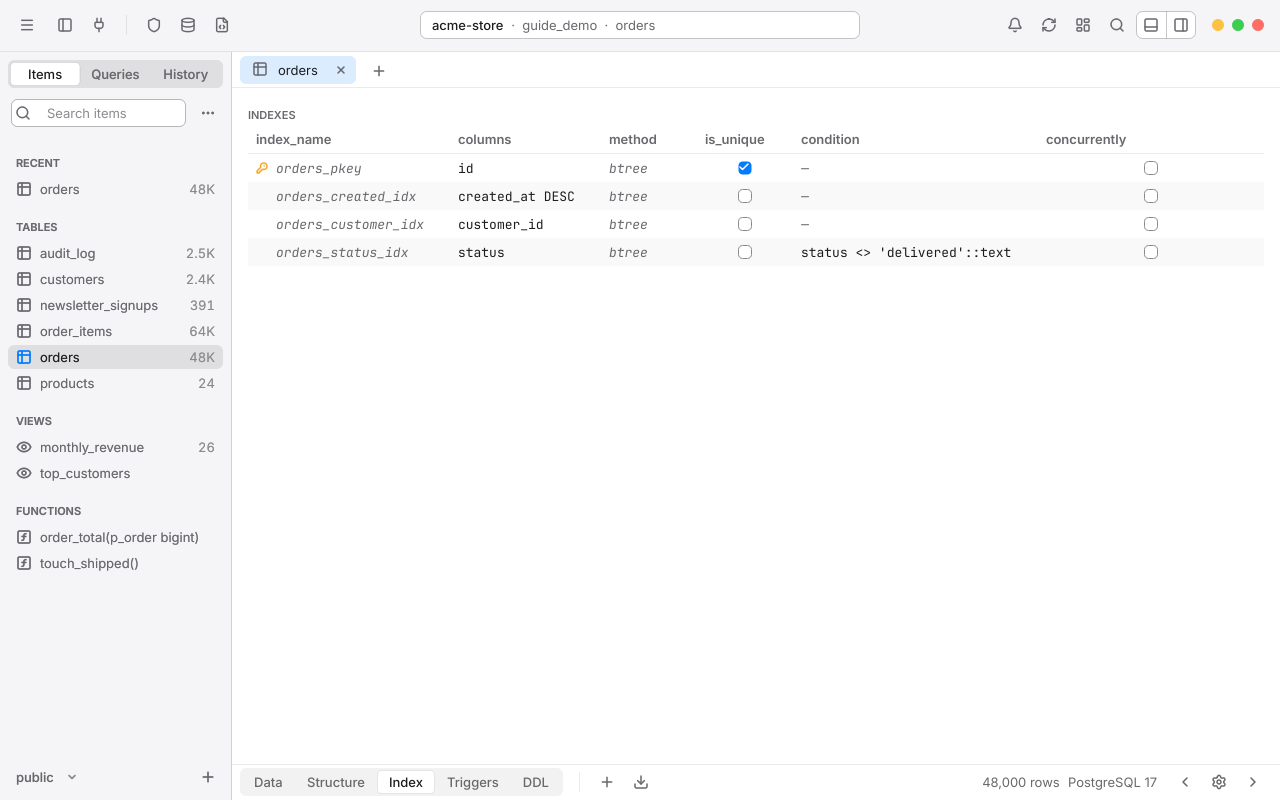
- Choose New Index, or double-click below the list, to add one. Set its name, columns, method (such as
btreeorgin), whether it's unique, and an optional condition for a partial index. - Check concurrently to build it without locking the table. Rowan runs that statement after the transaction, since PostgreSQL requires it, and the preview says so.
- Changing an index drops it and creates it again.
Triggers#
Click Triggers to see the table's triggers: name, timing, events, level, the function it calls, its condition, and whether it's enabled.
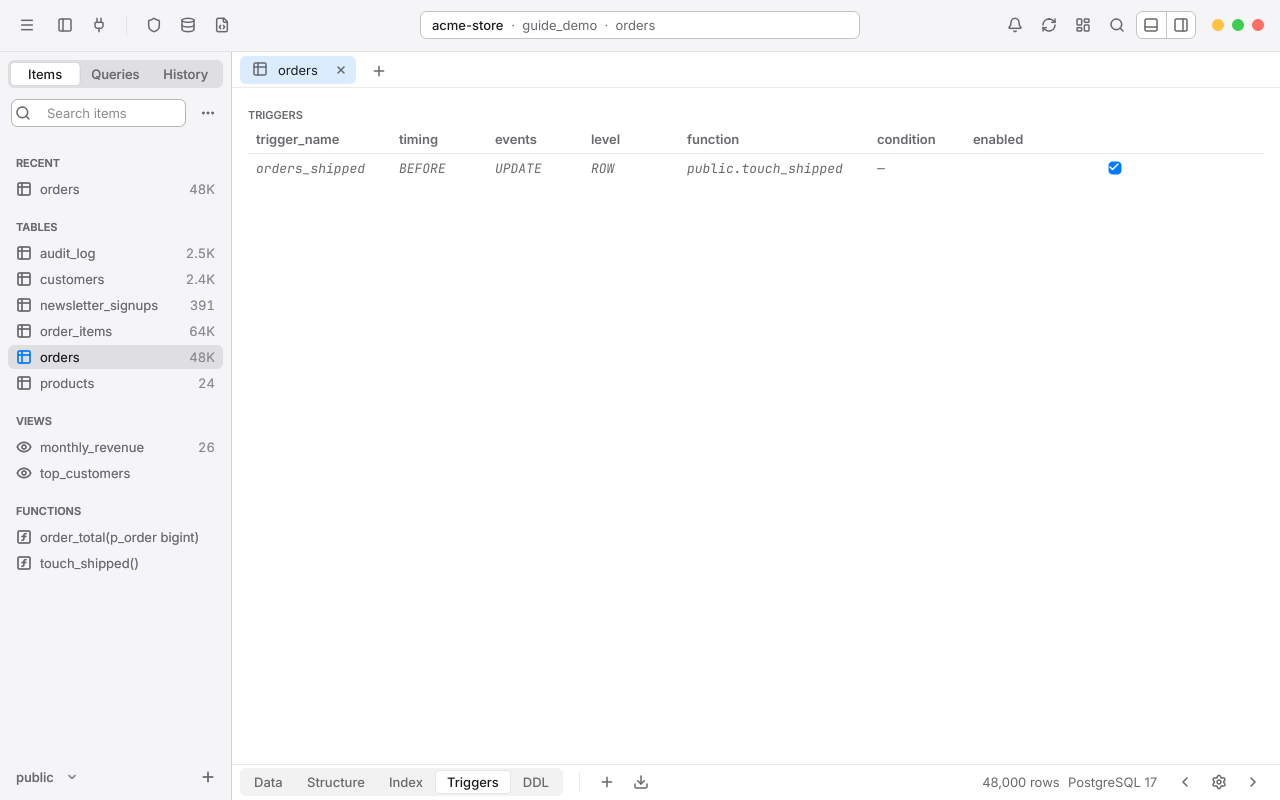
Choose New Trigger to add one. The function menu lists trigger functions first. In PostgreSQL a trigger always calls a function; to change what it does, open the function from the sidebar and edit its source.
DDL#
Click DDL to see the server's own definition of the table, with its indexes and comments. Press CtrlShiftC, or click Copy, to copy it.
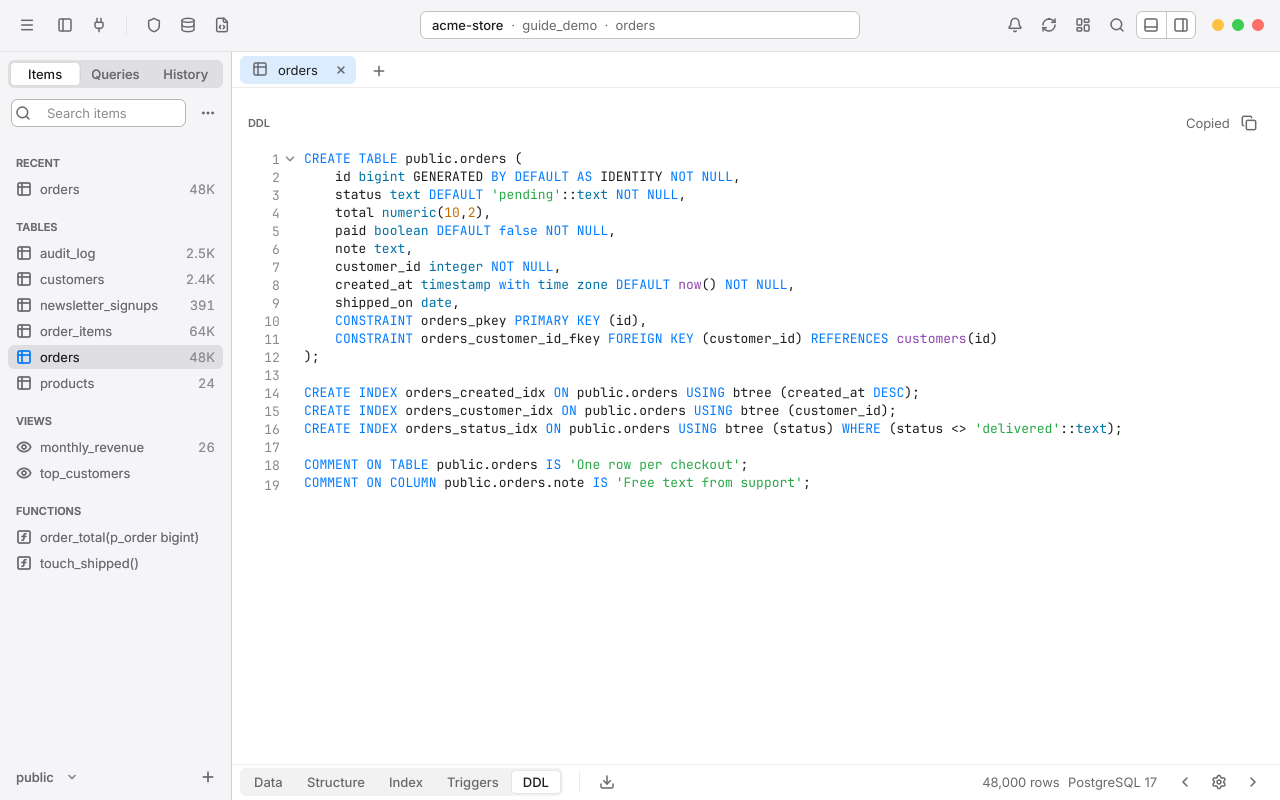
Commit structure changes#
Structure changes are staged with your data edits. The Preview shows the DDL Rowan will run, structure first, then rows, all in one transaction. Commit with CtrlS, discard with CtrlShiftDelete, and undo with CtrlZ. See The code preview.
Create, rename, clone, truncate and delete tables#
Create a table#
- Click + at the bottom of the left sidebar and choose New Table….
- Enter its name and choose Create. A Structure tab opens with an
ididentity column as its primary key. - Add the columns you need.
- Press CtrlS. Until you commit, the table doesn't exist on the server; discarding closes its tab.
Other table actions#
Right-click a table in the sidebar:
Each is staged until you commit. Pressing Delete on a selected table in the sidebar stages a drop straight away, and AltDelete stages a truncate. They still wait for CtrlS.
Views, materialized views, functions and schemas#
Click Tables, Views or Functions in the sidebar for an overview of everything of that kind in the schema, with row estimates, sizes including indexes, and comments. Double-click one to open it.
Chapter 7
Write SQL
The SQL editor knows your schema. It suggests tables and columns as you type, runs one statement or a whole script, streams results without freezing, and charts them if you like.
The editor#
To open an SQL editor, press CtrlE or click SQL in the toolbar. CtrlEnter anywhere outside an editor opens one too. Each editor is a tab; its text is saved as you type and comes back when you reopen Rowan.
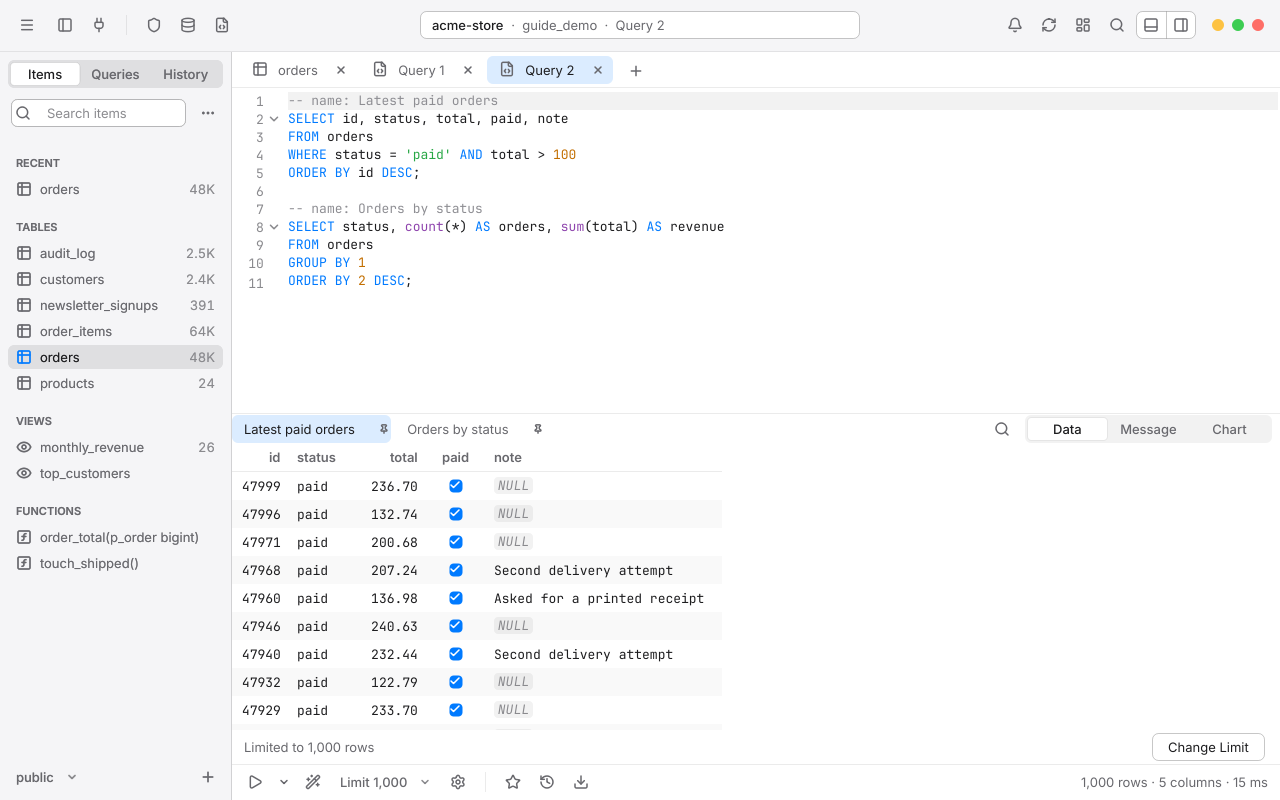
The editor highlights SQL, numbers its lines, and indents for you. Typing (, ' or " adds the closing character, and typing it again steps past it. Settings for the font, tab size and more are in Settings > Editor and Fonts & Colors. Ctrl= and Ctrl- change the editor's text size.
Comments, case and folding#
- Ctrl/ comments or uncomments the current lines with
--. CtrlAlt/ wraps the selection in/* */. - The editor's right-click menu has Transform > Make Upper Case, Make Lower Case and Capitalize.
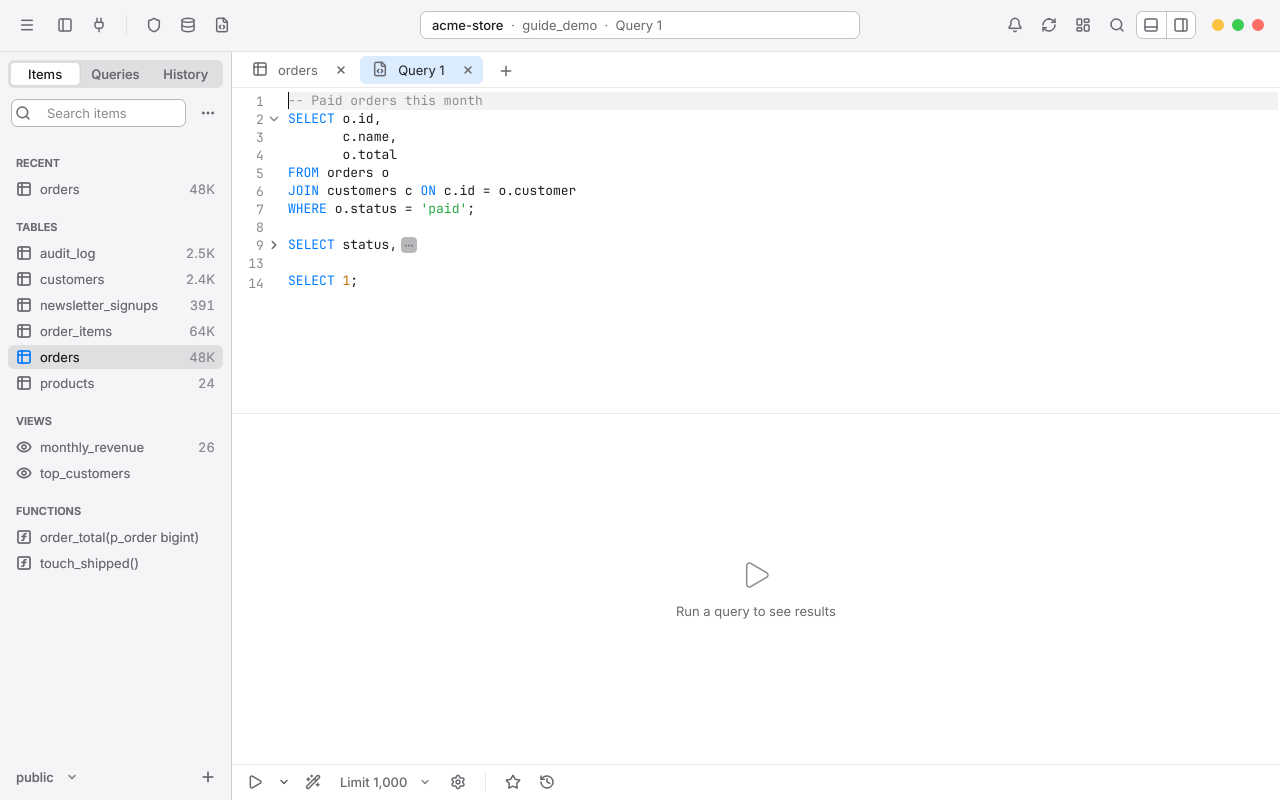
- Click the chevron beside a line number to fold a statement that spans several lines. Fold All and Unfold All are in the right-click menu. A
.sqlfile remembers its folds.
Run statements#
The run button does whichever you choose as its default: click its arrow and choose Default. The same menu has both runs, Add to Queries…, Save SQL As and Change Shortcut Keys….
While a query runs, the run button becomes Cancel (Ctrl.), which opens the process list with your query already selected, so you can stop it. The window never freezes, however long the query takes.
When a statement fails#
Rowan marks the failing line in the editor and shows the server's message, with its detail and hint, in the result.
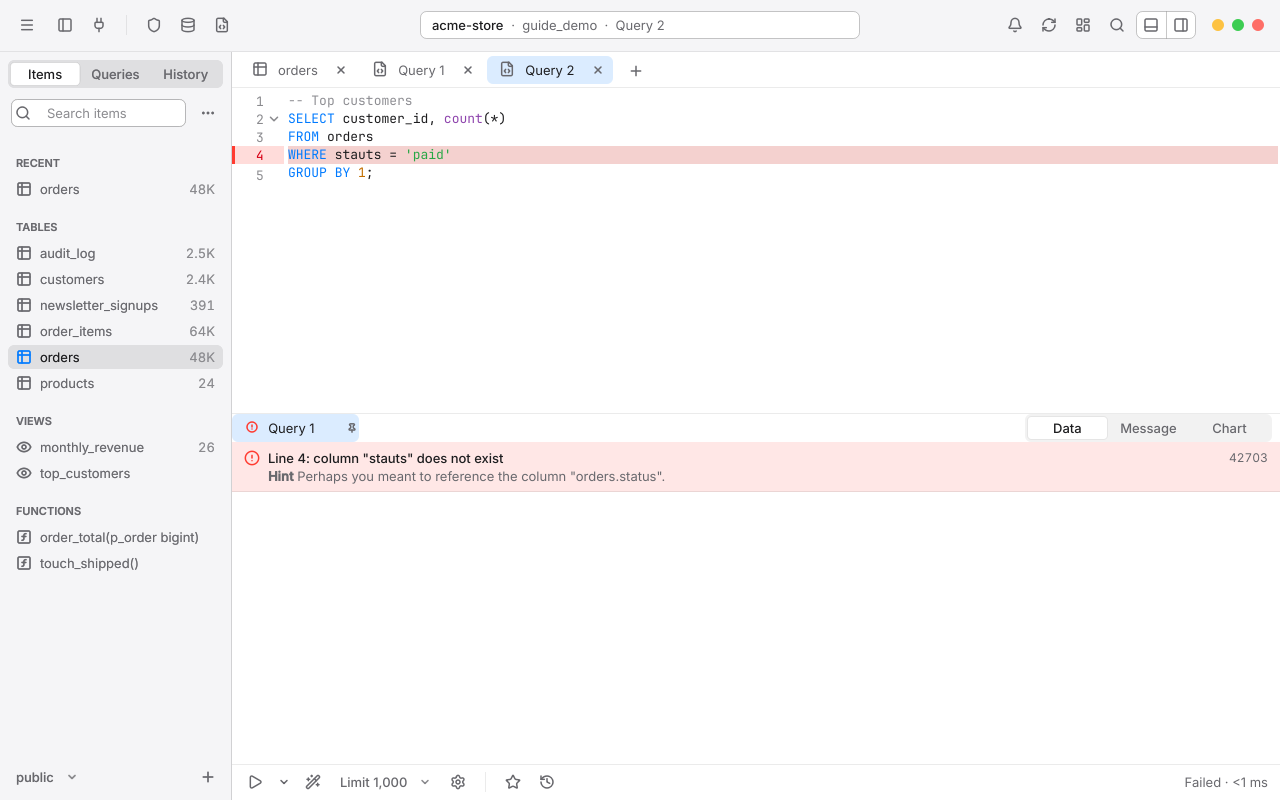
When you run several statements, a failed one is reported and the rest still run. To stop at the first failure instead, turn on Return on error in the run bar's SQL Editor Settings (the gear), or in Settings.
Results, result tabs and pinned results#
Each statement that returns rows gets a result tab, named Query 1, Query 2 and so on. To give one a name, put a comment directly above the statement:
-- name: Latest paid orders
SELECT id, status, total
FROM orders
WHERE paid
ORDER BY id DESC;
-- label: and -- tab: work too. Hover over a result tab to see what its statement did.
- Pin a result to keep it while you run other queries: right-click its tab and choose Pin This Result. Pinned results stay until you unpin or close them.
- To put every result in one tab instead, choose Append in One Tab under Result View Mode in the run bar's gear. Each statement then appears in turn with its name, what it did, and its first rows. Scripts of over 100 statements always use this.
- Ctrl` hides and shows the results pane.
- CtrlF on a result searches it; see Search and replace in results.
The Message view#
Each result has Data, Message and Chart views. Message shows what the statement did (such as UPDATE 3), how long it took, and anything the server said while it ran: RAISE NOTICE output, warnings and hints. Export… saves the messages as a text file.
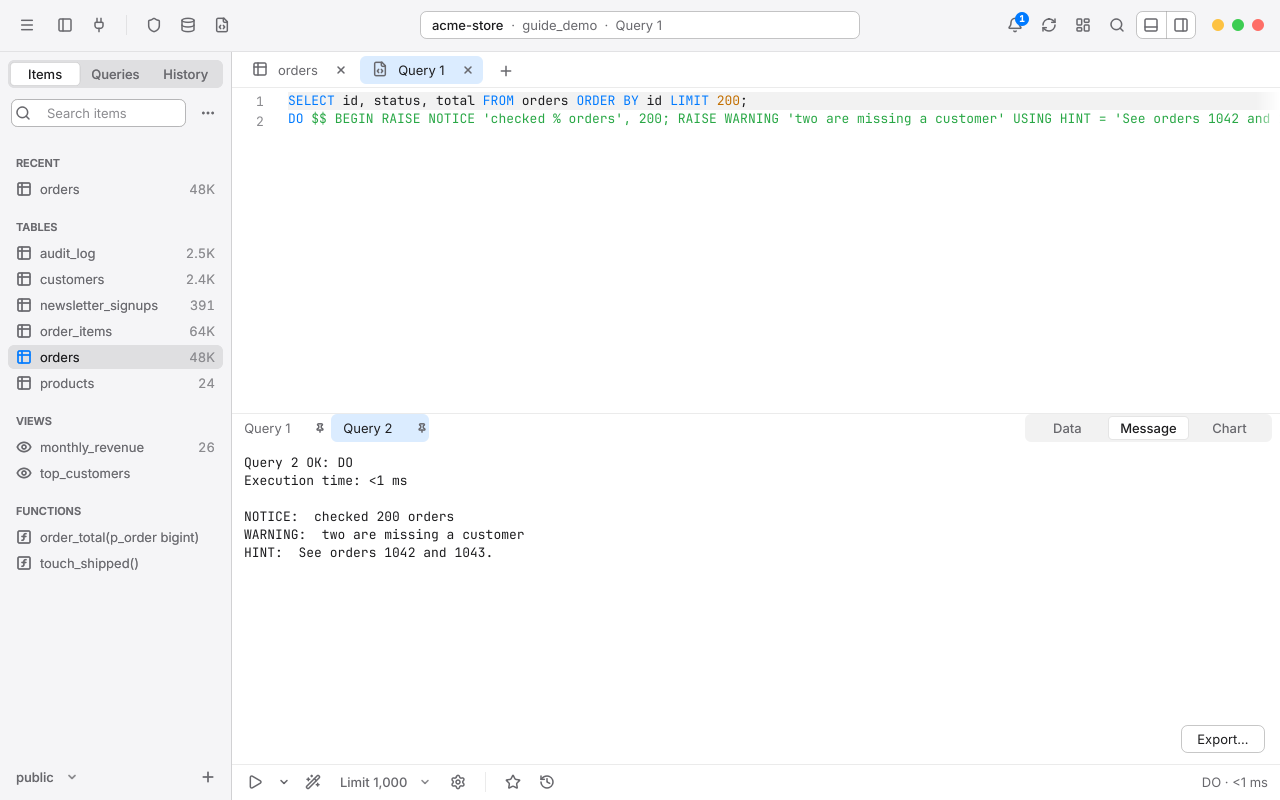
A statement that raises notices also adds one entry to Notifications.
Row limits and Load More#
Results stream in a page at a time, so even a ten-million-row SELECT starts showing at once and never fills memory.
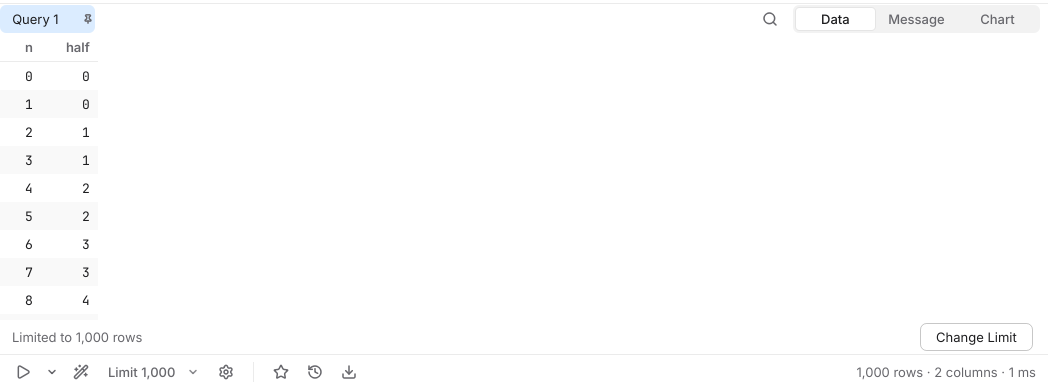
- The Limit chip in the run bar caps how many rows a query returns, per connection: from 100 up to 500,000, or No limit. When a result reaches the limit, it says Limited to 1,000 rows with Change Limit.
- With a higher limit, or none, Rowan shows the first page and a Load More button for the next.
The Chart view#
Switch a result to Chart to draw it as a Line Chart, Bar Chart or Pie Chart. Choose the x-axis and one or more y-axis columns (for a pie, a label and a value) from the menus above it. Rowan starts with the first text column across and the numbers up.
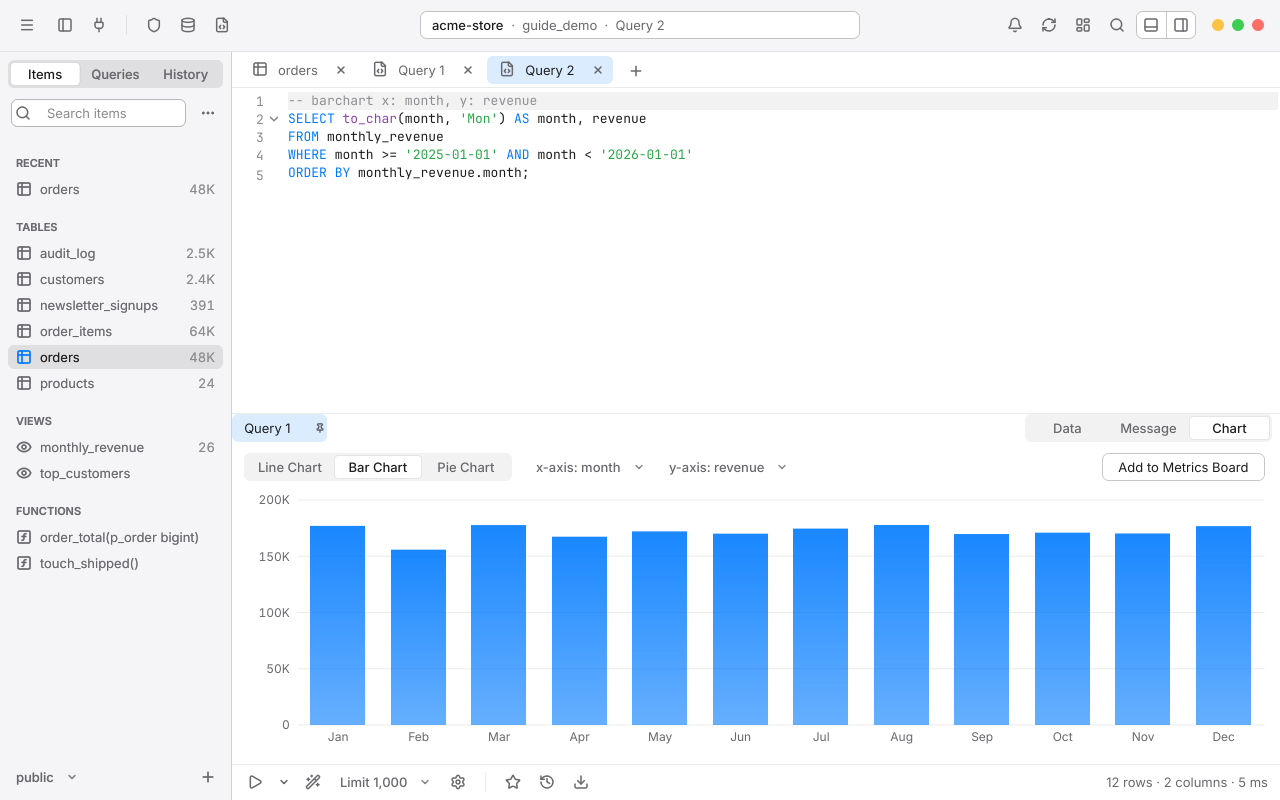
To open a result as a chart straight away, put a chart comment above the statement:
-- linechart x: month, y: orders
SELECT to_char(month, 'YYYY-MM') AS month, orders
FROM monthly_revenue
ORDER BY 1;
Use barchart or linechart with x: and one or more y:, or piechart with label: and value:.
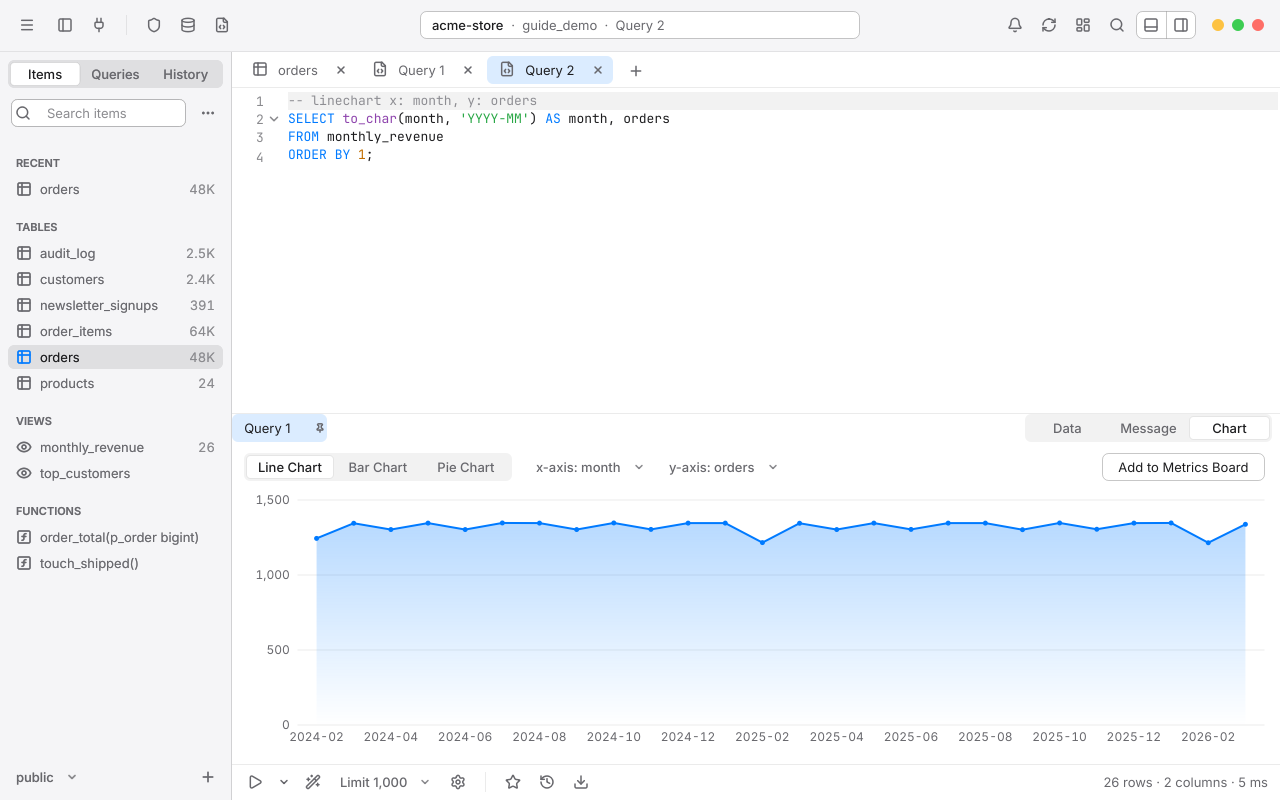
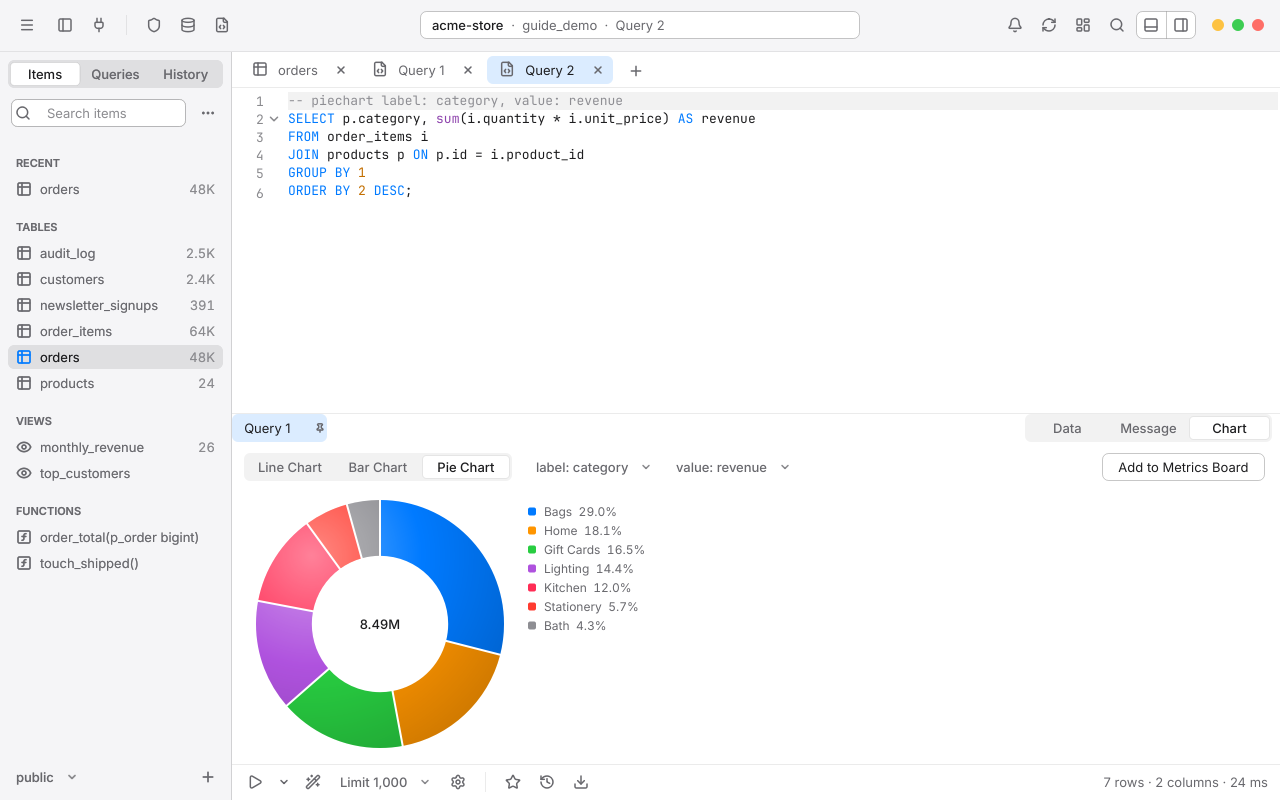
- A chart draws the rows that are loaded, and says so. Chart All Rows loads the rest, up to 100,000 rows; beyond that, group or filter in the query.
- Export saves the chart as a PNG image.
- Add to Metrics Board puts the chart and its query on a Metrics Board.
Autocomplete#
As you type, Rowan suggests what fits where the cursor is, from a copy of your schema it keeps in memory. Suggestions never wait on the server.
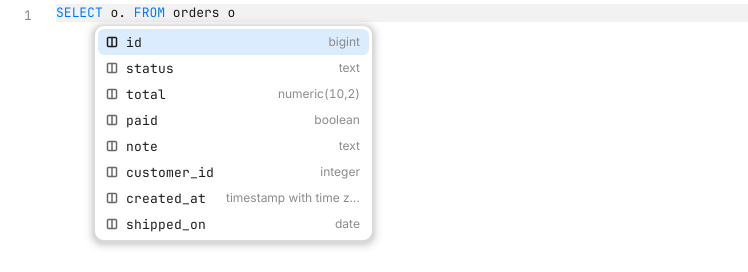
o., Rowan lists the columns of the table o stands for, with their types.| After | Rowan suggests |
|---|---|
FROM, JOIN, UPDATE, INTO | Tables and views, then schemas |
schema. | The tables in that schema |
alias. or table. | That table's columns |
SELECT, WHERE, ON, GROUP BY, ORDER BY, SET | Columns of the tables in the statement, then functions, then keywords |
| The start of a statement | Keywords and snippets |
- Suggestions open after two letters, right after a
., or when you press CtrlSpace. Press Tab or Enter to accept one, and Esc to close the list. - Matches rank by prefix first, then word starts (
cidfindscustomer_id), then letters in order. Columns of tables in your statement, and names you use often, rank higher. - Aliases, CTEs (
WITH x AS (…)) and subqueries inFROMare understood, so their columns are suggested too. - Names are folded the way PostgreSQL folds them, and names that need quotes, such as
"Order Items", get them. - A
SET search_pathyou run in a tab is taken into account; tables outside the path are inserted with their schema. - Functions are inserted as
name()with the cursor inside, and a hint shows their arguments, with the current one in bold.
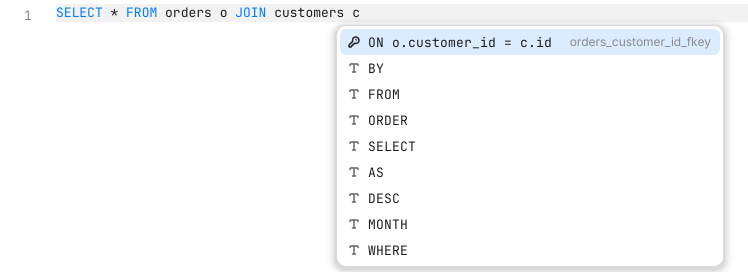
After JOIN customers c, a space offers the whole condition, such as ON o.customer_id = c.id, worked out from the foreign keys. In a select list, typing * (or o.*) offers the columns it stands for, so you can expand it. Lists that open on their own like these take Tab only, so Enter still starts a new line.

Keyword case follows Settings > Editor: UPPER, lower, or As Typed, where the first letter you type decides.
Snippets#
At the start of a statement, these triggers expand to whole statements, with the cursor where you'll type next:
| Type | To get |
|---|---|
sel | SELECT * FROM |
selc | A SELECT count(*) |
selw | A SELECT with a WHERE |
ins, upd, del | An INSERT, UPDATE or DELETE |
cte | A WITH … AS (…) query |
case | A CASE WHEN … END expression, anywhere in a statement |
Saved queries with keywords appear in suggestions too, with a star.
Multiple carets#
Edit several places at once:
- Ctrl-click to add a caret; Ctrl-click it again to remove it.
- Alt-drag to select a rectangle, with a caret on each line.
- CtrlAltUp and CtrlAltDown add a caret above or below.
- CtrlD selects the word at the cursor, then each next match. CtrlShiftL selects every match.
- Esc goes back to one caret.
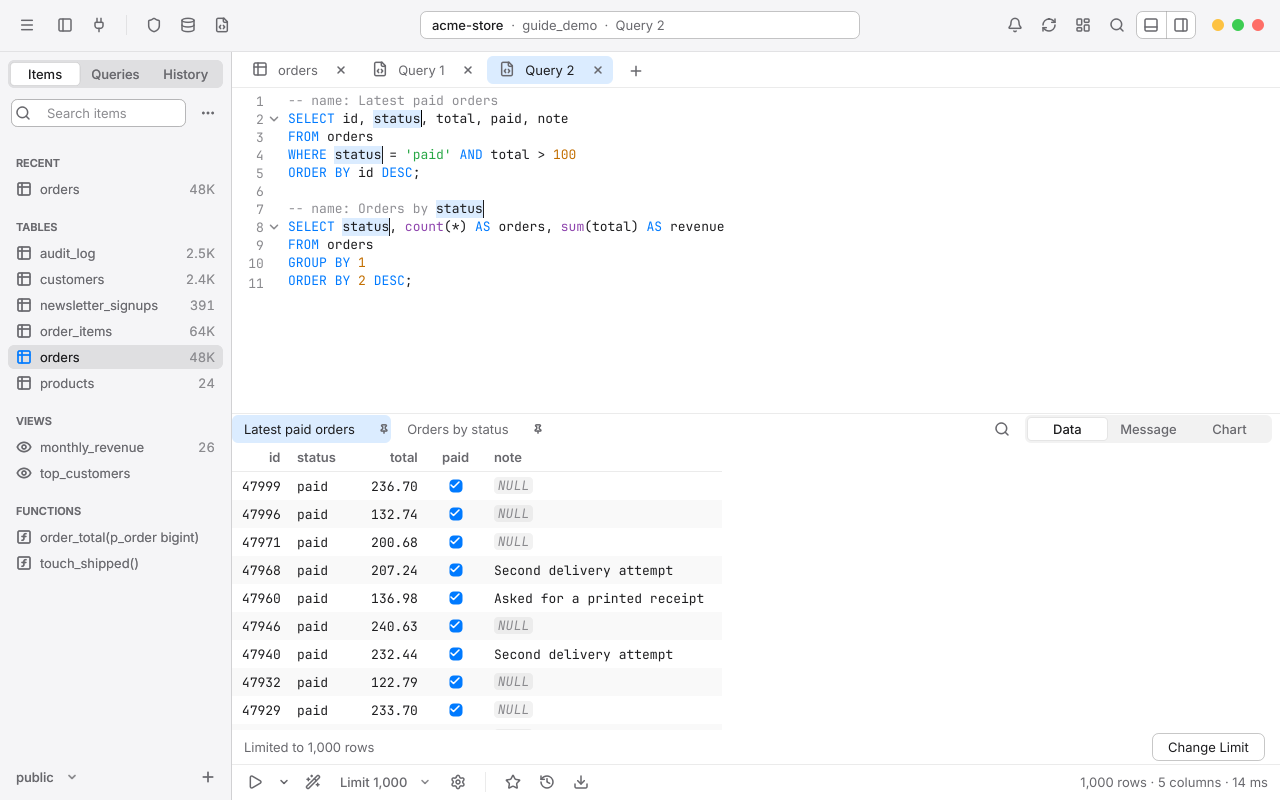
status selected with CtrlShiftL. Typing now changes them all.Typing, deleting, pasting and accepting a suggestion happen at every caret, and undo takes them back in one step.
Find and replace#
Press CtrlF to find, or CtrlH to find and replace. Every match is tinted and the count reads, for example, 2 of 3.
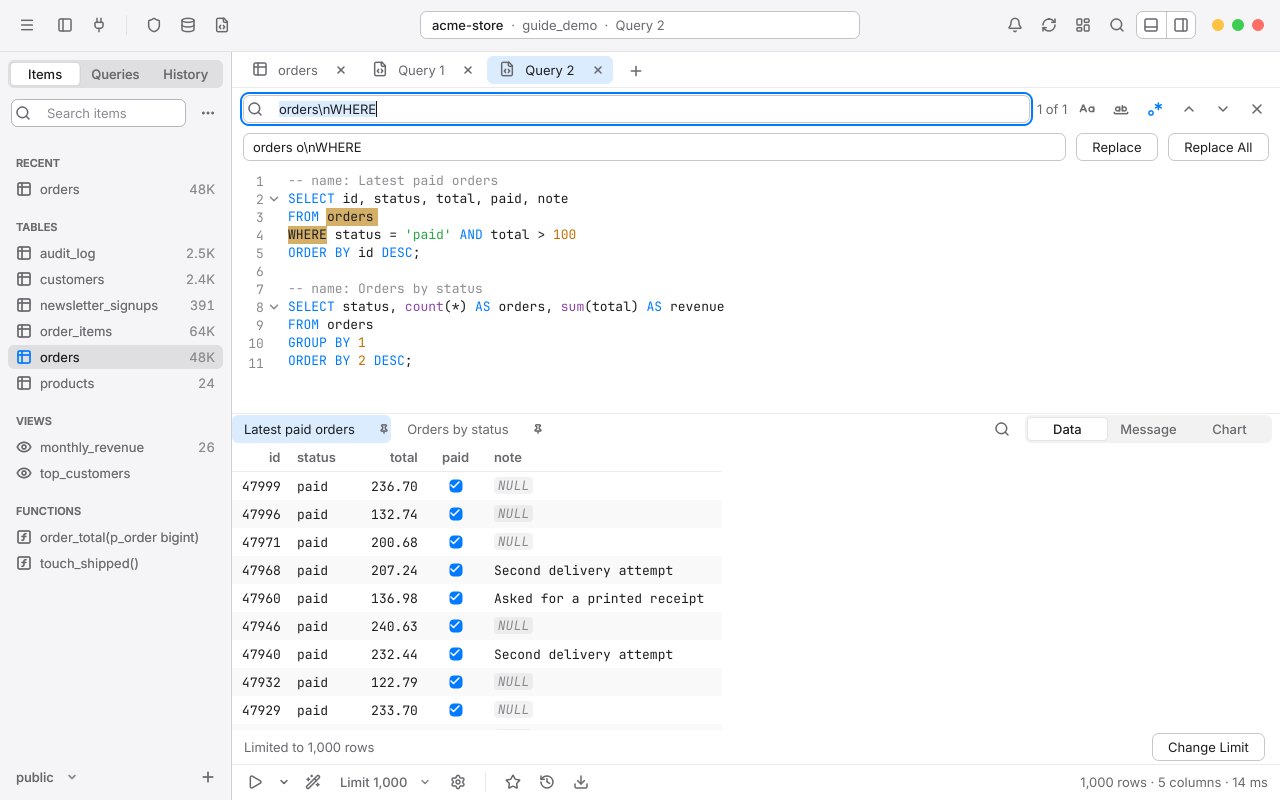
- F3 or CtrlG finds the next match, and ShiftF3 the previous one. Enter and ShiftEnter do the same in the field.
- Turn on Match Case, Whole Word or .* for regular expressions. With regular expressions,
$1to$9put groups into the replacement, and\nmatches a line break. - Replace changes one match; Replace All changes them all in one undo step. Esc goes back to the editor.
Beautify and uglify#
CtrlI, or the wand in the run bar, formats the selection, or the statement at the cursor, with consistent indentation and keyword case. CtrlShiftI does the opposite and puts it on one line, turning -- comments into /* */.
-- Before
select id, total from orders where paid and total > 10 order by total desc

-- After Beautify
SELECT id,
       total
FROM orders
WHERE paid
  AND total > 10
ORDER BY total DESC
Choose the layout in Settings > Editor > Format SQL: Standard, or Tabular Left and Tabular Right, which line clause keywords up in a margin. You can also set keyword case and whether commas lead or trail.
Query parameters#
With query parameters on, placeholders in a query ask for their values when you run it.
- Click the run bar's gear and choose Query Params Options > Enable Query Params, or turn on Enable query params in Settings > Editor.
- Write the query with placeholders, such as
:status. - Run it. The Variables sheet asks for each value; press Enter to move to the next, and CtrlEnter or Apply to run.
SELECT id, status, total
FROM orders
WHERE status = :status
  AND total > :min_total
ORDER BY total DESC;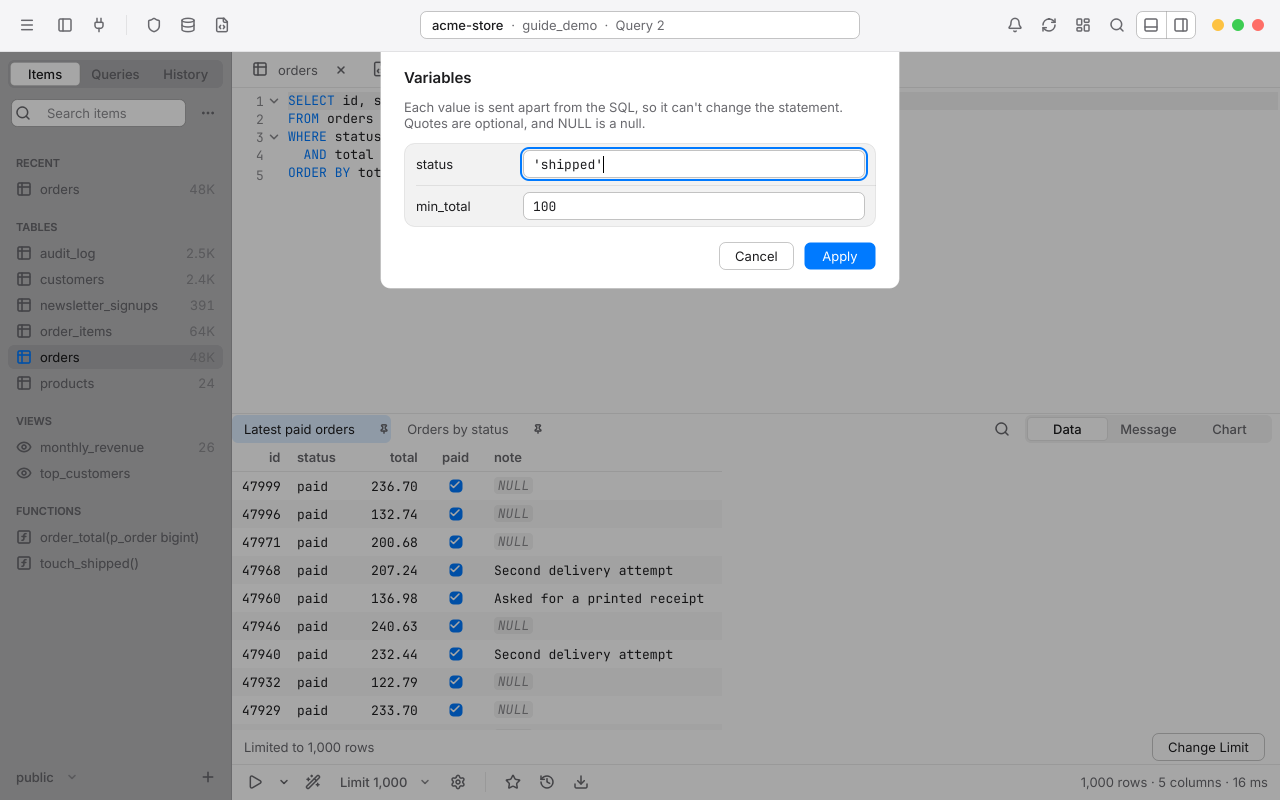
- The formats are
:name,%name%,?,${name},$nameand{{name}}. Choose one with Change Query Params Format. - Values are sent as bound parameters, never pasted in, so a value can never change your statement. Type them as you would in SQL:
'shipped'loses its quotes,NULLis a null, and numbers go as typed. - Placeholders in comments, quoted names and dollar-quoted bodies are ignored, as are casts like
::int. To look inside quoted strings too, turn on Look inside quoted strings. - Cleanup forgets saved values this query doesn't use.
Because values are bound, a value can't be SQL, such as a table name or now() - interval '1 day'. Write the expression in the query and bind only the value.
Saved queries, folders and keywords#
Saved queries are .sql files that Rowan lists in the left sidebar's Queries view, in folders. Each connection has its own, and All Connections holds queries for every connection.
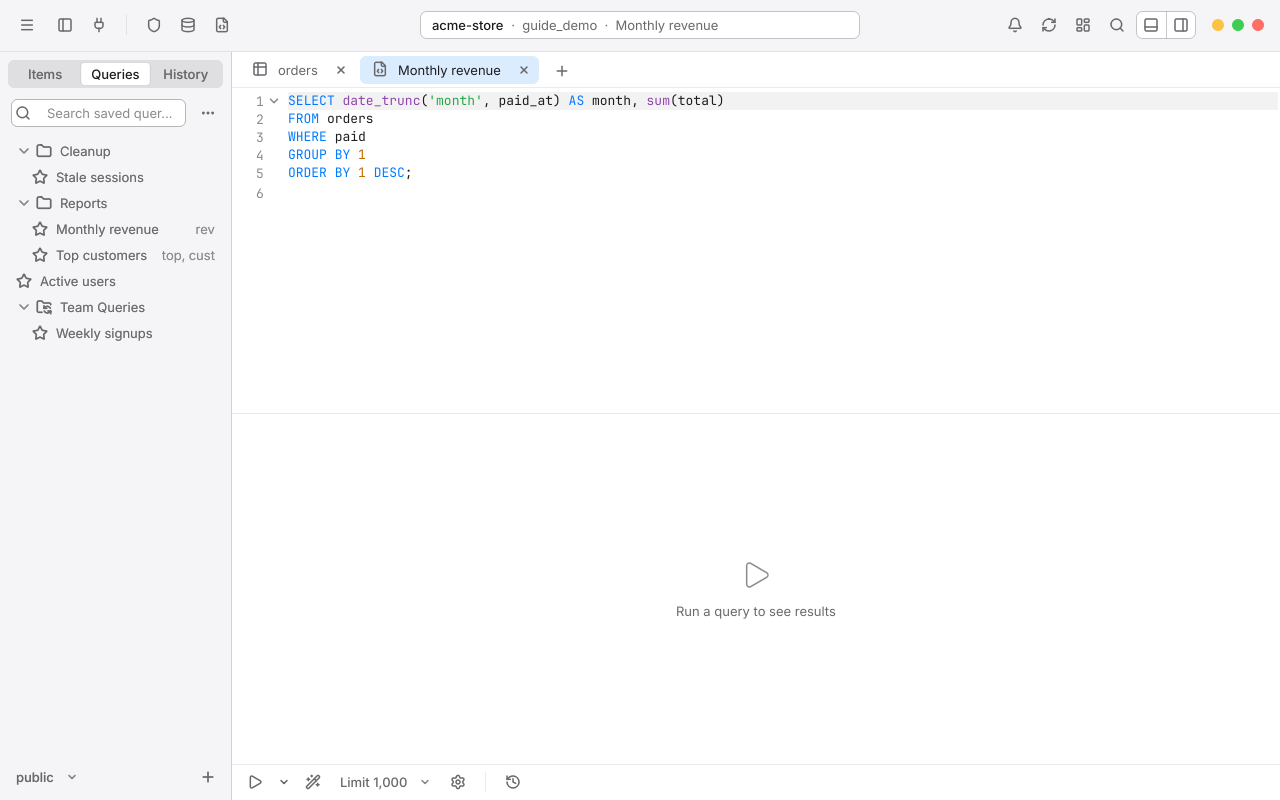
Save a query#
- Click the star in the run bar, or choose Add to Queries… from the run button's menu. To save just the selection or the statement at the cursor, choose Add to Queries… from the editor's right-click menu.
- Enter a Name, and optionally a Folder and Keywords.
- Turn on Available on all connections to share it across connections, then choose Save.
The tab is then linked to the query. With Automatically save queries while editing on (the default), your edits are written to its file as you type; otherwise the tab shows a dot until you save it, and asks when you close it. Renaming the tab renames the query.
Use saved queries#
- Double-click a query to open it. Right-click it for Run, Copy, Edit/Rename…, Open in Tab, Insert into SQL Editor, Show in Explorer and Delete.
- Type a query's keyword in any editor and it's offered first, with a star. Press Tab to insert it.
- Drag a query onto a folder to move it. Deleted queries go to the Recycle Bin.
- To share a folder with your team, right-click empty space and choose New > Add a Shared Folder to Queries, then pick a folder in Dropbox, OneDrive or a network share.
- The settings button has Sort By (Name, Date Created, Date Modified) and Auto Save Queries.
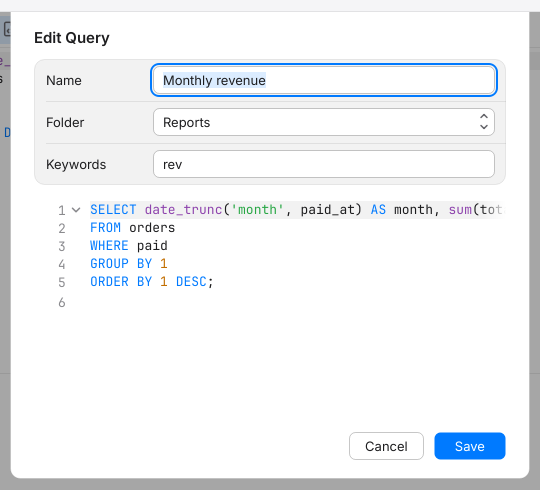
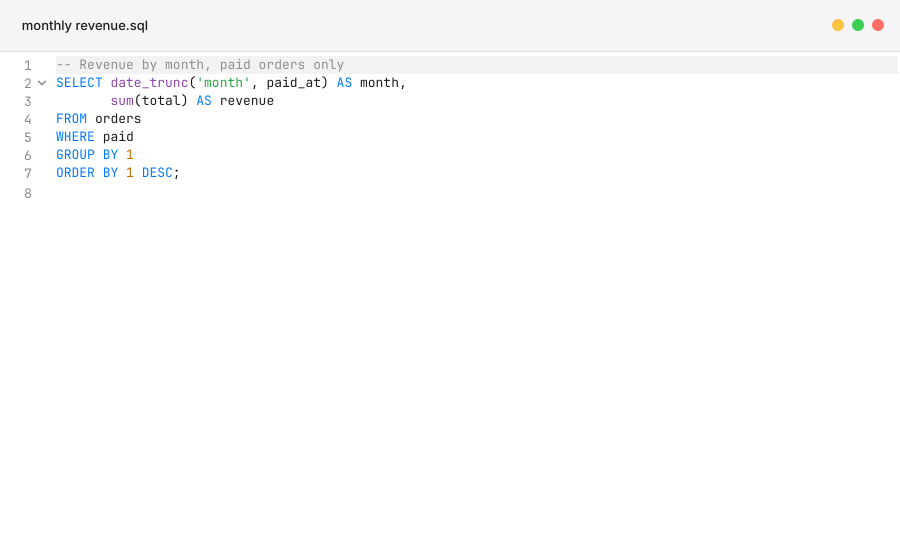
Since they're plain files, you can edit saved queries in any editor; Rowan notices the change.
Query history#
Every statement you run is saved in the left sidebar's History view, with when it ran and whether it failed. Commits are logged too, with the old values of changed rows.
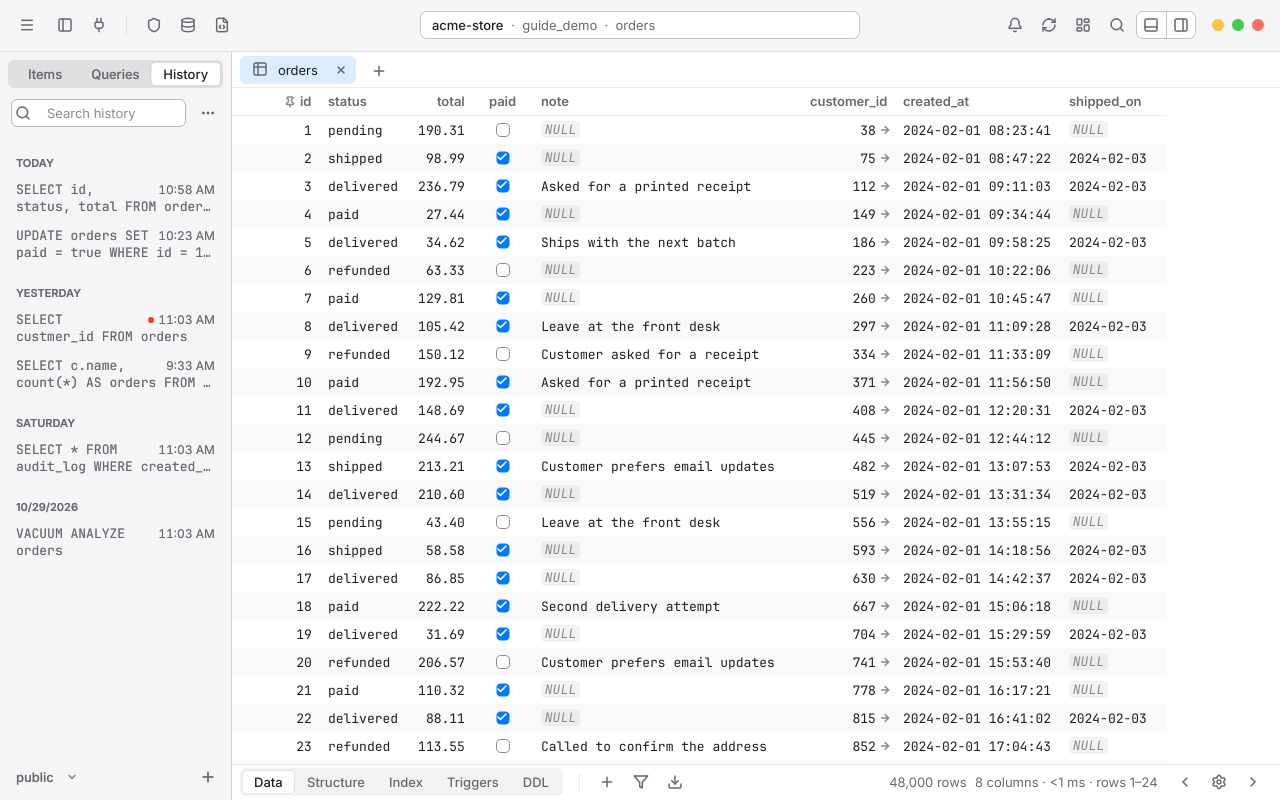
- Double-click an entry to insert it into a new editor tab.
- Right-click an entry for Run, Copy, Save As…, Insert into SQL Editor, Add to Queries…, Delete and Clear All History.
- Delete removes the selected entry.
.sql files and the SQL Viewer#
- CtrlO opens a
.sqlfile in a tab linked to it. CtrlShiftS saves the tab to its file, asking where if it has none; Save SQL As… always asks. File > Open Recent lists your last ten files. - A file opened from outside the Queries folder behaves like any document: it shows a dot while edited and asks before closing.
- Rowan keeps each file's own line endings, Windows or Unix.
The SQL Viewer opens a .sql file in a window of its own, without a connection: for reading and editing scripts, with highlighting, find and replace, and beautify. Nothing runs there. Open it from the welcome window with Open SQL File…, or choose File > New SQL Viewer for an empty one.
Editable results#
You can edit a query's result like a table when every column comes from one table, that table has a primary key, and the key is in the result. Rowan asks PostgreSQL where each column came from, so it knows rather than guesses.
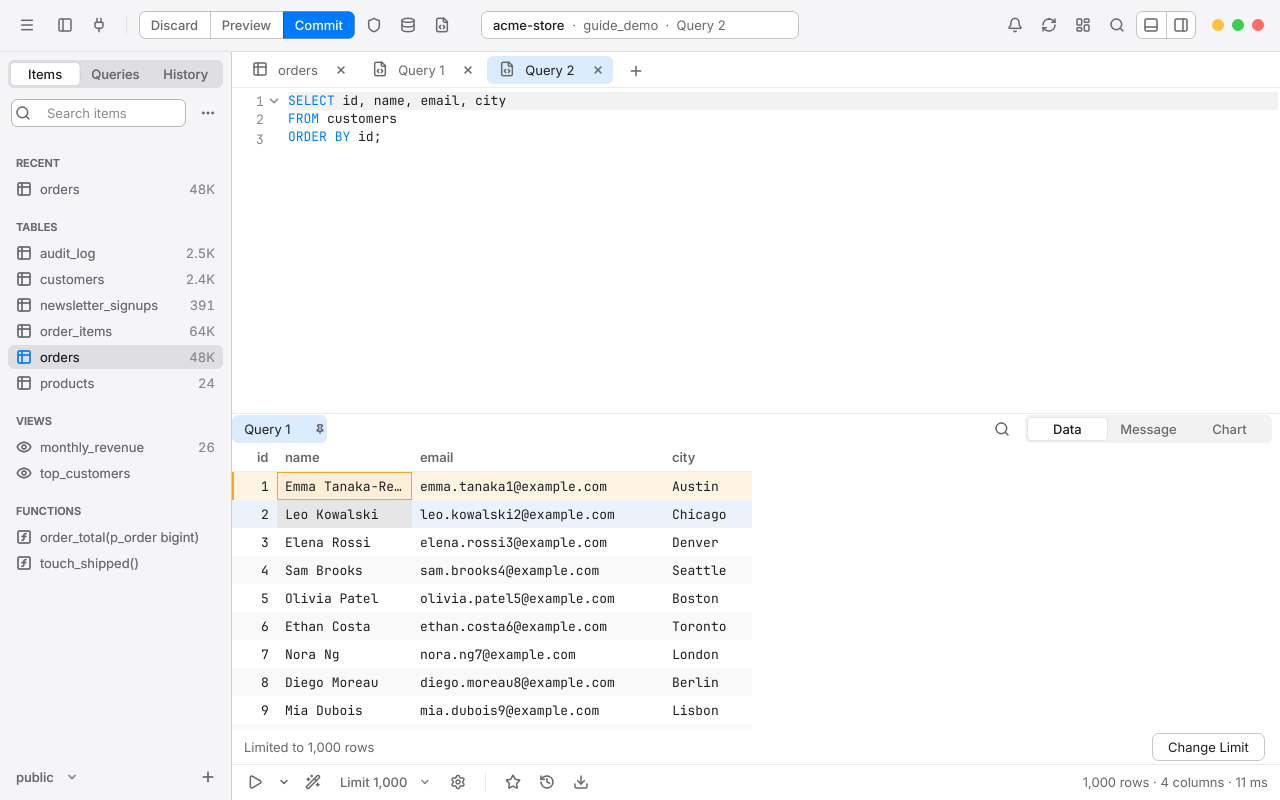
- Double-click a cell, press F2, or start typing. Columns the query works out, such as
total * 2, stay read-only. - Right-click for Set Value, Duplicate, Delete and Restore Row, and every copy format.
- Edits are staged with the workspace's other changes: Preview, CtrlS and CtrlZ cover them all.
If a result can't be edited, double-clicking it says why in the status pill: more than one table, a view, no primary key, or which column to add to the SELECT.
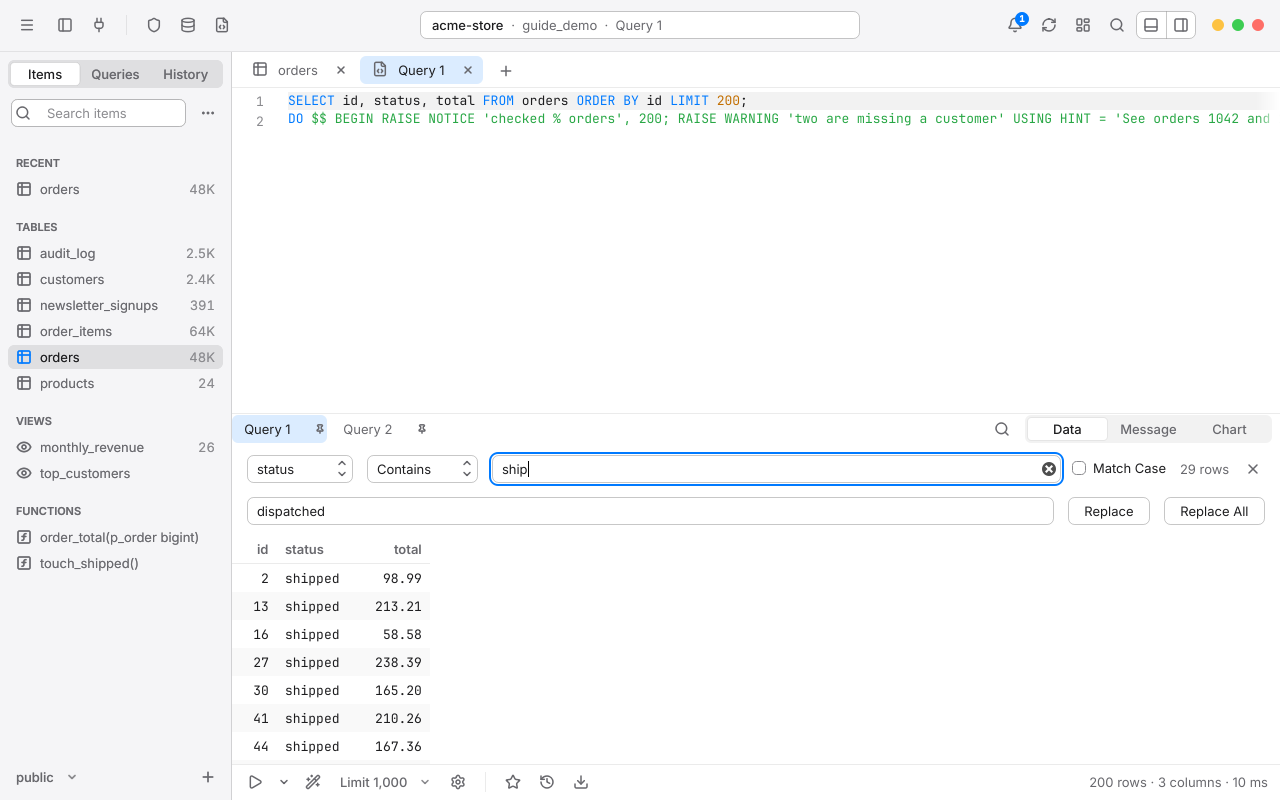
Search and replace in results#
Press CtrlF on a result, or click its search button, to find rows by one column or any column, with Contains, Not contains, Has prefix or Has suffix, and Match Case. Rows that don't match are hidden. In an editable result, Replace and Replace All stage the changes for you to commit.
Vim mode#
If you prefer Vim's keys, choose Vim for Key binding in Settings > Editor. Every editor switches at once.
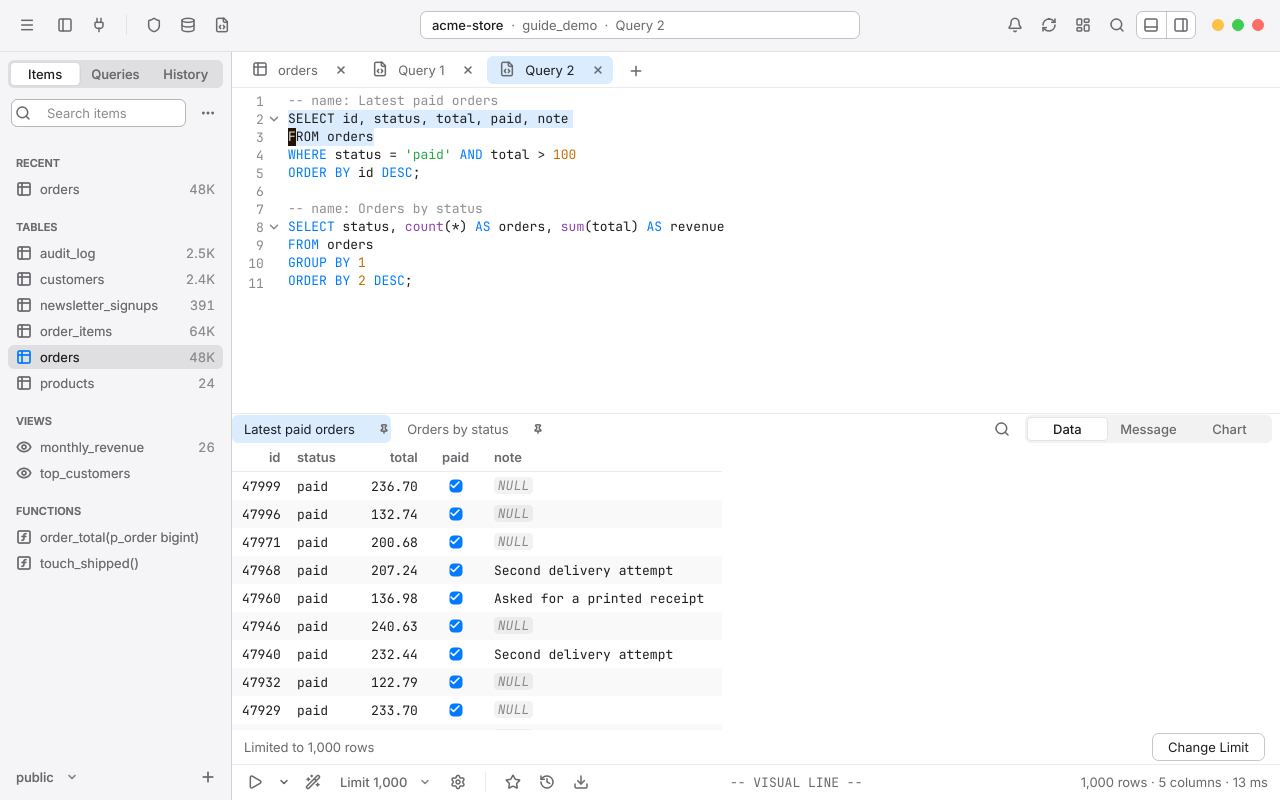
- Normal, Insert, Visual and Visual Line modes, with motions, counts, operators and text objects (
ciw,da(,yi"), registers,.to repeat,/and?search, and:ssubstitutions. :wsaves the tab's file. CtrlEnter runs in every mode, and CtrlC and CtrlV still copy and paste.- Outside Insert, CtrlD, CtrlU and CtrlR are Vim's; Settings lets you give each back to Rowan.
- Vim: use the system clipboard makes yank and put use the Windows clipboard.
- Open rowan.vimrc in Settings opens a settings file for mappings (such as
imap jk <Esc>) and options likeset relativenumber,ignorecase,smartcaseandhlsearch. Saved changes apply at once.
Chapter 8
Stay safe
Rowan protects you from the mistakes every database user makes once: a write to the wrong server, an UPDATE without a WHERE, a query that never ends. Set each connection's protection to match what's at stake.
Safe Mode#
Safe Mode decides how carefully Rowan asks before it sends a statement to the server. Each connection has its own level:
| Level | What it does |
|---|---|
| Silent Mode | Sends queries without a warning. The default. |
| Alert Mode 1 | Asks before any query is sent. |
| Alert Mode 2 | Asks before a query is sent, except SELECT, EXPLAIN and SHOW. |
| Safe Mode 1 | Asks for the database password before any query is sent. |
| Safe Mode 2 | Asks for the database password, except for SELECT, EXPLAIN and SHOW. |
Alert modes list the statements about to be sent and ask you to choose Send. Safe modes also want the connection's database password, so a moment's autopilot can't slip a write through. A wrong password sends nothing.
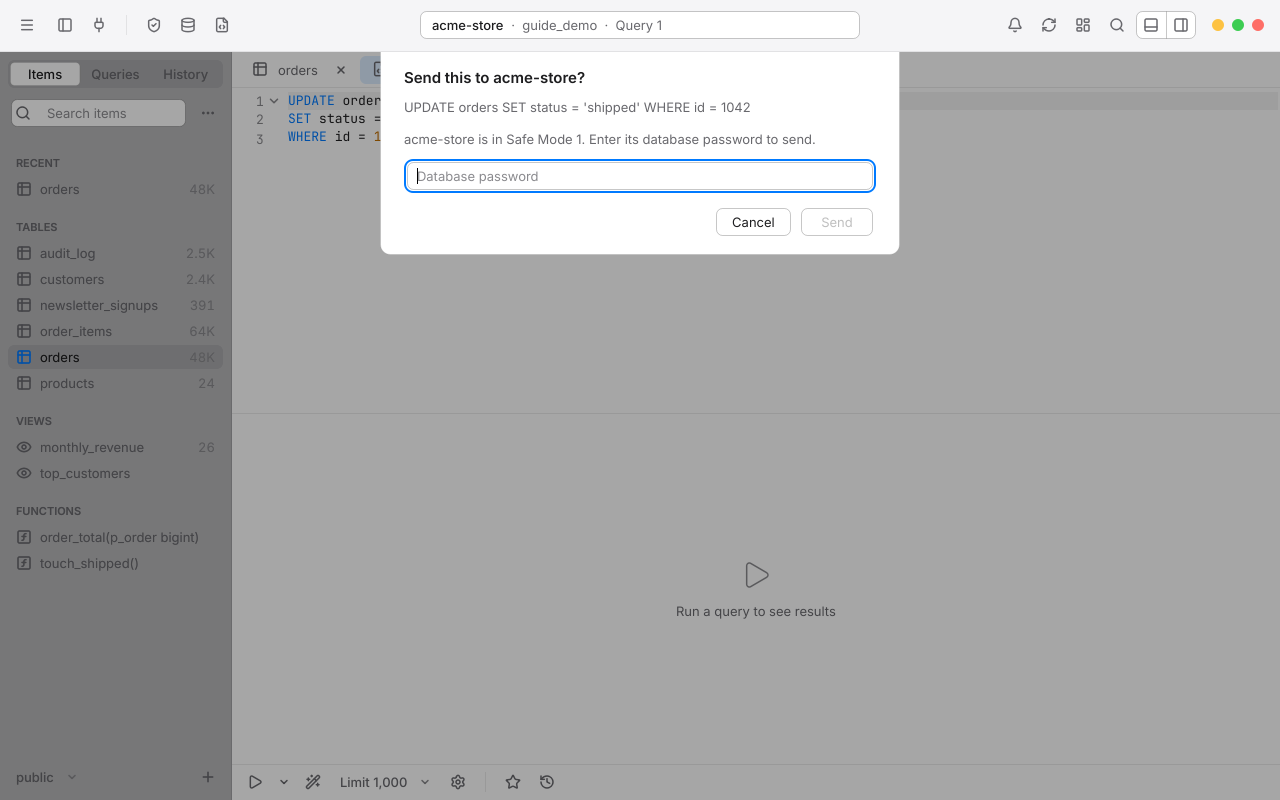
In Mode 2 of each, plain reads go straight through. Rowan looks at what a statement really does: a WITH query that only reads counts as a SELECT, but EXPLAIN ANALYZE of an UPDATE, SELECT INTO, or a WITH that deletes is asked about.
Where Safe Mode applies#
- Statements run from the SQL editor, every one in a script.
- Commits: CtrlS asks before the commit is sent.
- Raw SQL filters in the filter bar.
- Creating, renaming and dropping databases.
- Tools that change things: killing processes, user management, restore and import. A restore always asks, even in Mode 2.
- Metrics Board queries that change data never run on a schedule under Safe Mode.
Set the level#
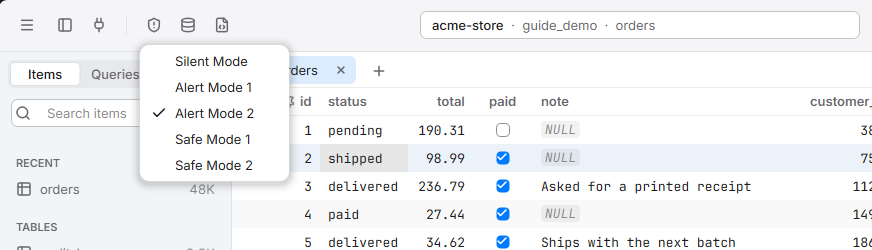
- Click the Safe Mode button in the toolbar. Its icon shows the current level; the menu lists all five.
- Or set Safe Mode in the connection form, where each level shows its hint.
Every workspace open on the connection follows the change. Moving to a lower level from Safe Mode 1 or 2 asks for the password first. New connections start at the level set in Settings > Security > Default Safe Mode for new connection.
Connections with no stored password#
Some connections sign in without a password, for example with a client certificate or a trusted local login. Safe Mode can't ask for a password Rowan doesn't have, so instead it asks you to type the connection's name to continue. The prompt reads, for example, acme-store is in Safe Mode 1 and signs in without a password. Type its name to send.
Read-only connections#
Turn on Read-only in the connection form to make a connection look-but-don't-touch. Rowan turns off every edit, and the server itself refuses writes for the session (default_transaction_read_only is on), so even SQL typed in the editor can't change anything.
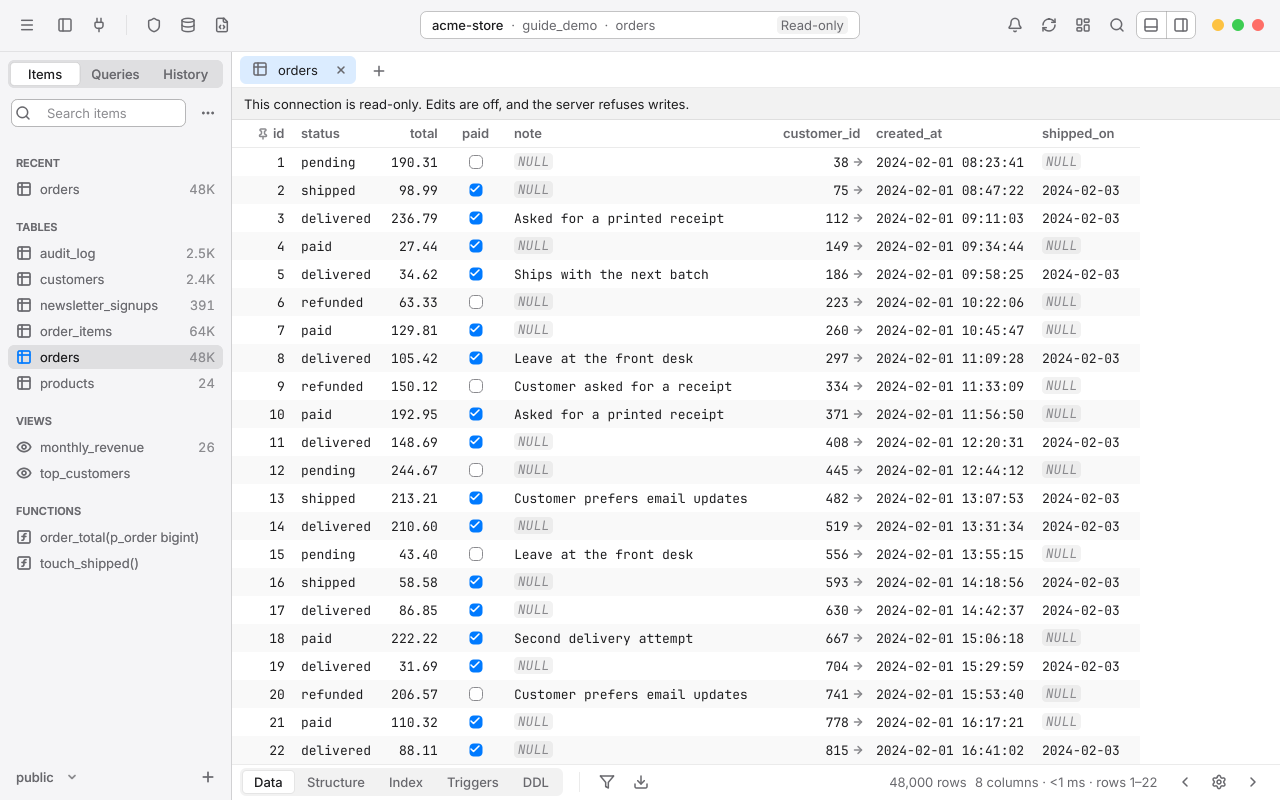
Read-only is separate from Safe Mode; you can use either or both. Imports and restores can't target a read-only connection.
Tags and production colors#
A connection's tag gives it a color you'll notice. A Production connection shows a red strip under the toolbar, with Production at its right end, and a red dot in the status pill. The welcome window shows the tag beside the connection.
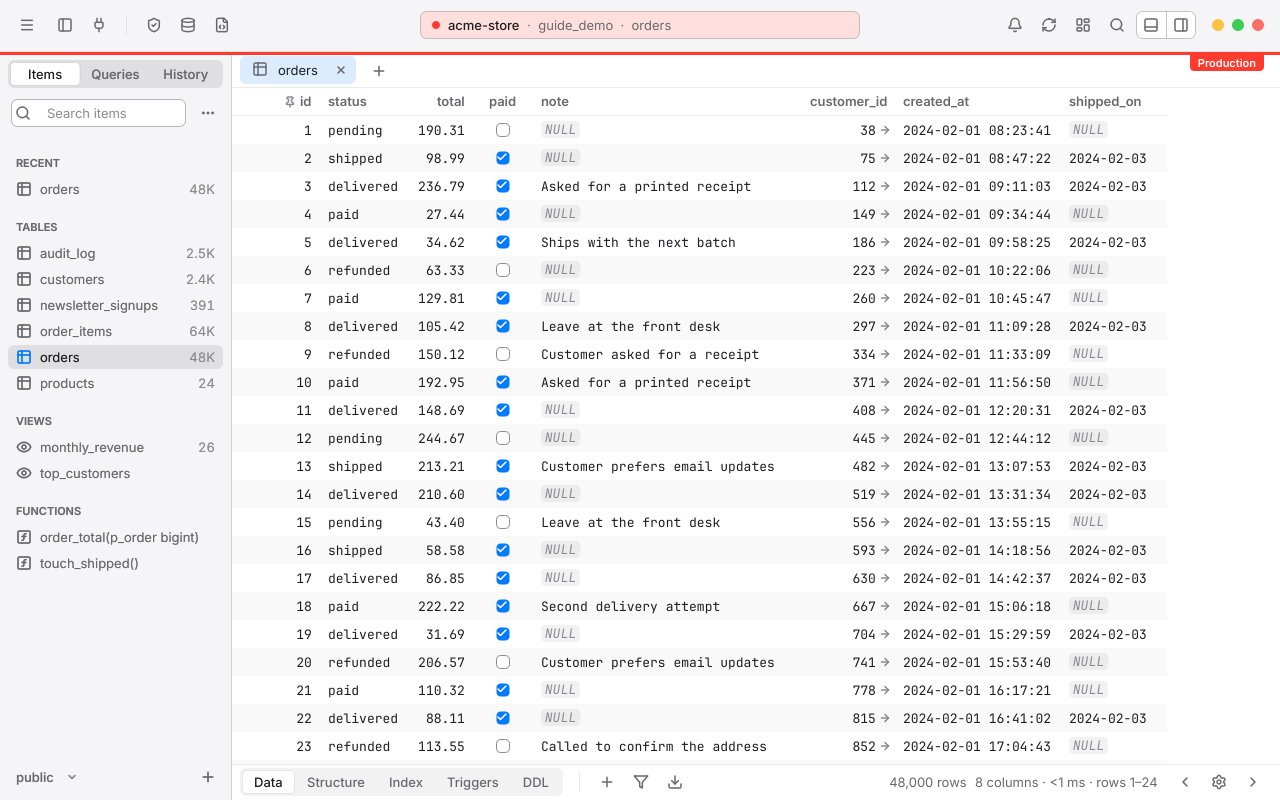
Picking a tag also sets its Safe Mode level: Staging brings Alert Mode 2 and Production brings Safe Mode 2. You can change both afterward. See Tags, colors and groups.
Statement timeout#
A statement timeout makes the server stop any query that runs too long, so a runaway query can't hold locks or burn CPU forever. Rowan sets it on every connection it opens.
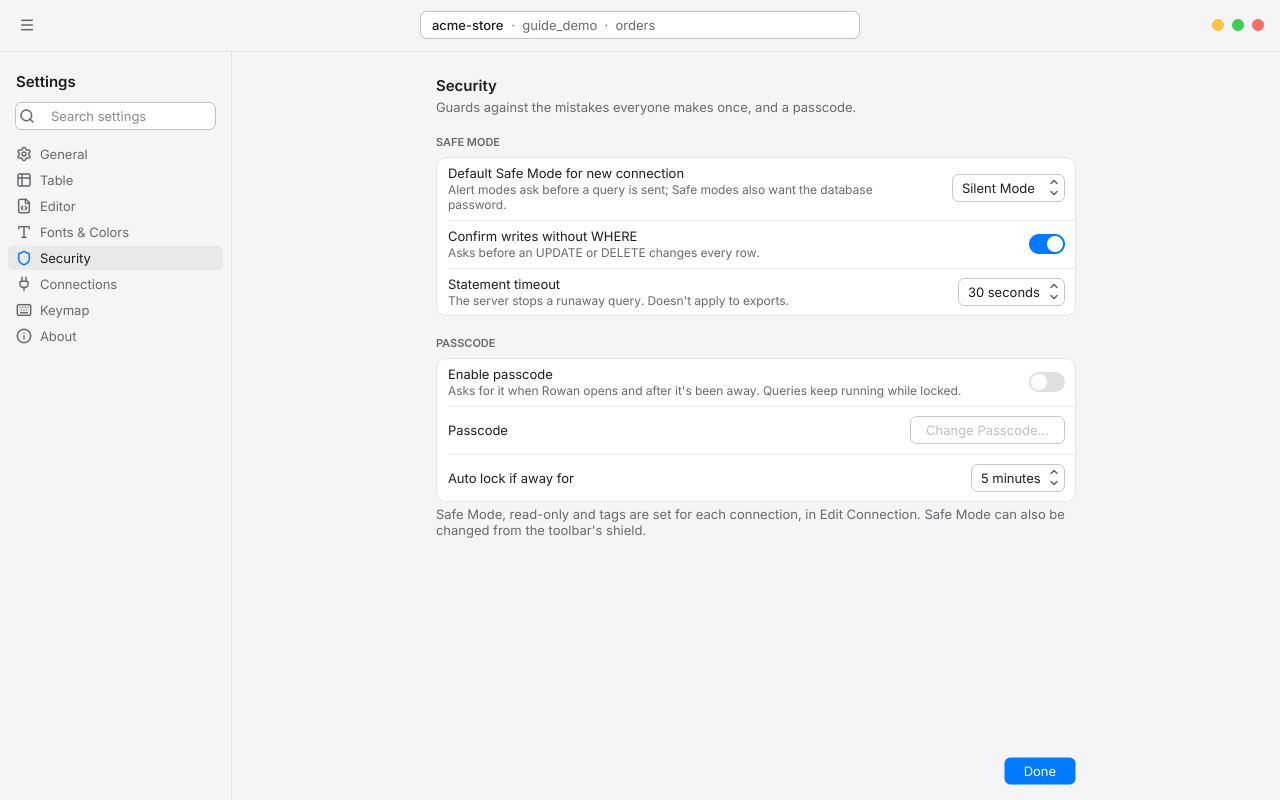
Choose the limit in Settings > Security: 15 seconds, 30 seconds (the default), 1 minute, 5 minutes, or Never. When a query is stopped, the error says so and tells you where to change it. Exports and backups aren't limited.
If you sometimes need a longer query, run SET statement_timeout = '10min'; in the editor first. It applies to that editor's session only.
Confirm UPDATE or DELETE without WHERE#
With Confirm writes without WHERE on in Settings > Security (it's on by default), Rowan stops before running an UPDATE or DELETE that has no WHERE clause:
Update every row? This will change every row in orders. Add a WHERE to change only some.
Choose Run Anyway if you really mean every row, or Cancel to go back and add the WHERE.
Passcode lock#
A passcode keeps Rowan locked when you step away. While it's locked, every window is covered and nothing behind it takes a key or a click; queries keep running.
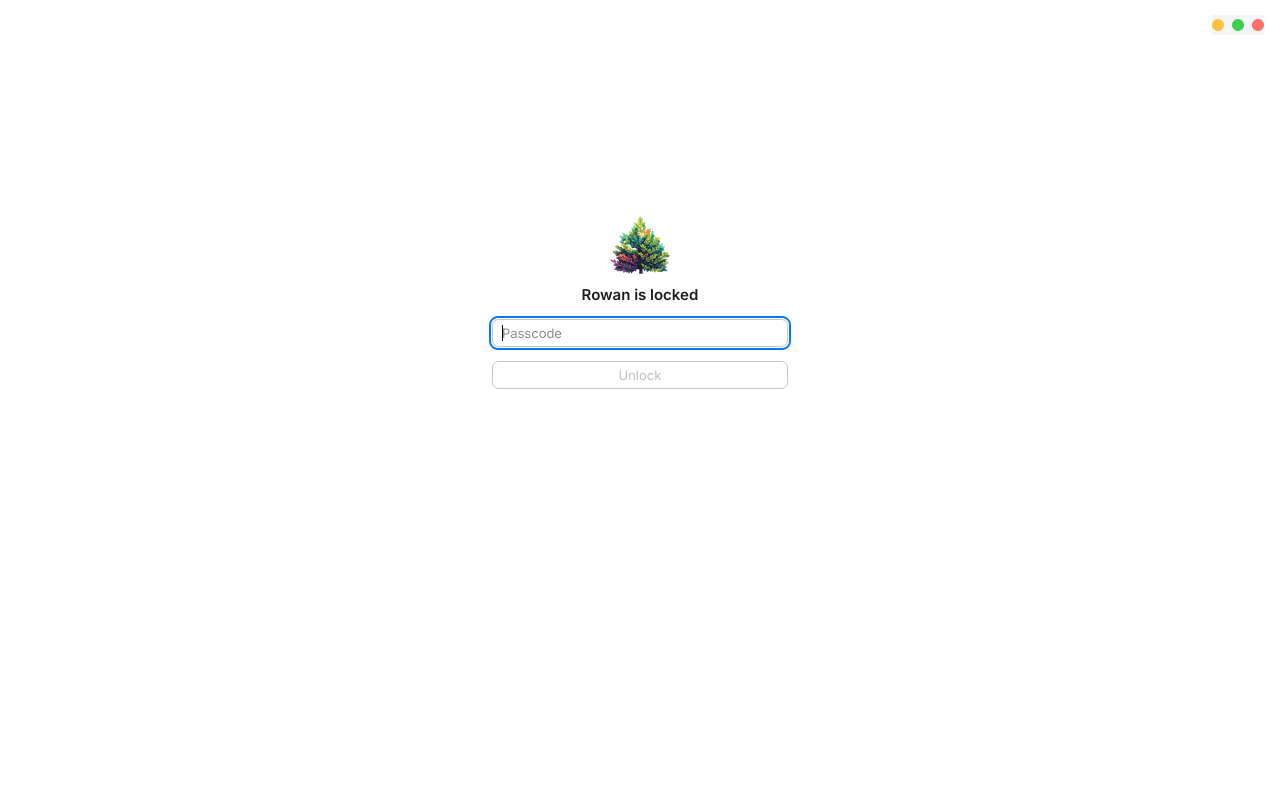
- Open Settings > Security and turn on Enable passcode.
- Enter a passcode of at least 4 characters, then enter it again to confirm.
- Choose Auto lock if away for: 1 minute, 5 minutes, 1 hour or 5 hours.
With a passcode on, Rowan opens locked, and locks again after you've been away that long. To change the passcode, choose Change Passcode…; to turn it off, turn off the switch. Both ask for the current passcode. Only a salted hash of the passcode is kept, in Windows Credential Manager.
Chapter 9
Tools
Beyond browsing and editing, Rowan has tools for the rest of the job: see what's running, manage users, find a value anywhere, draw your schema, back up and restore, move data in and out, and watch it all on a Metrics Board.
Most tools open their own connection to the server, so they work even while a long query runs in your workspace, and they all go through Safe Mode before changing anything.
Process list#
The process list shows the server's sessions and what each is running. Press Ctrl., or choose Tools > Process List.
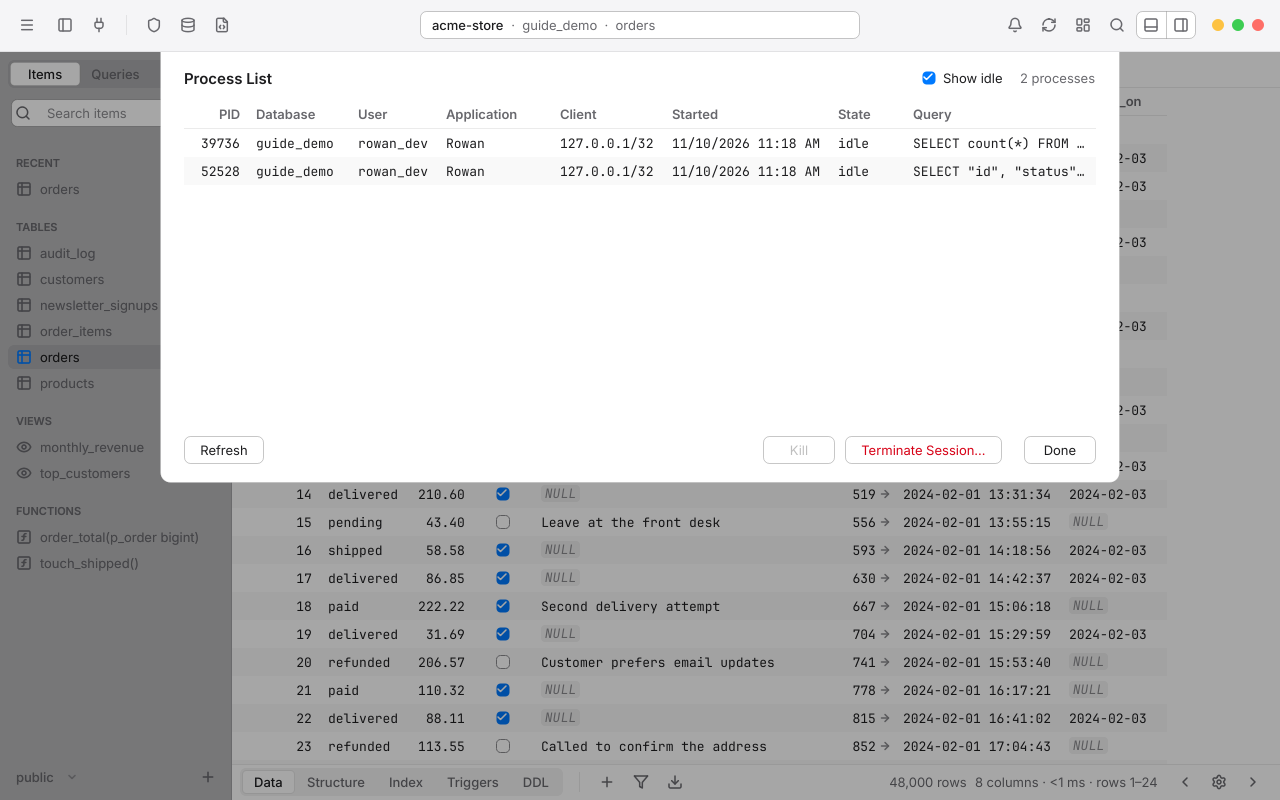
- Each row shows the process ID, database, user, application, client address, when its query started, its state and the query. Show idle includes sessions that aren't running anything. Refresh reads the list again.
- Kill cancels the selected queries, leaving their sessions connected.
- Terminate Session… ends the selected sessions, rolling back anything they haven't committed.
- Right-click for Copy, Copy Selected Cells and Copy Rows As, or open a long query in Quick Look.
When you open the list while your own query is running, by pressing Ctrl. or the editor's Cancel, your query's process is already selected: press Kill to stop it.
User management#
Choose Tools > User Management… to see the server's roles and change them.
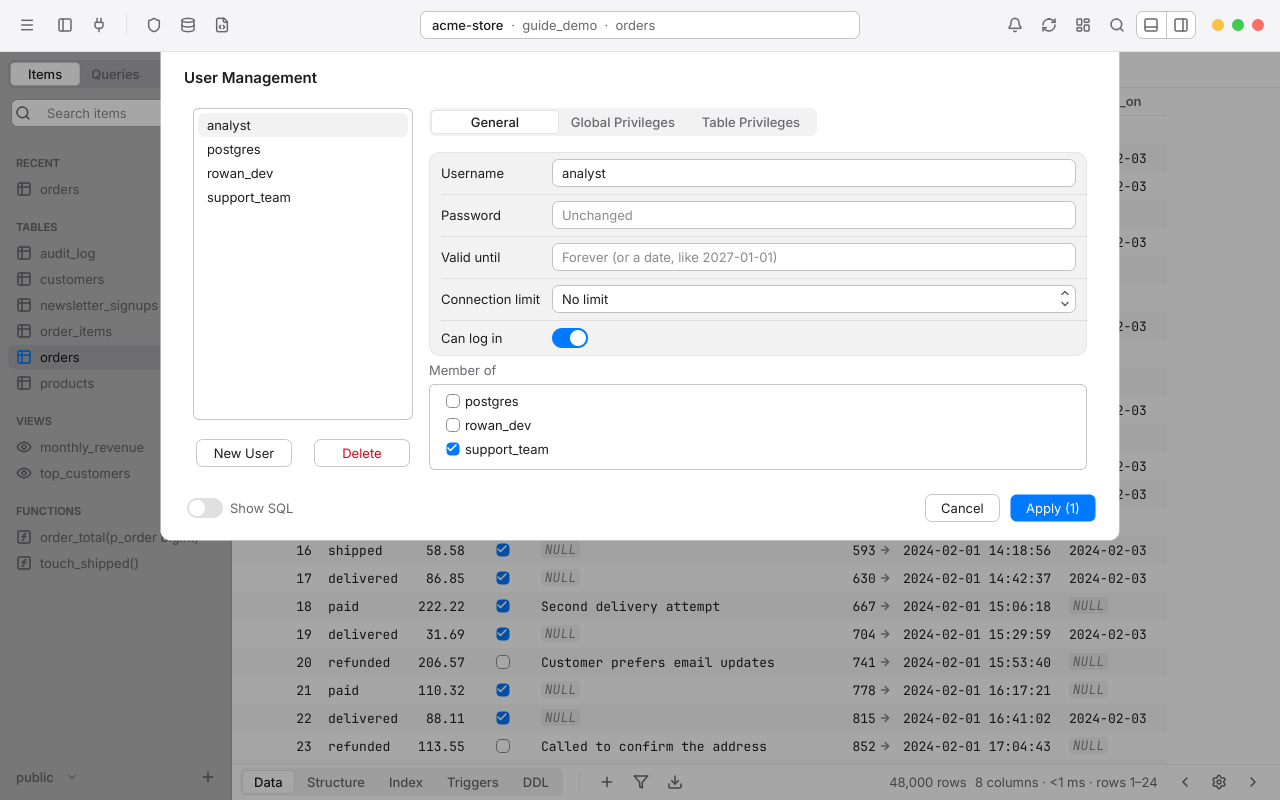
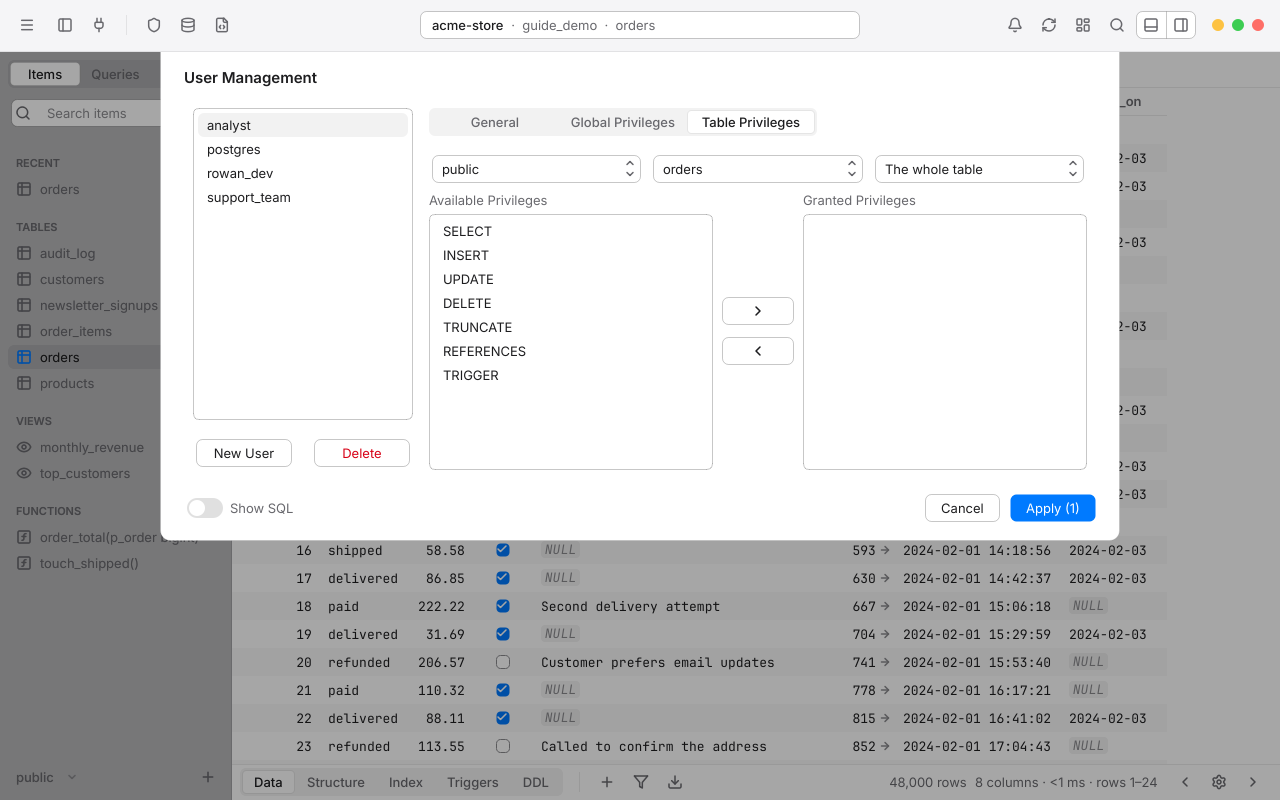
Changes wait until you choose Apply: edited roles show in orange, new ones in italics, and roles to delete are struck through. Show SQL lists exactly what Apply will send, all in one transaction. New User adds a role.
Passwords never leave Rowan as themselves. Rowan sends only a SCRAM-SHA-256 verifier, the way psql's \password does, so the password never appears in History, the console or the server's logs.
Search in database#
To find a value wherever it is, choose Tools > Search in Database…, or Search in Database… from the sidebar's ⋯ menu. The search takes the place of the sidebar until you choose Done.
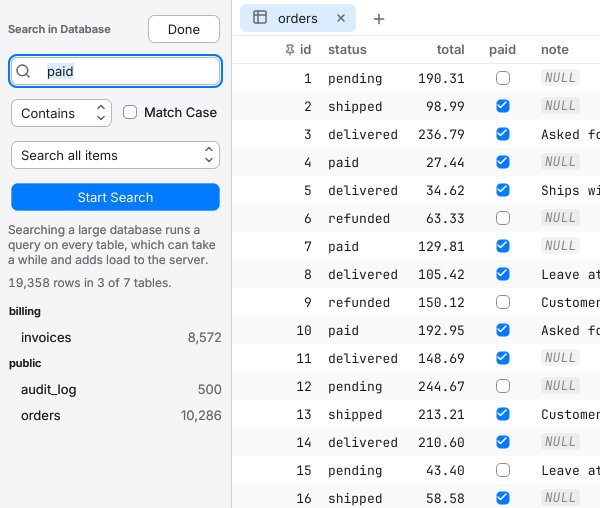
- Type the value, and choose how to match it: Contains, Not contains, =, Has prefix or Has suffix. Turn on Match Case if case matters.
- Choose Search all items, or Select items and name the tables (
orders, orbilling.invoicesfor one schema's). - Choose Start Search. Rowan counts matching rows table by table; Pause and Resume as you need.
Click a table in the results to open it filtered on Any column, so you see exactly the rows that were counted. Searching a large database reads every table, so it adds load to the server; Rowan reminds you under the button.
ER diagram#
The diagram draws a schema's tables and the foreign keys between them. Choose Tools > Show Diagram, or right-click a table and choose Show Diagram. It opens in a tab, one schema at a time; pick another from the schema menu at its top left.
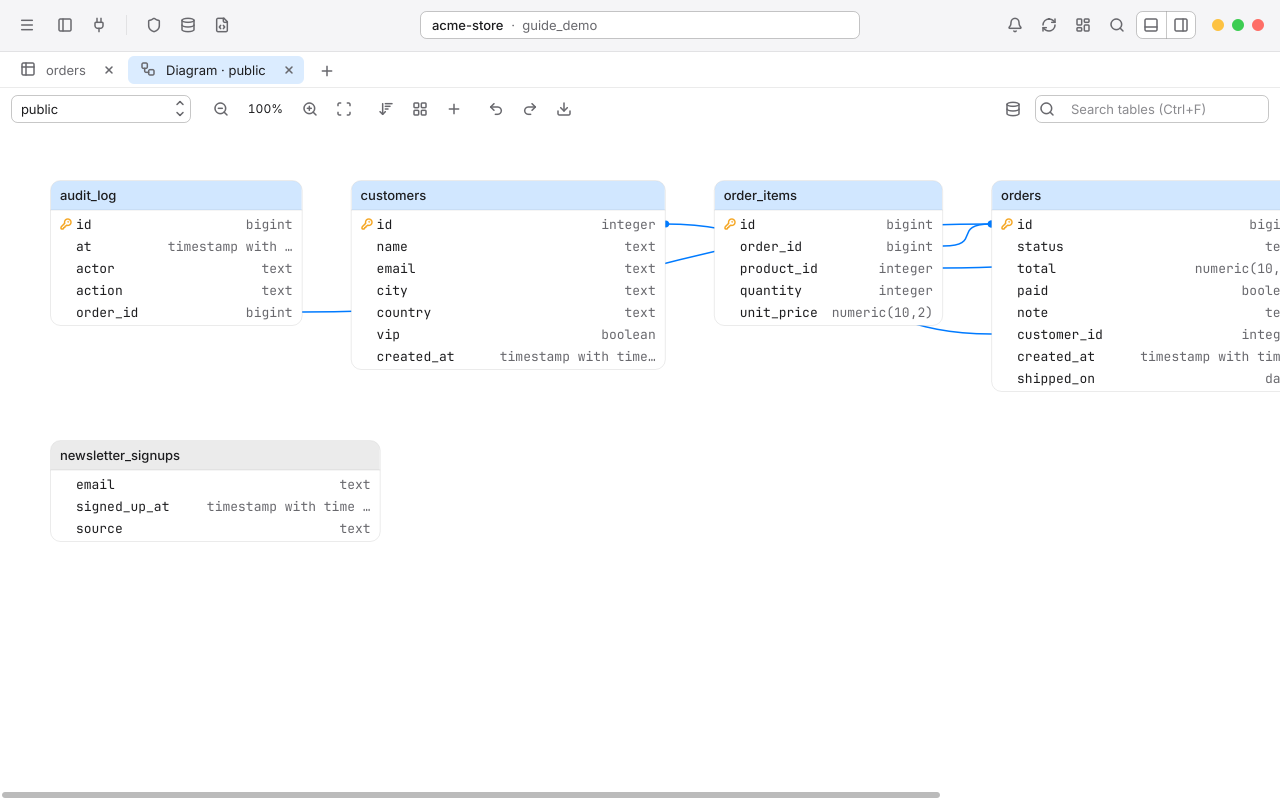
Move around#
- Drag a table to move it. Rowan remembers where you put each one.
- Drag empty space, or hold the middle mouse button and drag anywhere, to pan.
- Ctrl and the mouse wheel, or Zoom In and Zoom Out, zoom from 20% to 300%. Reset Zoom goes back to 100%.
- Zoom to Fit shows every table at once.
- Sort by name or column count, or Rearrange to put joined tables together.
- CtrlF searches table names; Up and Down move through the matches and Enter centers one.
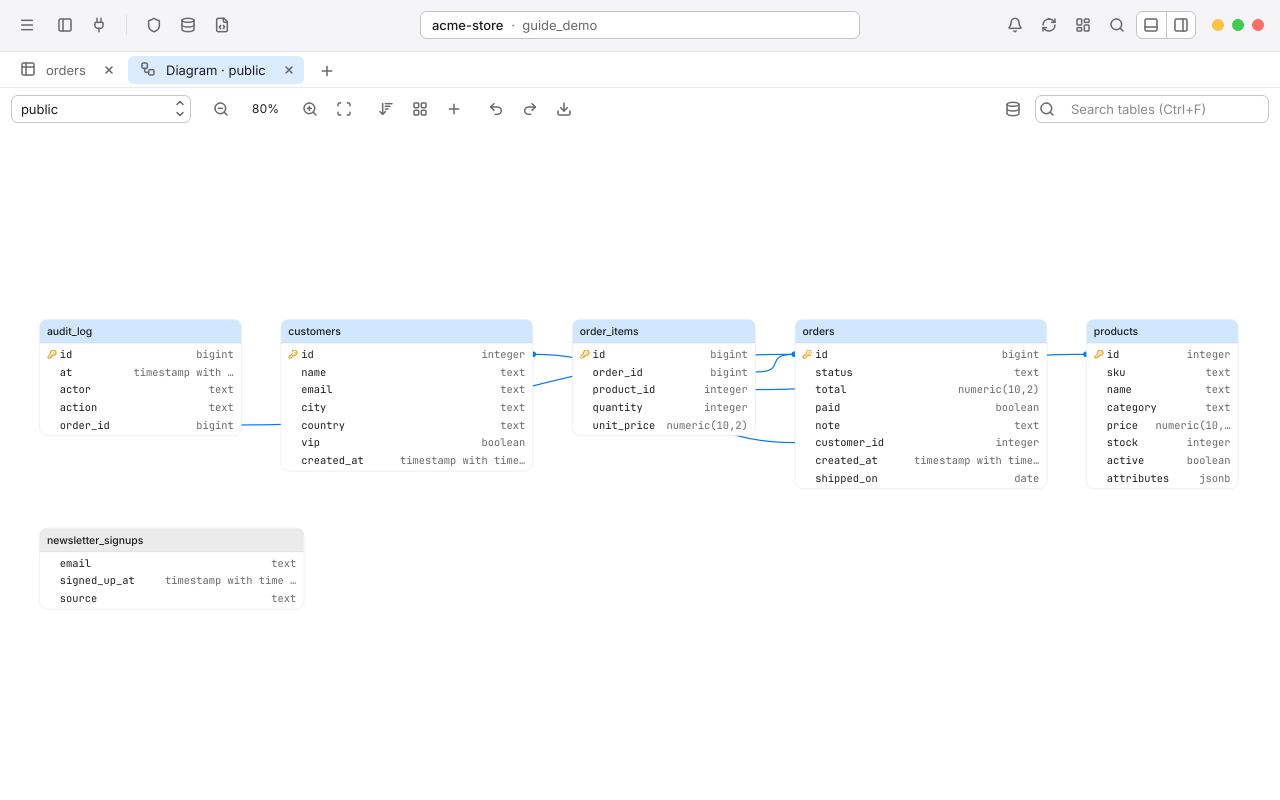
Edit from the diagram#
Changes made in the diagram are staged like any other and committed with CtrlS.
- Click a table for its settings: Name (rename it), Color, and links to its Structure and Index, or Delete Table.
- Add Table, on the diagram's toolbar or its right-click menu, adds a new table with an
idkey. - To add a foreign key, drag from the middle of a table's left or right edge to another table. Rowan guesses the columns from their names, such as
customer_id, and you can choose On Update and On Delete. - Right-click a line and choose Delete to drop the keys between two tables.
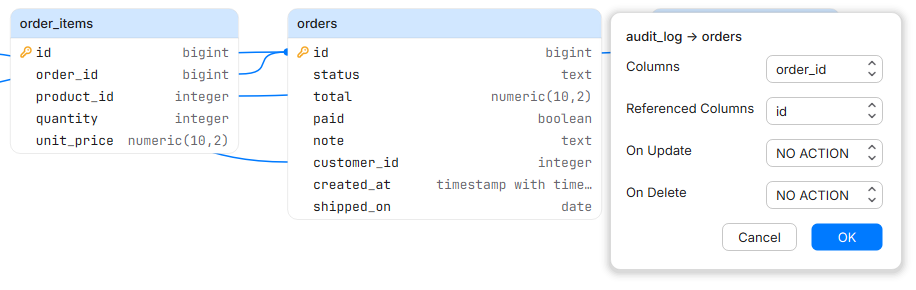
New things are drawn dashed in blue, changed tables in orange and dropped ones in red until you commit. The diagram's toolbar has its own undo and redo.
Export the diagram#
Choose Export on the diagram's toolbar to save the whole diagram, not just what's in view, as a PNG (at twice the size, for sharp printing) or an SVG.
Backup and restore#
Rowan backs up and restores with PostgreSQL's own pg_dump and pg_restore. Rowan includes them for every supported PostgreSQL version, so there's nothing else to install. Choose Backup Database… or Restore Database… in the welcome window, or File > Backup… and File > Restore… in a workspace.
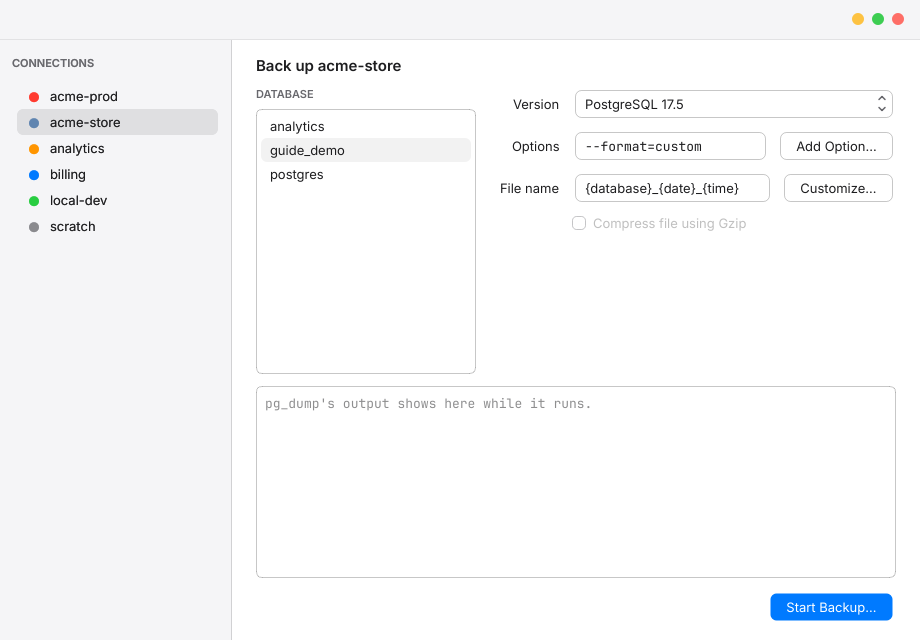
Back up a database#
- Choose the connection on the left, then the database.
- Rowan picks the tool Version matching the server. Change it only if you need to.
- Set the Options. Backups start with
--format=custom, whichpg_restorereads; Add Option… lists the others. - Set the File name. Customize… builds it from
{connection},{database},{date}and{time}. For plain SQL dumps, Compress file using Gzip makes a.sql.gz. - Choose Start Backup and pick a folder.
The tool's output scrolls by as it works. Stop ends it at once, and a stopped or failed backup leaves no half-written file. When it's done, Rowan shows the file and its size.
Restore a backup#
- Choose the connection and the database to restore into, or New Database… to create one.
- Check the options. Restores start with
--single-transaction, so a failure changes nothing. - Choose Start Restore and pick the backup file.
A restore always asks first, and wants the database password on Safe Mode 1 and 2. Read-only connections can't be restored to. A plain .sql dump isn't a pg_restore archive; import it instead, with From SQL Dump.
Backups and restores work over SSH and SSL just like your connections. Each runs as a background job: choose Run in Background to close the window and carry on.
Import#
Import CSV, JSON or a SQL dump into a table. Choose File > Import > From CSV…, From JSON… or From SQL Dump…, or right-click a table in the sidebar and choose Import to import into it. Pick the file, and the import sheet opens.
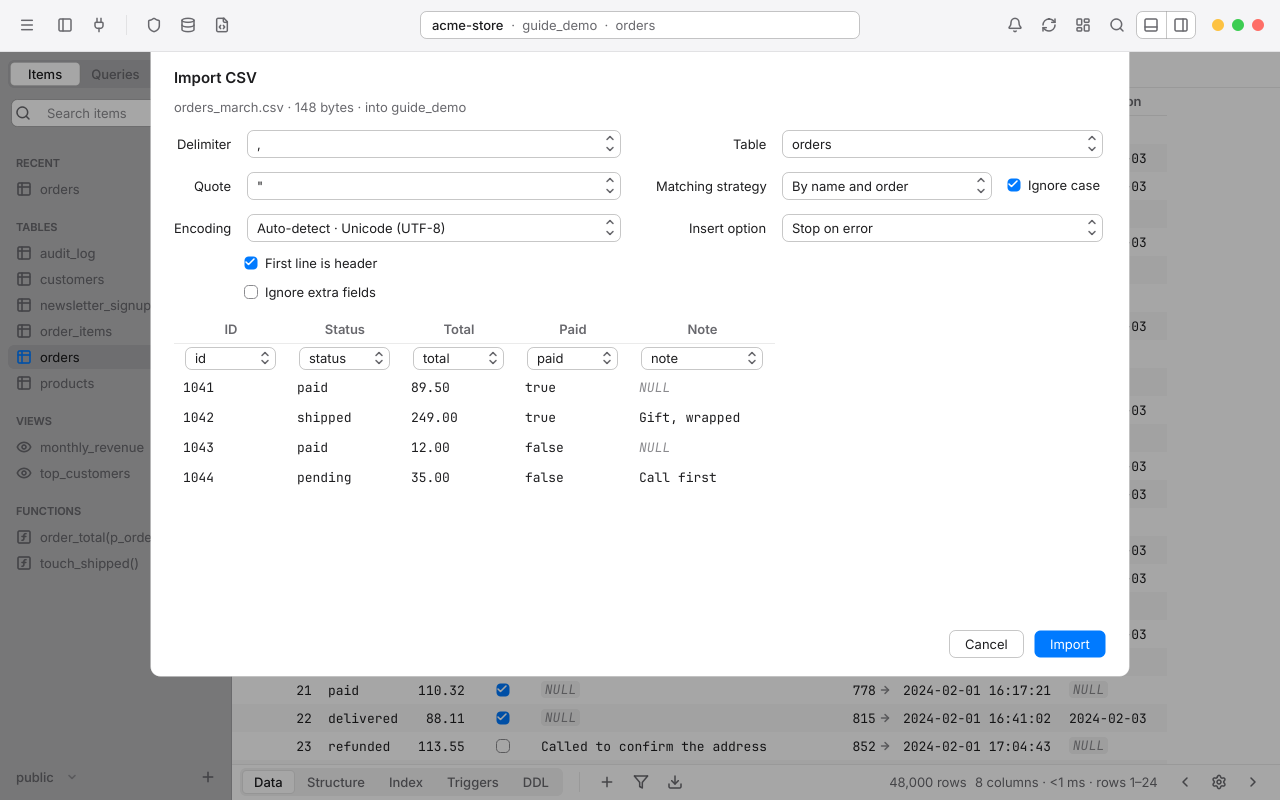
CSV and JSON#
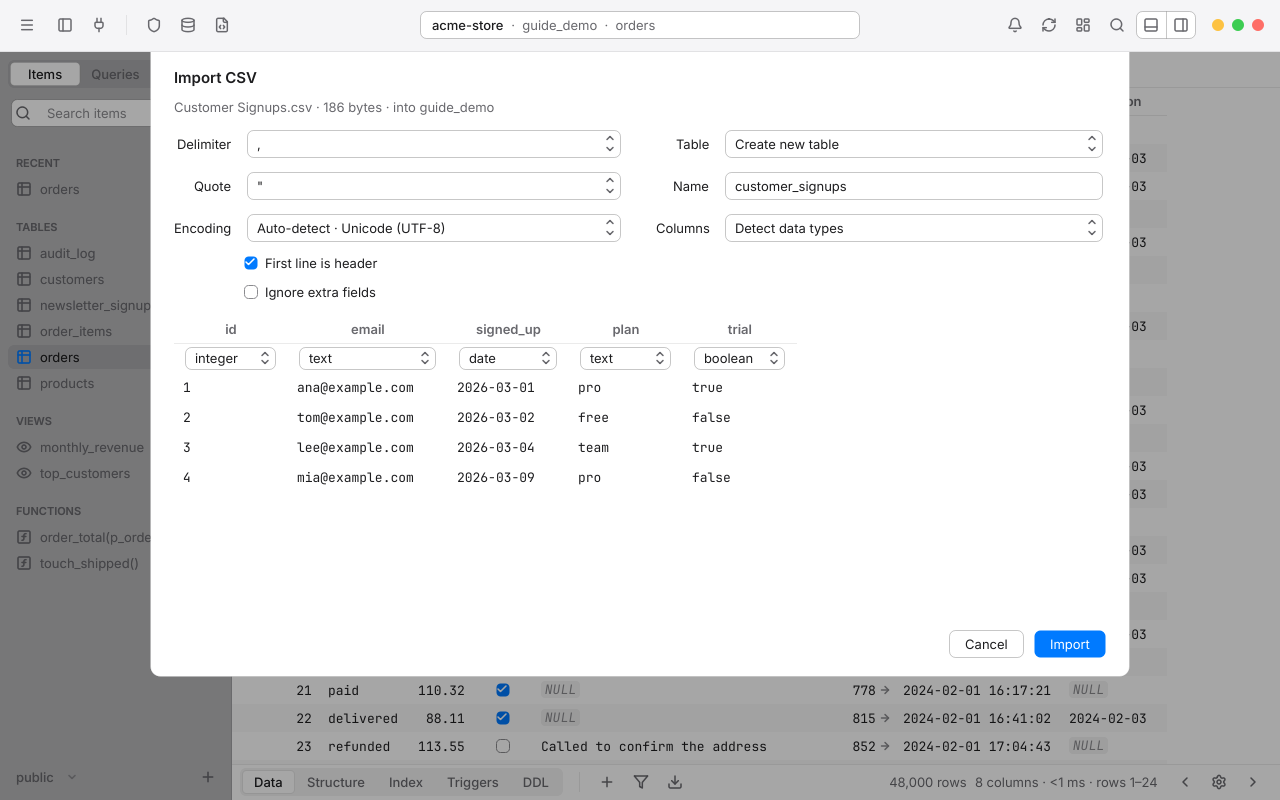
- Encoding starts at Auto-detect, which shows what it found. Every common encoding is listed, and over a hundred more.
- For CSV, set the Delimiter, Quote, and whether the First line is header. An unquoted empty field becomes NULL; a quoted empty one is an empty string.
- JSON can be an array of objects, JSON Lines, or an object holding an array (
{"data": [...]}). Numbers arrive exactly as written, and nested values go in as JSON. - Choose the target table, or Create new table, named after the file, with Detect data types from the first 100 rows.
- For an existing table, the Matching strategy pairs file columns with table columns by name and order, by name, or by order. Above each preview column, choose its target or Do not import.
- Stop on error (the default) or Update on duplicate, which updates rows whose primary key is already there.
SQL dumps#
For a SQL dump, the sheet shows the start of the file, highlighted, and runs it in one transaction unless you turn that off. Large dumps stream through in pieces, and pg_dump's COPY blocks are sent as data.
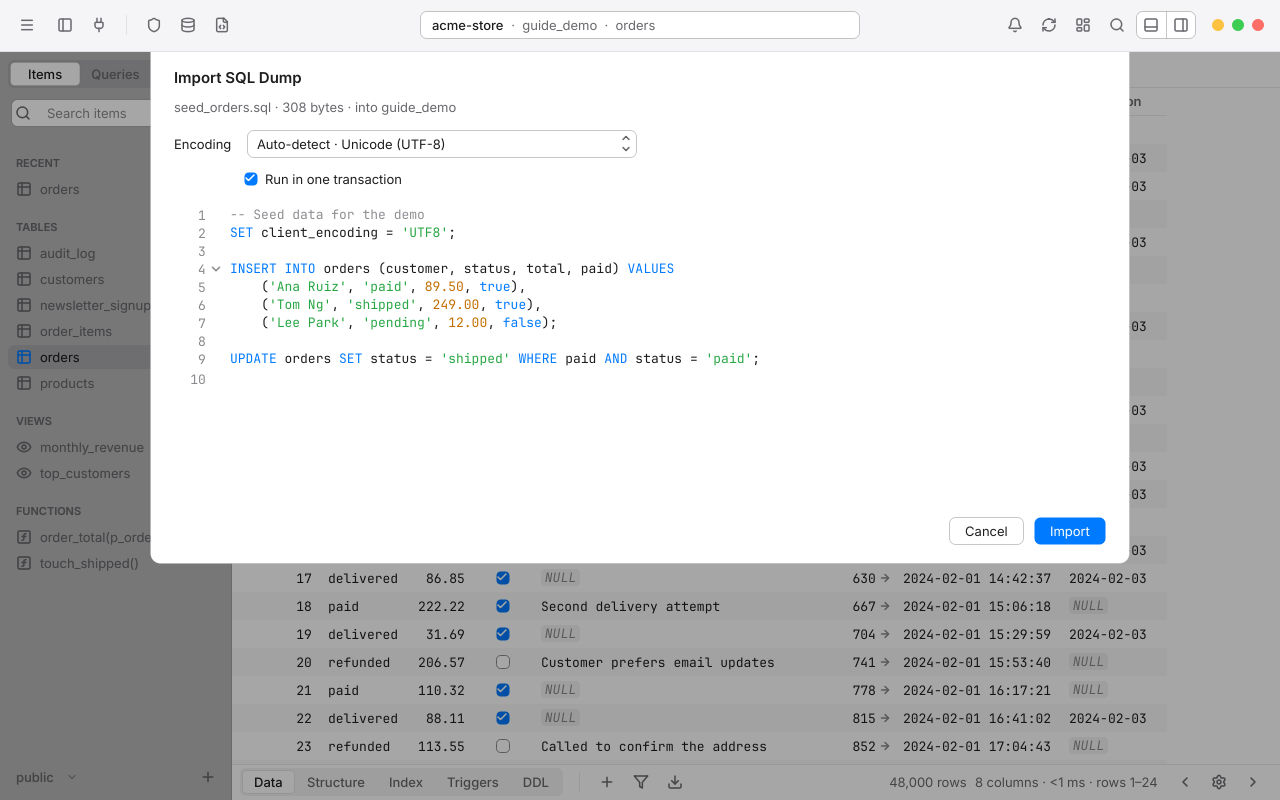
Imports run on a connection of their own, in one transaction: a bad row stops it and nothing is kept. Progress shows rows and a bar; Stop rolls everything back. Choose Import in Background to close the sheet while it runs.
Export#
The export wizard writes tables and views to files. Press CtrlShiftE, choose File > Export Tables…, or click the export button in a table's bottom bar.
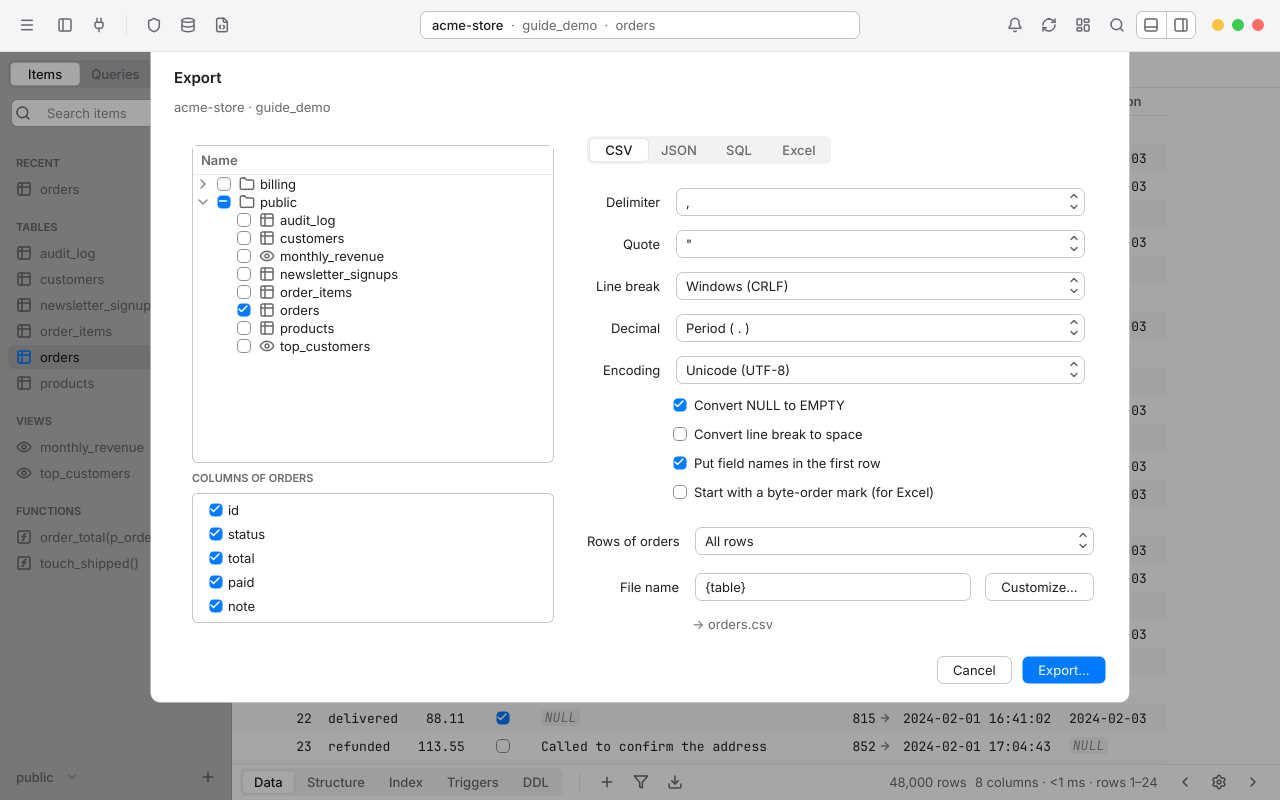
- Check the tables and views to export. With one checked, choose which of its columns to include.
- From a table tab, choose All rows, Filtered rows or Current page. Rows come out in the grid's sort order.
- Choose a format and its options (below).
- Set the file name pattern with Customize…, from
{connection},{database},{schema},{table},{tag},{date}and{time}. - Choose Export… and pick a folder. Several files go in a folder of their own inside it.
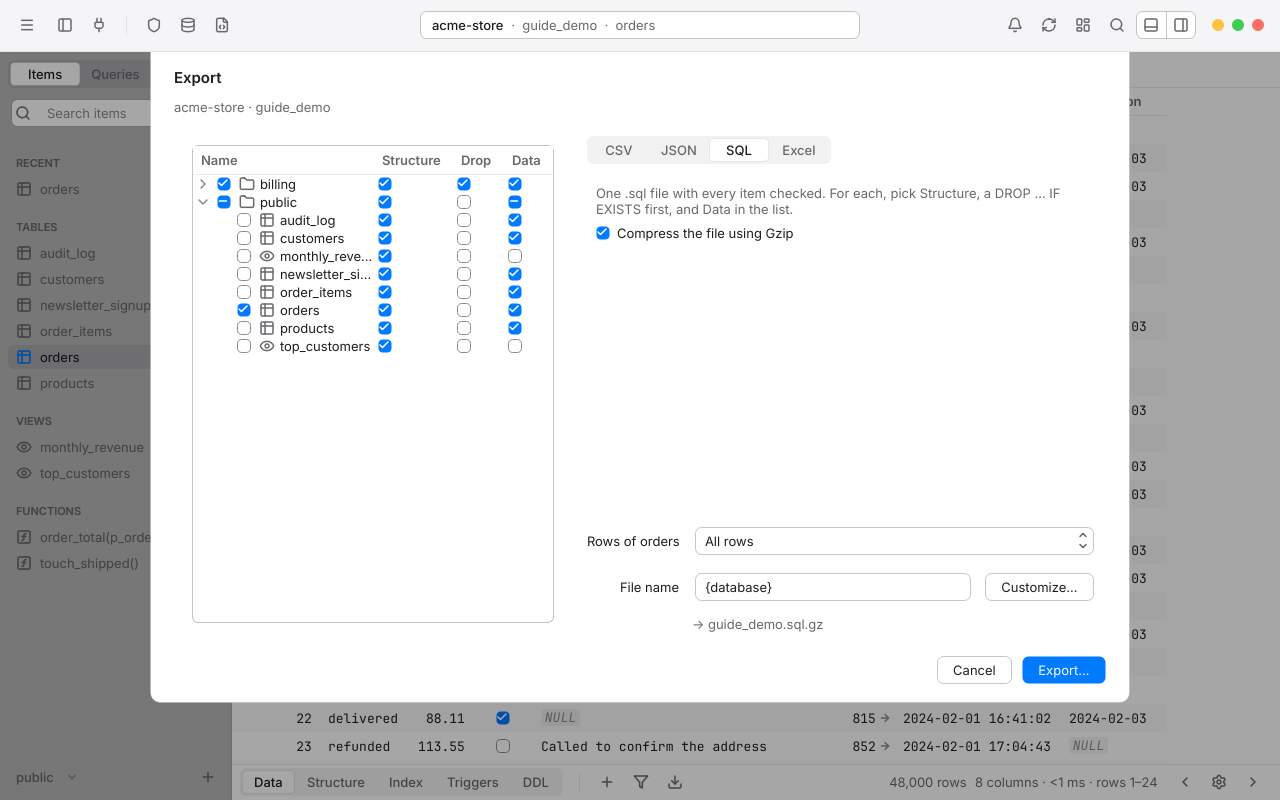
Files are written in place only when the whole export succeeds, so a failure or Stop leaves nothing half-written. Rowan asks before replacing a file. When it's done, Open Folder opens the folder.
In an SQL editor, CtrlShiftE exports the current result straight to a file. Export Result… in a result's menu opens the wizard for one result or every result tab.
Background jobs and notifications#
Every import, export, backup and restore is a job. The bell in the toolbar counts jobs that are running or finished but not yet seen; it turns red if one failed. Click it to see them all.
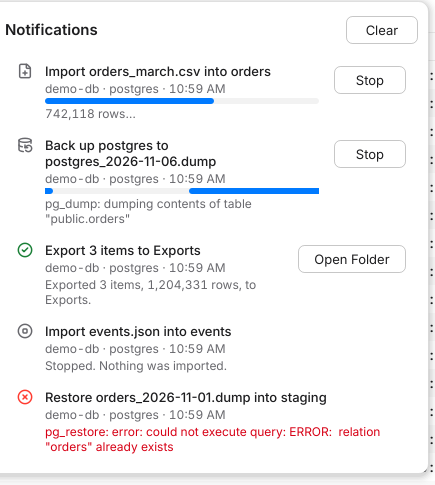
- Running jobs show their progress and a Stop button.
- Finished jobs show their result or error. Exports and backups have Open Folder; imports have Open, which opens the table.
- Clear removes finished jobs.
- When a job ends while Rowan is behind another app, Windows shows a notification and the taskbar button flashes.
Server notices from your queries appear here too. Jobs last until you quit Rowan; closing a window with a job running asks first.
Metrics Board#
A Metrics Board is a page of live charts, numbers and tables, each driven by a query. Click Metrics in the toolbar, or choose Tools > Show Metrics Board. It opens in a tab; Database takes you back.
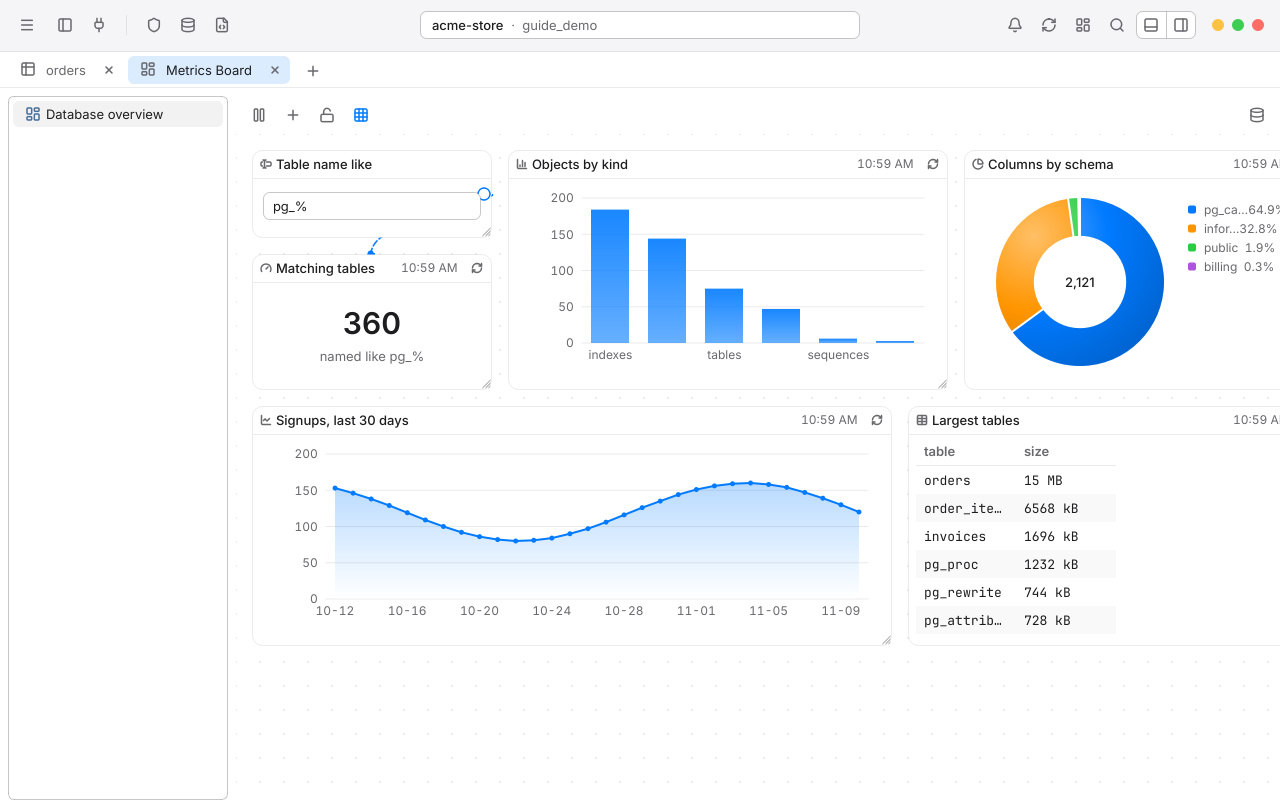
Boards#
Your boards are listed on the left. Right-click for New…, Rename…, Duplicate, Delete, and Import Metrics Board… and Export Metrics Board… to share a board as a file. Boards are saved as you change them.
Objects#
Choose Add on the board's toolbar, or right-click the canvas, to add:
Drag an object's title to move it, and its edges or corners to resize it; both snap to the grid. Hold the middle mouse button and drag to pan the board. Lock stops moving and resizing, Grid shows the dot grid and links, and Status pauses or starts all refreshing.
Settings and refresh#
Click an object's title for its settings: its Label, its SQL, which columns go where, and its Refresh rate, from every second to every 30 minutes, Refresh on Event, or Do not auto refresh. Choose Done to apply them.
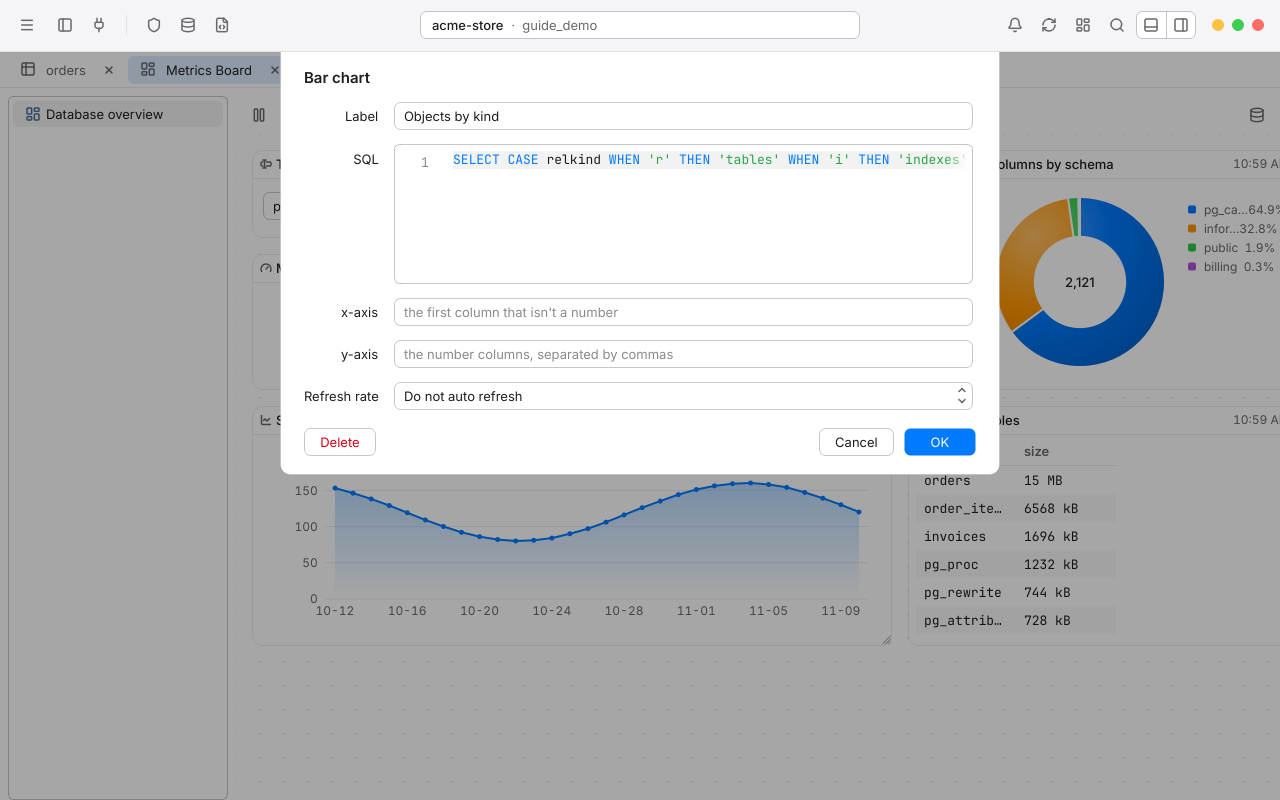
Links and inputs#
Drag from a control's round handle to an object to link them. When the control sends its value (on Enter, when editing ends, when the value changes, or on an event), linked objects run again. In their queries, write $name for the value of the linked control called name:
SELECT count(*) AS tables
FROM pg_class
WHERE relname LIKE $pattern
Values are bound as parameters, so typing into an input can never change the query. For the rare case where a value must be SQL, such as a column to sort by, a control can be set to Insert as SQL text.
Safe Mode on the board#
Boards run on connections of their own, never your workspace's, and refreshing pauses while the board's tab isn't showing. An object is never started again while its last run is still going. A query that changes data never runs on a schedule while Safe Mode is on; refreshed by hand, it asks with the level and password of the connection it runs on.
To put a chart from the SQL editor on a board, choose Add to Metrics Board in its Chart view.
Chapter 10
Settings
Settings slide up over the window when you press Ctrl,. Every option applies the moment you change it, and Rowan remembers it; there's nothing to save.
Use Settings#
- Press Ctrl,, or choose Settings… from the menu.
- Choose a category on the left: General, Table, Editor, Fonts & Colors, Security, Connections, Keymap or About.
- To find an option, press CtrlF and type in Search settings. Only matching options show, on every page.
- Choose Done or press Esc to close Settings. The toolbar stays live while it's open.
Options that belong to one connection, such as Safe Mode, Read-only and its tag, are in the connection's own form, not here. See Create a connection.
General#
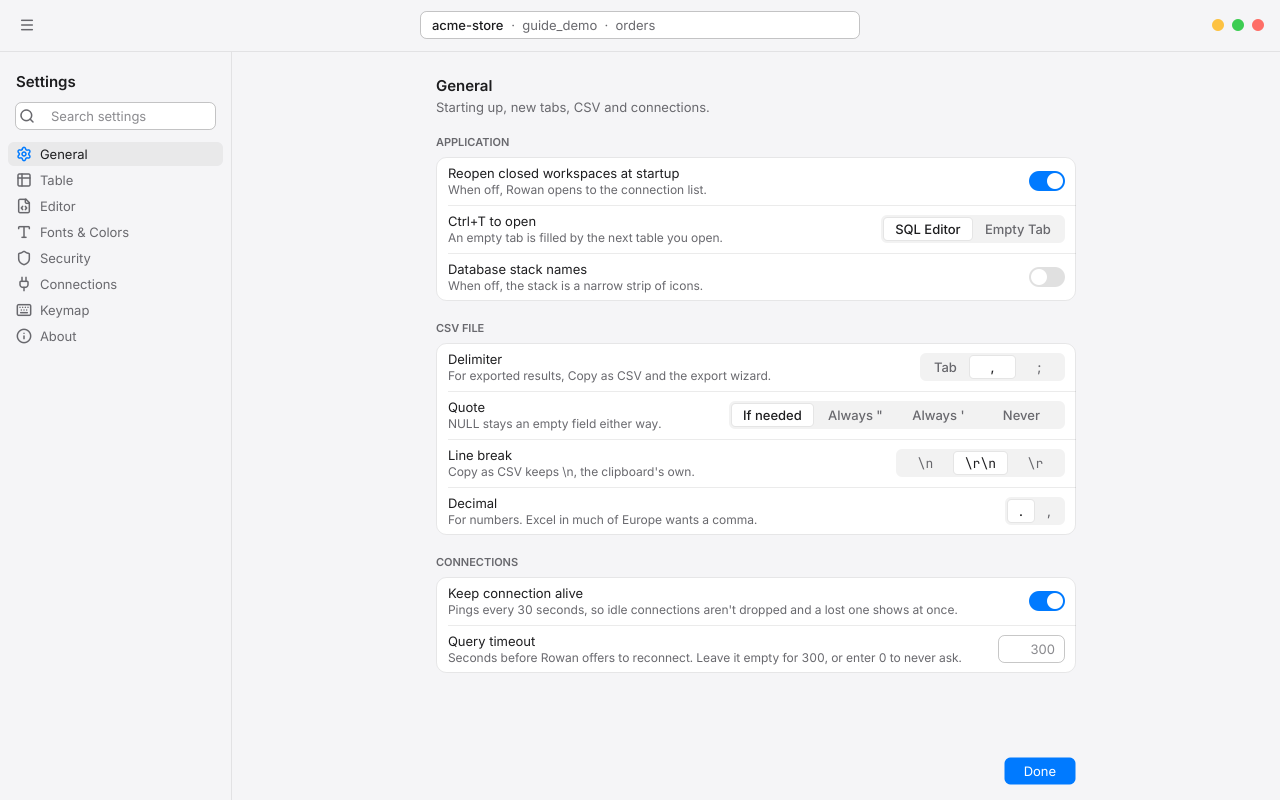
Application#
CSV File#
How CSV is written when you export results, use Copy as CSV, and where the export wizard starts.
Connections#
Table#
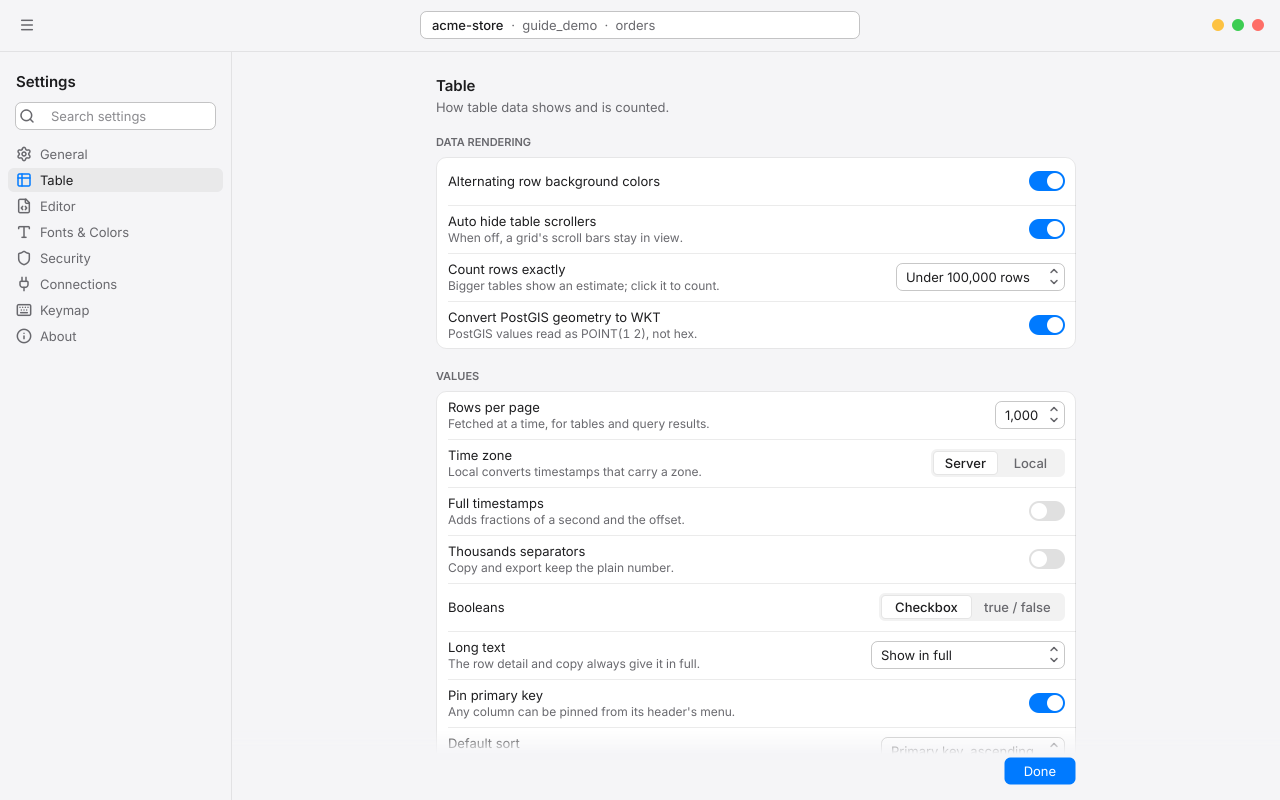
Data Rendering#
Values#
Filters#
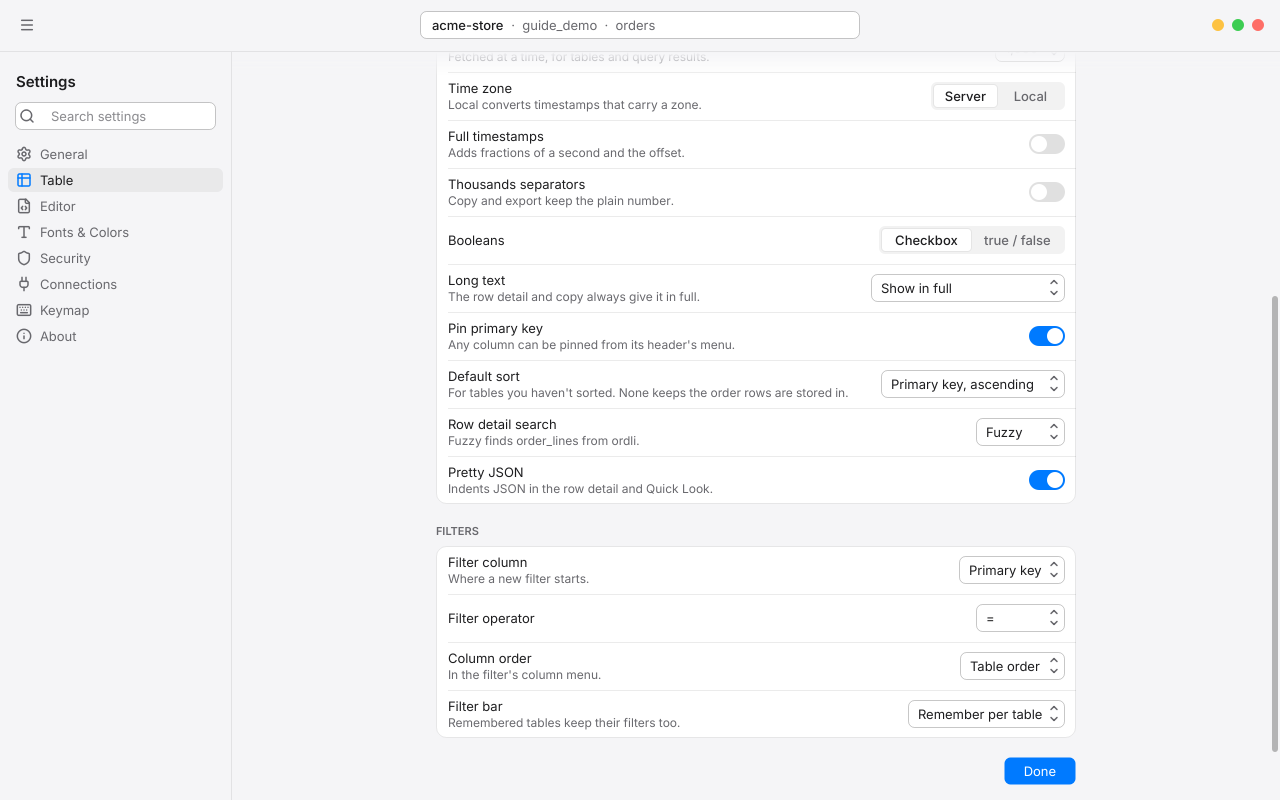
Editor#
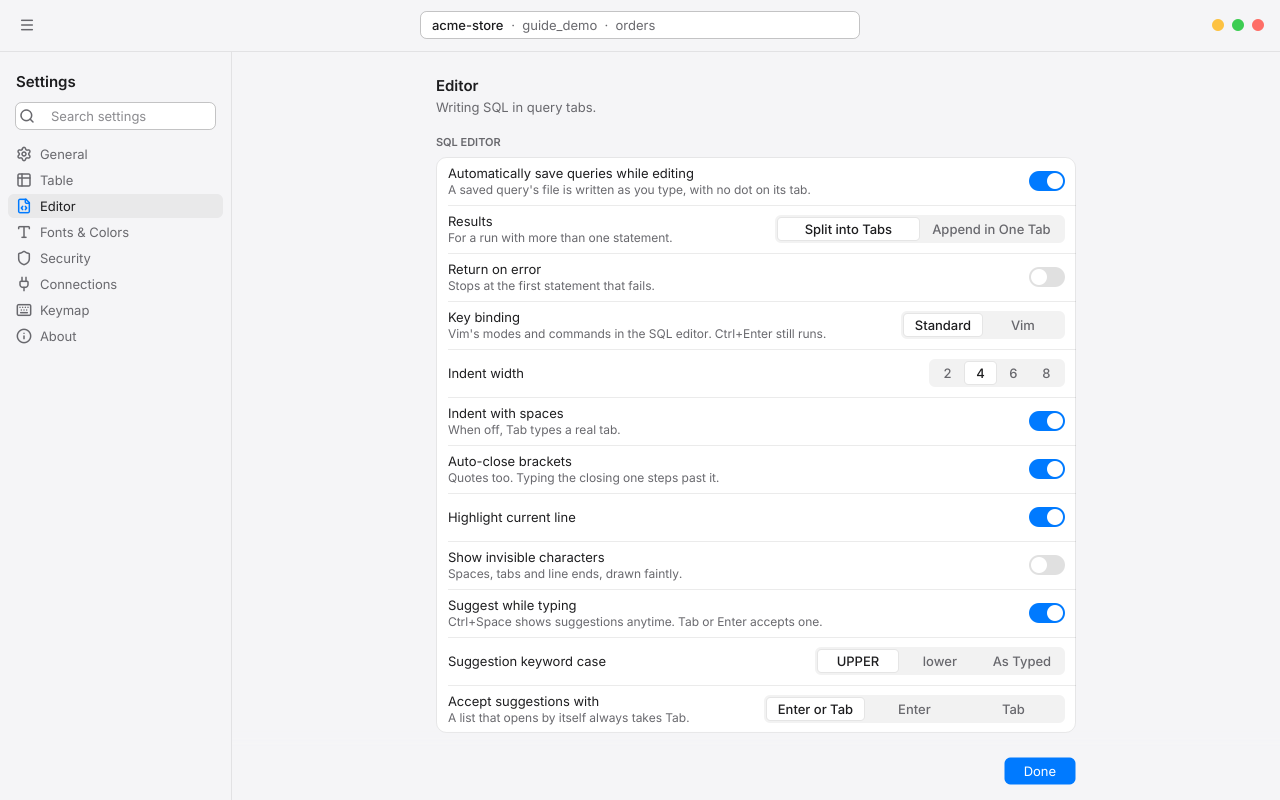
SQL Editor#
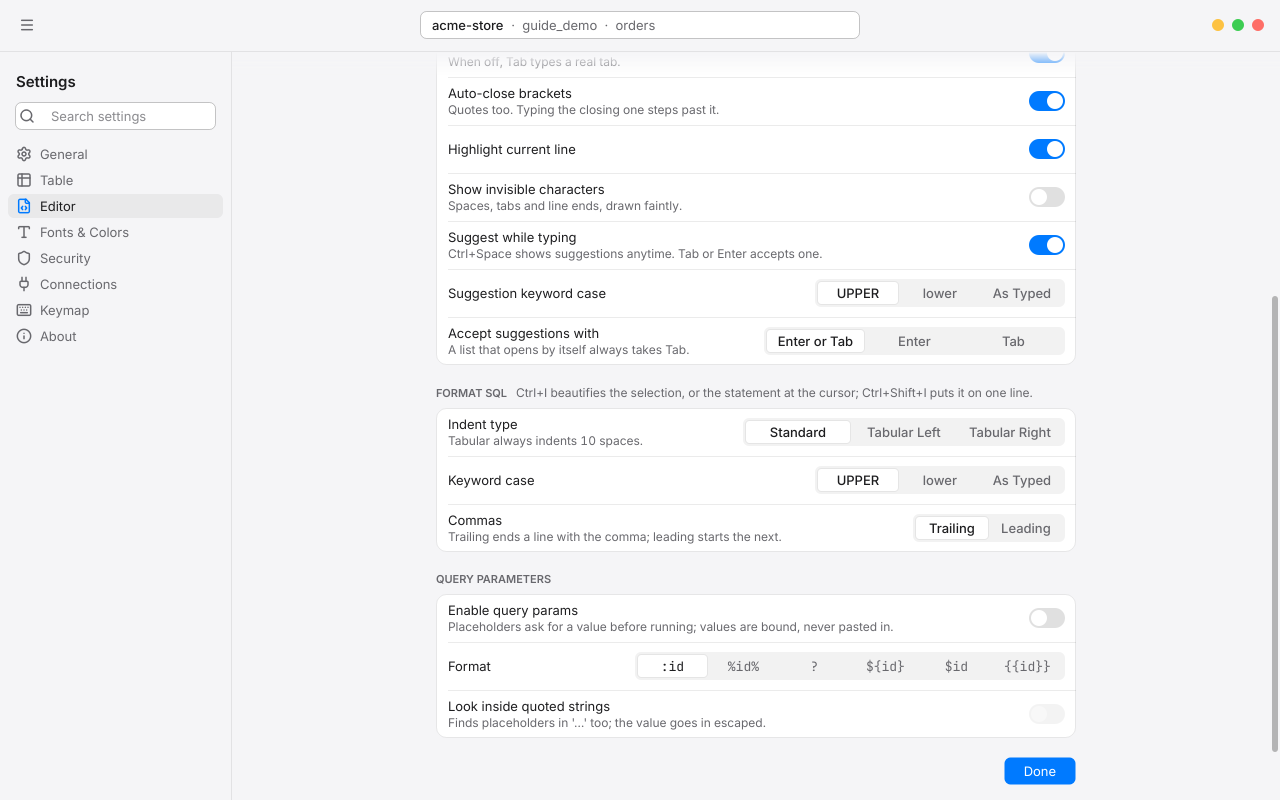
Format SQL#
Query Parameters#
Fonts & Colors#
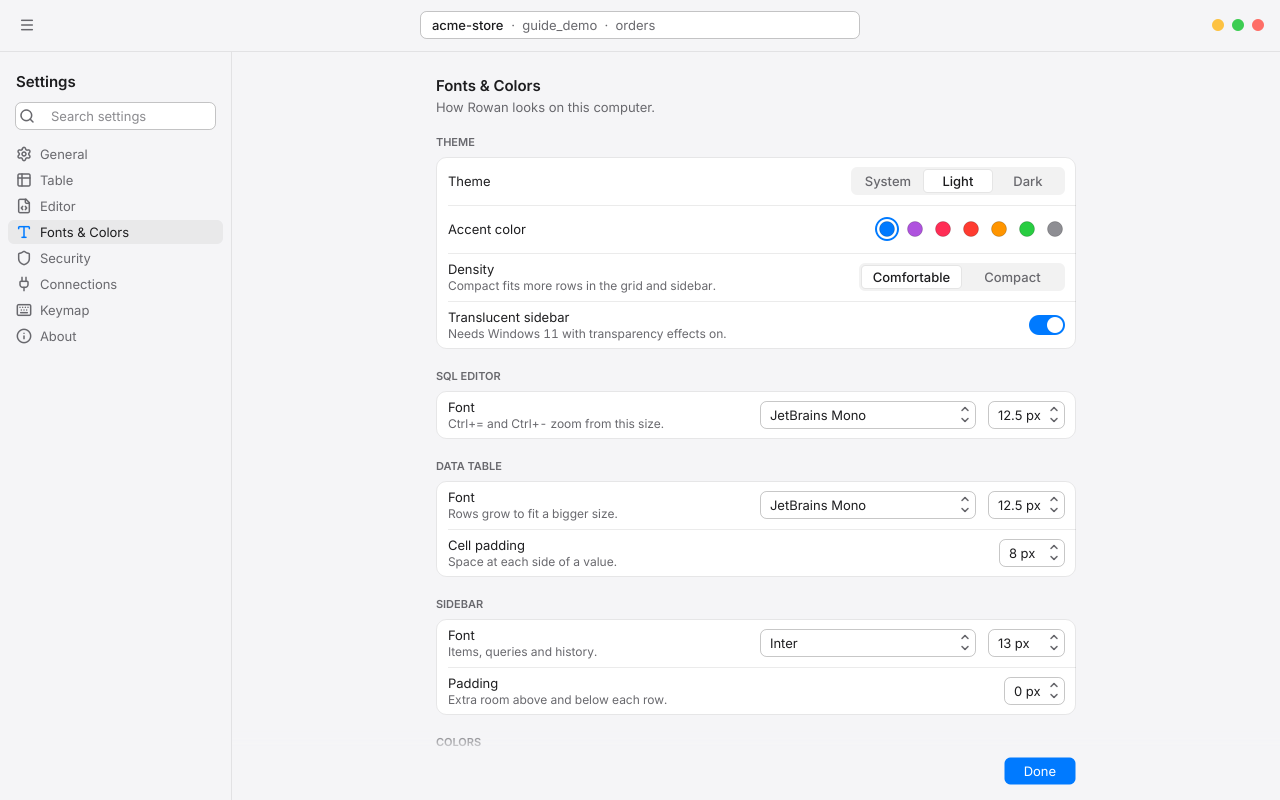
Theme#
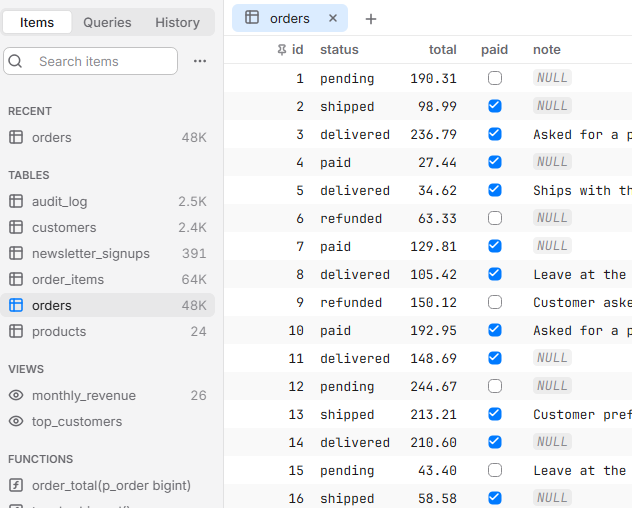
Fonts#
Colors#
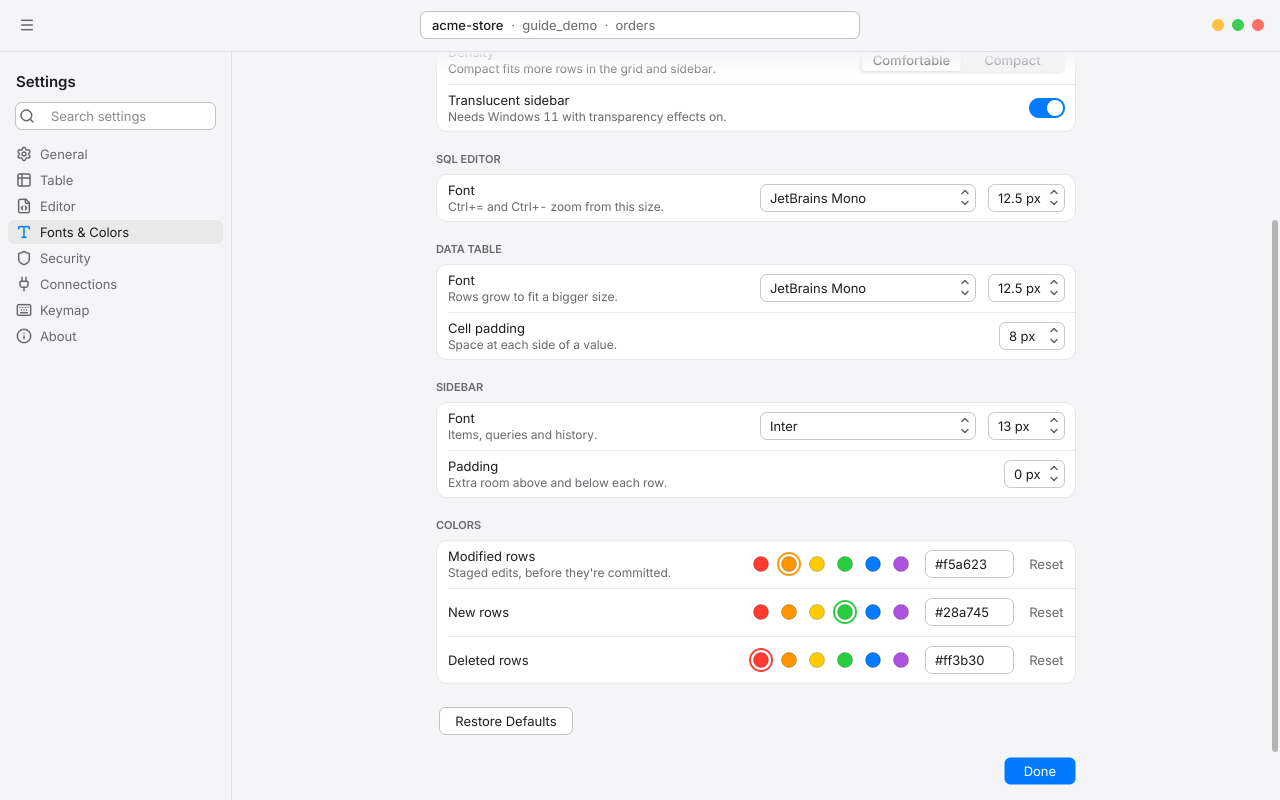
Modified rows, New rows and Deleted rows set the tints for staged edits. Pick a swatch or type a hex color; Reset puts one back. Restore Defaults puts every font, size, padding and tint back, and leaves the theme and accent as they are.
Security#
Connections#
Connection Sources#
Where the welcome window's connections come from. Local is this computer. Add Source… adds a folder, for example one in Dropbox or OneDrive that your team shares; its connections appear in the welcome list under a group with the source's name.
- Rename a source in place, change its Folder…, or Remove it. Removing takes it off the list; its folder and files stay where they are.
- A connection is kept in the file of the group it's in, so dragging a connection into or out of a source's group moves it between files.
Queries and History#
The folder that holds your saved queries (its Queries folder), your history and your open tabs. Choose Choose…, or type a path and press Enter, to move them, for example to a synced folder. If the new folder has none of its own, what's there now moves along. Restore Default goes back to Rowan's own folder.
Keymap#
Every command and its shortcut, by area, with a search field. Click a shortcut to change it. See Change a shortcut.
About#
Rowan's version and build date, Copy Build Info for bug reports, and links to tryrowan.app and the Third-Party Licenses. See About Rowan.
Chapter 11
Keyboard shortcuts
Every command in Rowan has a shortcut. These are the defaults; you can change any of them in Settings > Keymap.
Change a shortcut#
- Open Settings (Ctrl,) and choose Keymap.
- Find the command by name or by its keys with Search shortcuts.
- Click its shortcut. When it reads Type shortcut…, press the new keys.
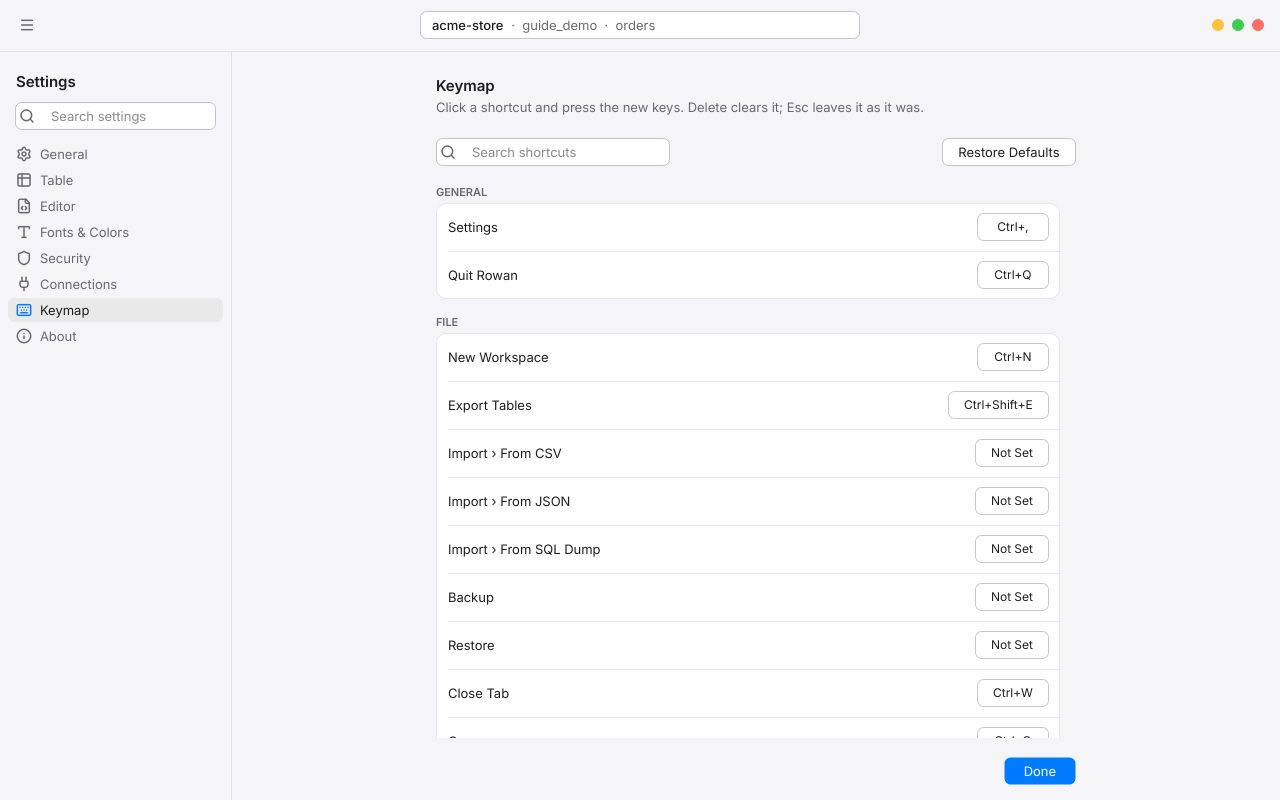
- A shortcut needs Ctrl or Alt, unless it's a function key such as F5.
- Delete or Backspace clears a shortcut; Esc leaves it as it was. Reset beside a changed shortcut puts back its default, and Restore Defaults puts back all of them.
- If the keys already belong to another command, Rowan asks whether to move them. The other command is left without a shortcut until you give it one.
- Changes apply at once, in every window, menu and tooltip.
Some shortcuts do different things in different places. CtrlI adds a row in the grid and beautifies SQL in the editor, and CtrlF opens filters in the grid and Find in the editor.
On keyboard layouts where CtrlAlt types characters, such as German or Polish, typing in a text field always wins: CtrlAlt with a key that types a character types it.
App#
| Shortcut | Action |
|---|---|
| Ctrl, | Settings |
| CtrlN | New window (the connection list) |
| CtrlO | Open a .sql file |
| CtrlShiftO | New SQL Viewer |
| CtrlShift/ | Report Bug & Feedback |
| CtrlQ | Quit Rowan |
Workspace#
| Shortcut | Action |
|---|---|
| CtrlP | Open Anything |
| CtrlK | Open a database |
| CtrlShiftK | Open a connection |
| CtrlE | New SQL editor tab |
| CtrlT | New tab |
| CtrlW | Close tab |
| CtrlShiftT | Reopen closed tab |
| F2 | Rename tab |
| CtrlS | Commit; with nothing pending, save the SQL editor's query |
| CtrlShiftP | Preview pending SQL |
| CtrlShiftDelete | Discard pending changes |
| CtrlZ | Undo |
| CtrlShiftZ or CtrlY | Redo |
| CtrlR | Reload workspace (data and schema) |
| CtrlAltR | Reload current tab |
| CtrlShiftR | Reconnect |
| CtrlAlt. | Disconnect |
| Ctrl. | Process list, with your running query selected |
| CtrlShiftE | Export tables |
Navigate#
| Shortcut | Action |
|---|---|
| Ctrl] or CtrlTab | Next tab |
| Ctrl[ or CtrlShiftTab | Previous tab |
| Ctrl1 … Ctrl9 | Tab by position |
| CtrlAlt] / CtrlAlt[ in the editor | Next / previous pane |
| CtrlShiftD | Split pane right |
| CtrlShift] / CtrlShift[ | Next / previous workspace |
| CtrlShift\ | Show all workspaces |
| AltLeft / AltRight | Back / forward |
| CtrlAlt[ / CtrlAlt] in a table tab | Show data / structure |
Panels#
| Shortcut | Action |
|---|---|
| Ctrl0 | Toggle left sidebar |
| Space (grid focused) | Toggle right sidebar |
| CtrlAltC | Toggle console log |
| Ctrl` | Toggle results pane |
| CtrlShiftF | Search the left sidebar |
| CtrlShiftH | Search query history |
| F11 | Full screen |
Sidebar#
| Shortcut | Action |
|---|---|
| Space | Open selected item |
| Delete | Delete selected tables (staged) |
| AltDelete | Truncate selected tables (staged) |
Grid#
| Shortcut | Action |
|---|---|
| CtrlI | Add row |
| CtrlD | Duplicate rows |
| CtrlC | Copy rows |
| CtrlShiftC | Copy selected cells |
| CtrlV | Paste rows |
| CtrlShiftV | Paste into selected cells |
| Delete | Delete rows |
| Enter | Edit cell |
| Tab | Next cell; while editing, save and edit the next cell |
| CtrlEnter or middle-click | Quick Look |
| CtrlShiftO in Quick Look | Open in window |
| AltEnter or Alt-click | Set Value menu |
| CtrlUp / CtrlDown | First / last row |
| CtrlLeft / CtrlRight | Previous / next page |
| CtrlF | Filters |
| CtrlAltF | Column filter |
| CtrlAltS | Sort by several columns |
| CtrlG | Limit and Offset |
| Esc | Deselect, or close Quick Look |
Filter bar#
| Shortcut | Action |
|---|---|
| Enter | Apply this filter |
| CtrlEnter | Apply all checked filters |
| CtrlI / CtrlShiftI | Add / remove a filter |
| CtrlB | Check or uncheck a filter |
| Esc | Clear the value; again to hide the bar |
SQL editor#
| Shortcut | Action |
|---|---|
| CtrlEnter | Run current statement or selection |
| CtrlShiftEnter | Run all |
| CtrlI / CtrlShiftI | Beautify / uglify |
| Ctrl/ | Line comment |
| CtrlAlt/ | Block comment |
| Ctrl= / Ctrl- | Larger / smaller text |
| CtrlF | Find |
| CtrlH | Find and replace |
| F3 or CtrlG | Find next |
| ShiftF3 or CtrlShiftG | Find previous |
| CtrlShiftS | Save to a .sql file |
| CtrlSpace | Show suggestions |
| Esc | Hide suggestions; back to one caret |
| Ctrl-click | Add a caret |
| Alt-drag | Rectangular selection |
| CtrlAltUp / CtrlAltDown | Caret above / below |
| CtrlD | Select next occurrence |
| CtrlShiftL | Select all occurrences |
| CtrlF on a result | Search and replace in the result |
Chapter 12
Troubleshooting and FAQ
Answers to common questions, what Rowan's error messages mean, where it keeps your files, and how to report a problem.
Connection errors#
Rowan reports why a connection failed in plain words. See If a connection fails for the common messages and what to check. A few more situations:
SSH errors#
For an SSH connection, Test reports the SSH step and the PostgreSQL step separately. Show Details lists each step of the SSH sign-in.
| Message | What it means |
|---|---|
| Couldn't find the host name. | The SSH host name doesn't resolve. Check its spelling, your network and VPN. |
| Host refused the connection on port 22. | Nothing is listening there. Check the SSH port, and that the SSH server is running. |
| Host didn't answer on port 22 within the time. | A firewall may be dropping the connection, or the host is down. |
| Host didn't answer as an SSH server. | Something else is on that port. Check the port number. |
| Host only signs in with a key. | Set Sign In With to Key, and pick the key, or leave it empty to use your agent and usual keys. |
| Host doesn't take keys; it signs in with a password. | Set Sign In With to Password. |
| The SSH password for user was turned down. | Check the SSH user and password. |
| The key file couldn't be read. | The key needs its passphrase, or the passphrase is wrong. |
| The server turned down the key file. | The key isn't authorized for that SSH user on the server. |
| No key signed in. | None of the keys in your agent, ~/.ssh/config or the usual places was accepted. |
| The host key for host has changed. | The server's key isn't the one Rowan saved. See If a host key changes. |
| The host key is marked revoked. | Your known_hosts marks this key as revoked, so Rowan won't connect. |
The SSH & Bash script log#
For stubborn problems, choose Help > Enable SSH & Bash Script Log, try again, then choose Help > Show SSH & Bash Script Log. The log lists each SSH step and its result, and each password command's exit code and error output. It never contains a password.
Where Rowan keeps its files#
Rowan keeps its data in its own folder in your Windows profile: %APPDATA%\Rowan\Rowan for a regular install. Installed from the Microsoft Store, Rowan keeps its data in the app's own storage instead. Either way, right-click a saved query and choose Show in Explorer to open its Queries folder there.
| What | Where |
|---|---|
| Connections | connections.json in Rowan's folder, plus the connections.json of any connection source you've added. Passwords aren't in it. |
| Passwords and the passcode | Windows Credential Manager, under Rowan. |
| Saved queries | The Queries folder: one folder per connection, plus All Connections, as plain .sql files. |
| History and open tabs | history.sqlite. |
| Metrics Boards | metrics-boards.json. |
| Vim settings | rowan.vimrc. |
| SSH host keys | Rowan's own known_hosts file. Your ~/.ssh/known_hosts is read but never changed. |
| SSH & Bash script log | ssh-and-script.log, when turned on. |
To keep saved queries, history and open tabs somewhere else, such as a synced folder, change Queries and History in Settings > Connections. Rowan moves what's there for you.
To move to a new PC, export your connections from the welcome window, and copy the Queries folder. See Import and export connections.
Performance tips#
- Big tables are fine. Rowan pages by primary key, so scrolling and jumping through millions of rows stays quick. Tables without a usable key page by offset, which slows down deep into a huge table; a primary key helps.
- Counting is the slow part. Exact counts on huge tables take a full scan, so Rowan shows an estimate until you ask. Leave Count rows exactly at its default in Settings > Table.
- Keep the row limit. The editor's row limit stops a careless
SELECT *from fetching millions of rows. Raise it, or use Load More, when you need more. - Many schemas? Turn on Lazy Load Items in Schema in the sidebar's ⋯ menu, so Rowan reads each schema's items only when you show it.
- Long-running work, like exports and backups, runs in the background on its own connection; there's no need to wait for it.
- Charts draw up to 100,000 rows. Group or filter in the query for more.
Frequently asked questions#
Why didn't my edit change the database?#
Edits are staged until you commit them. Press CtrlS or click Commit. See How changes are staged.
Why can't I edit this table?#
It has no primary key, the connection is read-only, or it's a view. Rowan says which above the grid. For query results, double-click a cell to see why it can't be edited.
Does Rowan work with MySQL or SQLite?#
Not yet. Rowan is built for PostgreSQL, and works with anything that speaks the PostgreSQL protocol.
I closed a tab by mistake.#
Press CtrlShiftT to reopen it, with its text. Editor tabs are saved as you type.
Can I undo a commit?#
Not automatically, since it's in the database. History keeps every commit's statements and the old values of the rows it changed, so you can put them back by hand.
How do I switch between light and dark?#
Rowan follows Windows. To choose yourself, open Settings > Fonts & Colors and set Theme.
Report a bug#
If something isn't right, we'd like to hear about it.
- Choose Help > Report Bug & Feedback… (CtrlShift/). Rowan opens the support page with your build details already filled in.
- Describe what you did, what you expected, and what happened instead. A screenshot helps.
To copy the build details yourself, open Settings > About and choose Copy Build Info. It copies Rowan's version and build date, the Qt version, your Windows version and the PostgreSQL client library version.
Rowan for Postgres 0.1.0 (built 2026-11-10)
Qt 6.11.1
Windows 11 Version 25H2 (x86_64)
libpq 17.5
Chapter 13
About Rowan
Rowan for Postgres is made by Jeffrey Frederick. This chapter covers where to find your version, and the open source software and fonts Rowan is built with.
Version and build#
Open Settings > About to see your version and build date, or choose Help > About Rowan.
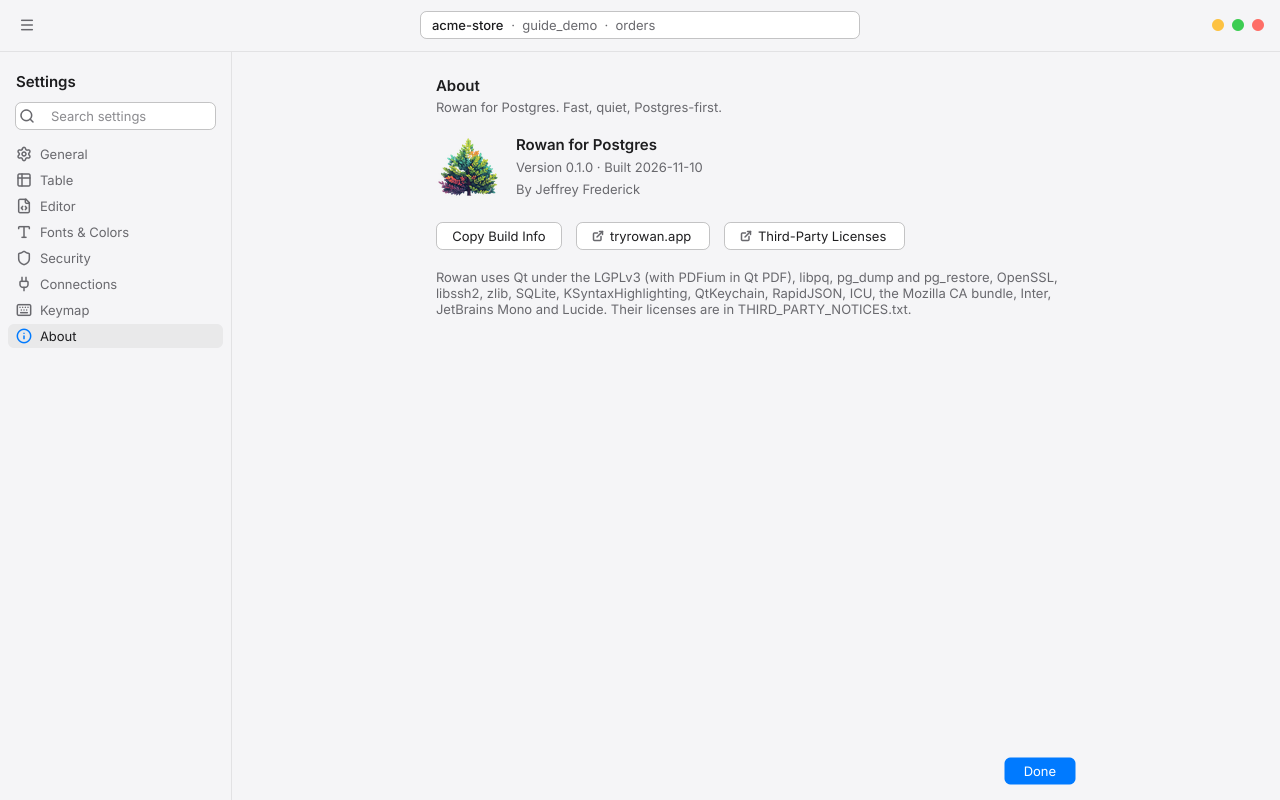
- Copy Build Info copies the details a bug report needs. See Report a bug.
- tryrowan.app opens Rowan's website. Help > Changelogs lists what's new in each version.
- Third-Party Licenses opens the full license notices that come with Rowan.
Rowan updates through the Microsoft Store.
Third-party software#
Rowan is built with these open source components. Their full licenses are in Third-Party Licenses in Settings > About.
| Component | Used for | License |
|---|---|---|
| Qt 6 | The app framework (Core, Gui, Widgets, Concurrent, Network, Svg, Pdf, PdfWidgets), linked dynamically | LGPL v3 |
| PDFium, in Qt PDF | Previewing PDFs in Quick Look | BSD 3-Clause, with permissive parts |
| libpq | Talking to PostgreSQL | PostgreSQL License |
| pg_dump and pg_restore | Backup and restore | PostgreSQL License |
| OpenSSL 3 | SSL connections | Apache 2.0 |
| Mozilla CA certificate bundle | Verifying server certificates | MPL 2.0 |
| libssh2 | SSH tunnels | BSD 3-Clause |
| QtKeychain | Windows Credential Manager | BSD 3-Clause |
| KSyntaxHighlighting | SQL highlighting | MIT |
| SQLite | History and open tabs | Public domain |
| RapidJSON | JSON imports | MIT |
| zlib | Gzip exports and Excel workbooks | zlib License |
| ICU, built into Windows | Text encodings for imports | Unicode License V3 |
Fonts and icons#
About this guide#
This guide describes Rowan for Postgres on Windows 10 and 11. Screenshots show a sample store database; your own data, and some details of the window, will differ. To read the whole guide on paper or as a PDF, use Print the guide.
Copyright © 2026 Jeffrey Frederick. All rights reserved. Microsoft Store, Windows and Windows 11 are trademarks of Microsoft Corporation. PostgreSQL is a trademark of the PostgreSQL Community Association of Canada.